Swedbank Pay Checkout - Textalk Abicart

What is Swedbank pay?
Swedbank pay is a checkout solution where the customer can choose how to pay for the purchase. The payment methods the customer can choose from are:
- Card
- Swish
- Credit card
- Invoice
To make the customer experience smoother, it is possible for customers to save their details at the checkout so that these do not need to be filled in the next time they make a purchase with Swedbank pay.
What does it cost to use Swedbank pay?
As an Abicart user, you can take advantage of Swedbank's special agreement designed for Abicart users. There are no fixed fees, only transaction fees. The cost is:
- 1,8%
How do I apply for Swedbank pay?
You apply for Swedbank pay from the store's admin, under the Dashboard tab you will find an application form for the payment service. From there you will be redirected to Swedbank's application page where you fill in your company details to complete the agreement.
After Swedbank has reviewed and approved the application, you will receive an email with instructions on how to access Swedbank's own portal and information that needs to be entered into the webshop. In the email there will be a Merchant ID and a Merchant Token, copy these and go to Settings>Payment methods in the store. Click on "Add a new payment method" and select Swedbank Pay Checkout from the list, then paste the information and mark the payment method as "Active".
Add Swedbank Pay in the store
Go to Settings -> Payment methods -> Add new payment method.
Select "Swedbank Pay" in the list and then click "Add". (If Swedbank Pay is not available in the list, contact support and we will activate it for you. )
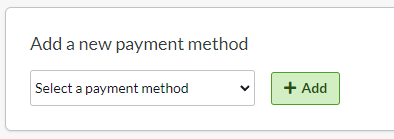
You will then be taken to the settings page.
Status
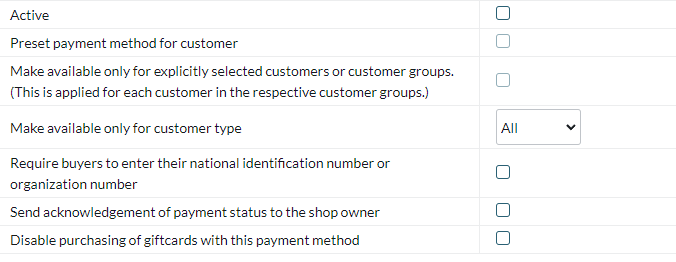
ActiveCheck the box to activate and make the payment method visible in the store.
Default
A setting to make the payment method default in the checkout.
Make available only to those customers or customer groups where I specify it.
If you do not want all customers to be able to use this payment method, you can disable it for non-logged-in customers through this setting. You then go to the respective customer group to activate the payment method there.
Available for customer type
You can set the payment method to be available only for one customer type or all.
Require buyer to enter personal/organization number
Check to make the personal/organization number mandatory at checkout.
Send payment status confirmation to store owner
A setting to enable a separate payment status email for this payment method to be sent to the shop owner.
Turn off the purchase of gift card products with this payment method
Enable a setting to prevent the gift card product type from being purchased with this payment method.
Account
The next block contains fields for Swedbank Pays data found in the Swedbank portal.
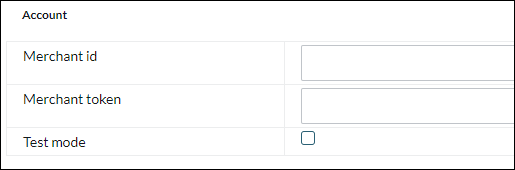

Merchant ID - Your ID given to you by Swedbank Pay.
Merchant token - Information given to you by Swedbank Pay.
Test mode - Activate for test mode
Name and Description
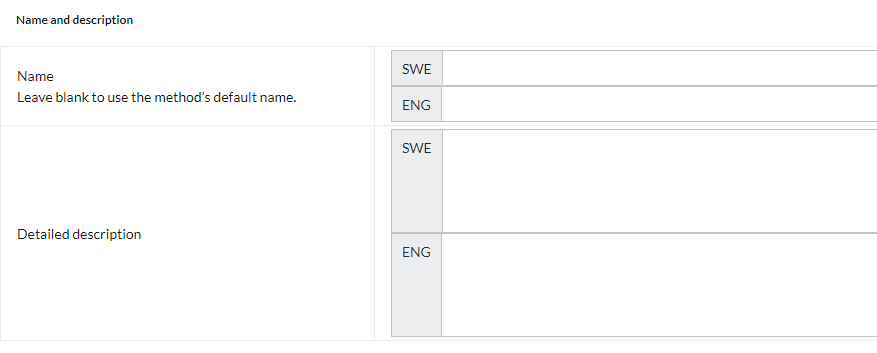
Name
Each payment method has a name that will be displayed in the checkout but if you want to modify this, you can enter a new name in this field. An optional field that can be left blank.
Detailed description
A field to enter a text that informs the buyer about how the payment method works. Can be left empty.
Currencies
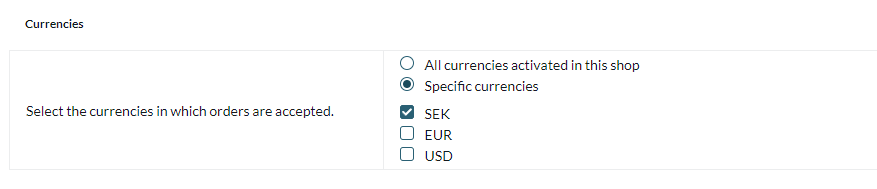
If you have several active currencies in your shop, you can limit these for each payment method. The default setting is "All active currencies in the shop", but if you check "Specific currencies", all active currencies are displayed and you can choose to disable those that should not apply to this payment method.
Countries
The default setting of the payment method is that it applies to all countries to which the shop offers delivery (Settings -> Shipping). If you want to limit a payment method to only certain countries, you can check "Specific countries" and then specify the countries that can use this payment method.

Order status
If you want orders placed via this payment method to have a specific order status, you can enter it here. Select the status from the list.

Restriction on the order total
A setting to limit the amount that a payment method can handle. If you choose to limit the amount between two intervals, it is always the total order value including shipping and other fees.

Fee added at checkout when placing an order
A function to add an additional fee to the purchase, such as a handling fee.
Order management
Every time you receive an order via Swedbank pay, you need to activate the order when you send it to the customer. Go to the order in the store's order list, in the box "Perform actions", make sure that the checkbox "Debit (Swedbank pay checkout)" is checked and then click on the button "Perform selected actions".
When this is done, the order is activated at Swedbank and the customer is debited.
You can also activate the order in the order list. To do this, click on the icon with a lightning bolt at the far right.