Kustom Checkout - Textalk Abicart
What is Kustom Checkout?
Kustom Checkout is a so-called Checkout solution that includes several payment methods: invoice, partial payment, card payment and direct payment.
Your customer can easily choose between different payment methods at checkout. You don't have to send out invoices and keep track of payments. In addition, Klarna takes the entire credit and fraud risk. That means you always get paid - no matter what.
How to apply for Kustom Checkout?
Own domain first
In order to apply for Kustom Checkout, it is a requirement from our side that the store has its own domain, so you should not apply with the auto-generated domain you get when creating a demo store with us.
Apply via the dashboard in Abicart Admin
Step 1: Apply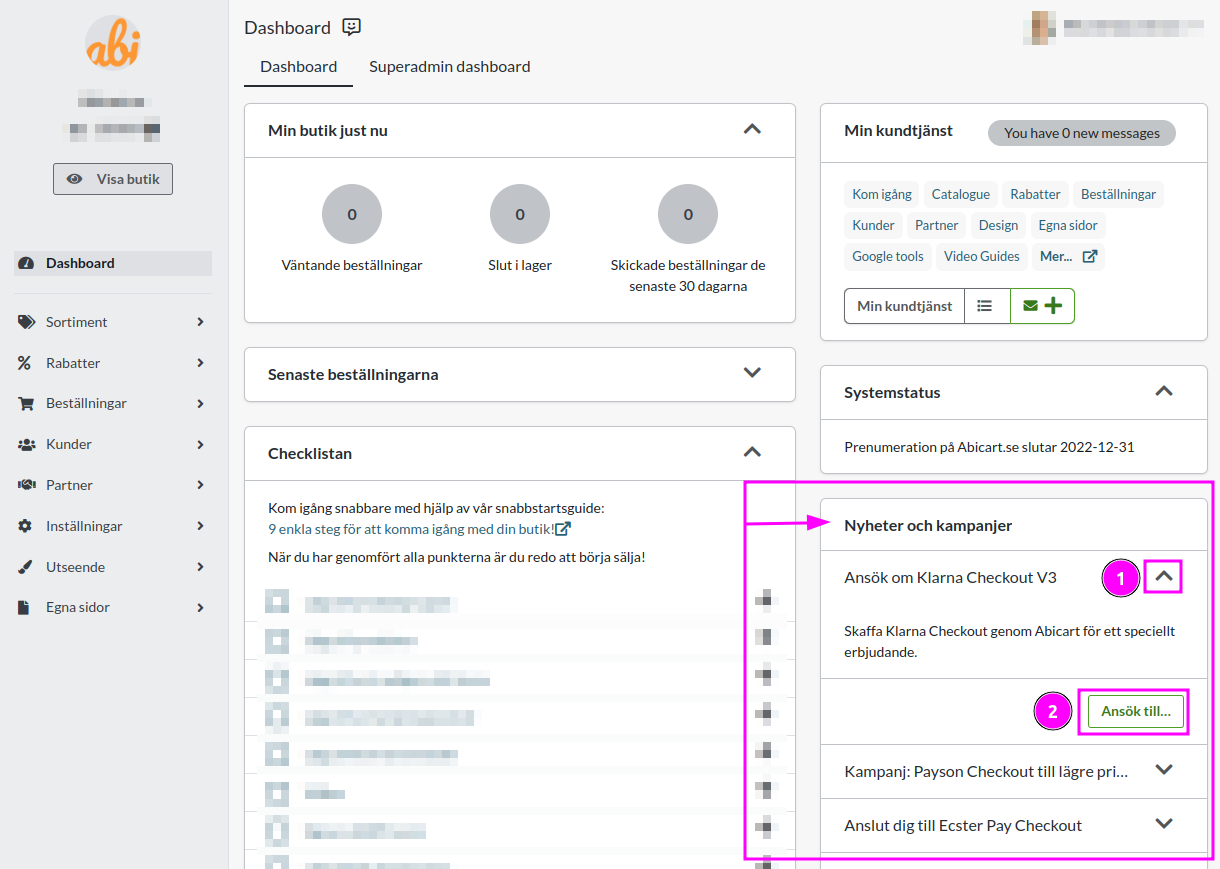
Step 2: Apply
After you have completed step 1, a KYC form (Know Your Customer) will appear in the same box in admin where you started the application, where you need to provide additional information to complete the agreement. If there is any information missing from the initial form, these will also need to be filled in.
You will also need to provide bank details needed for payments, this is also done in our admin under Dashboard in connection with the AML form.
Step 3
When Kustom has reviewed the application and this is approved (should take about 24 hours), the payment method will be automatically added to the store, you will find settings for Kustom Checkout under Settings>Payment method. What you need to do to proceed is to place an order with Kustom Checkout as the payment method and set this order as paid in the order list in the webshop. After placing the test order, you should deactivate Kustom Checkout and reactivate the payment method after step 4 is completed. The payment method needs to be activated in order for it to be visible in the store. This is done under Settings -> Payment methods -> Kustom Checkout. 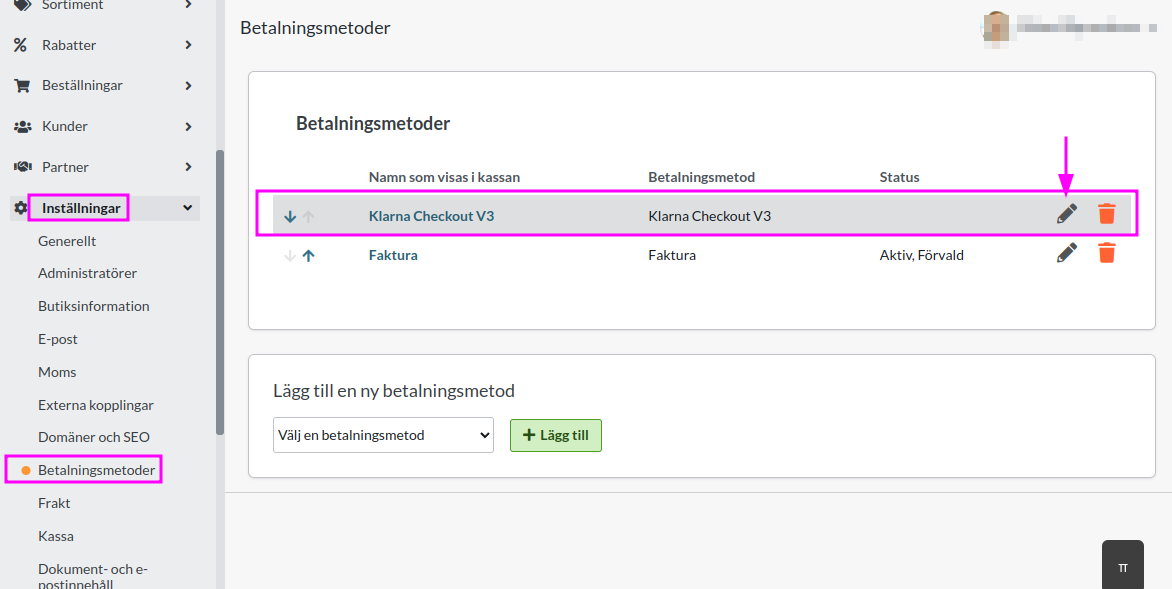 #### Step 4 About 24 hours after the test order has been set as paid, Kustom will have accepted the application, this will also appear a note about this in admin. Your store can now take payment with Kustom Checkout as payment method!
What does it cost to use Kustom Checkout?
There are no fixed monthly costs or start-up fees with Kustom Checkout, but there is only a transaction fee per order completed with the payment method. This transaction fee is determined by the subscription you have with us.
Managing orders with Kustom Checkout
Every time you receive an order via Kustom Checkout, you need to activate the order when you send it to the customer. Go into the order, in the "Perform actions" box, make sure the "Charge (Kustom Checkout)" checkbox is selected and then click the "Perform selected actions" button.
When this is done, the order is activated at Kustom and the customer is charged, or the invoice is sent to the customer.
You can also activate the order in the order list. Then click on the icon with a lightning bolt at the far right.
Cancel a Kustom Checkout order
If a customer has changed their mind and you want to cancel the entire purchase, you can cancel the order. Go to "Orders", click on the order in question and then click on the cancel button in the top right corner. Then the order will be shredded in the store and a signal will also be sent to Kustom, which will shred the order there as well.
It is not possible to partially cancel an order from the webshop, but this must be done in Kustom's portal. If you have a Plus or Pro subscription, it is possible to edit the order total in the webshop's order list.
Kustom Checkout and multi-store system
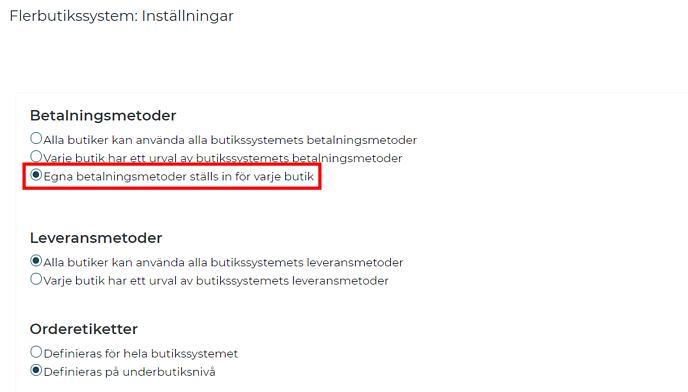
If you want to use Kustom Checkout in one or more stores in a multi-store system, the application needs to be made at the sub-store, not at the top level of the store system. To be able to do this, the setting "Own payment methods are set for each store" needs to be activated. The setting can be found under Store system -> Settings.
 When you apply for Kustom Checkout, it works for customer type "Private person". Contact Kustom's support to activate it also for customer type "Company". You can apply for Kustom Checkout with a individual company or limited company.