Shipmondo - Textalk Abicart

Integration with Shipmondo TA is included at no extra cost in Abicart Pro.
Things to consider before activating the integration:
- Weight must be entered on all products. We cannot export orders to Shipmondo without weight.
in addition to the usual details, the following fields are mandatory if you want to create customs documents for exports:
HS Number
Country of Origin
SKU Number
- You must select a package template on the delivery method. Here's more information >>
Get a subscription
Get a subscription on the Shipmondo website: shipmondo.com
Activate the integration
Settings that need to be made at Shipmondo
Log in to your Shipmondo account and go to Settings -> API-Access.
If there are no API details already entered, click on the button "Generate API keys". You will then see a username (API User) and a password (API Key). There is more information on how to do this in the Shipmondo manual.
Settings that need to be made in Abicart
The data created in the step above needs to be entered in the store under Settings -> External connections -> Shipmondo TA. If "Shipmondo TA" is not available under External connections in your store, contact Abicart's customer service and we will activate it for you. 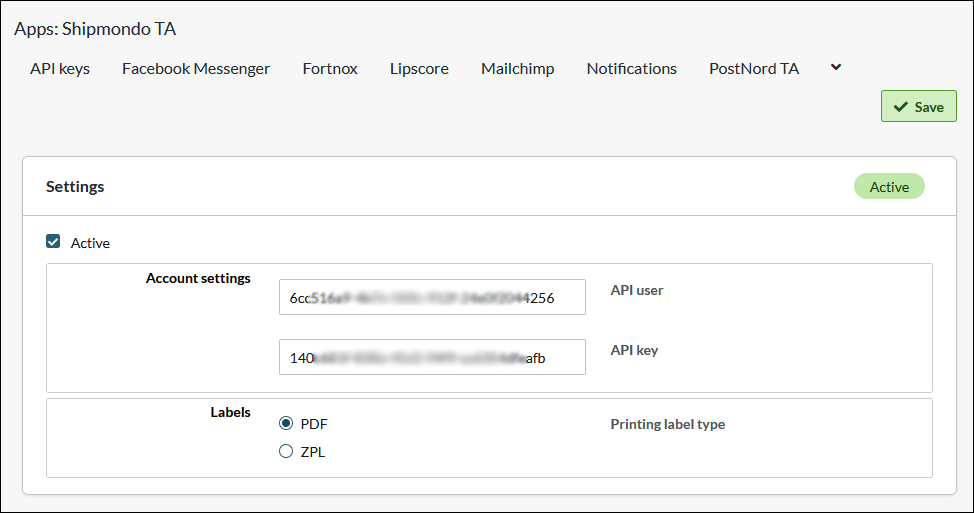
Account settings
API users - Enter data from the "API User" field in Shipmondo.
API Keys - Enter information from the field "API Keys" in Shipmondo.
Labels - Choose whether the label type should be printed as PDF or ZPL.
Settings on the delivery methods
You also need to activate the integration on the delivery methods you want to use Shipmondo. There is a block at the bottom of each delivery method for this. Go to Settings -> Shipping -> select delivery method and click on it to edit.
Scroll down to Shipmondo TA - Event settings. Here there are three different headings:
- Export order
- Export shipment
- Settings
Here you can choose to export the entire order (Export order) or divide each order into different shipments (Export shipment). If you do not use partial delivery or do not know which one to use, we recommend choosing "Export order". You should not have both active at the same time.
Export order
Activation - Recommended setting "The order is registered".
Execution - select "Update directly" when everything is ready.
We recommend that you make the following settings the first time and then click the save button. 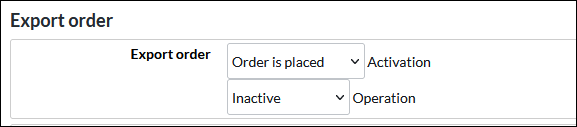
This means that the integration is not activated on the delivery method, but it is possible to select the carrier and set up everything before activating the function.
Then you will see new options for selecting the Carrier. 
Select the carrier you want to use and then click the save button again.
Then a new setting for Transport service will appear.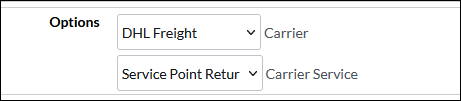
Select the transportation service and click the save button again.
A new setting for Package type will appear. 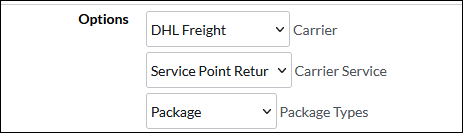
The box under package type is a setting for using your own agreement with the carrier when booking a delivery. If you do not check the box, the Shipmondo agreement is the default.
When all the settings above are done, do not forget to activate the export of the orders by selecting "Update directly" at "Run" and save.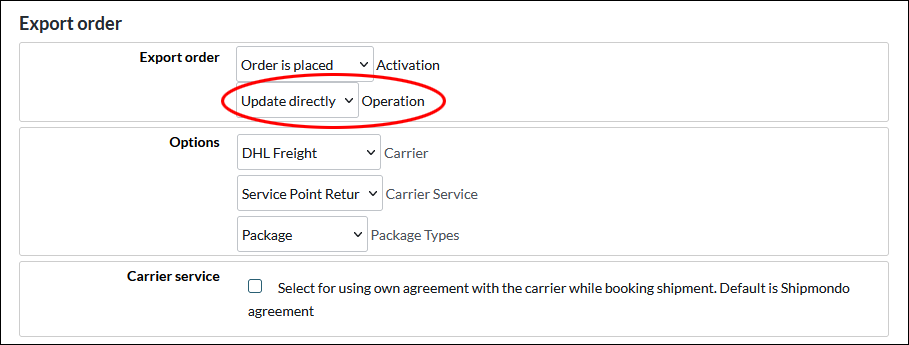
Export shipment
Activation - Recommended setting "Shipment is sent".
Execution - select "Update immediately" when everything is ready.
We recommend that you make the following settings the first time and then click the save button. This means that the integration is not activated on the delivery method, but it is possible to select the carrier and set up everything before activating the function.
Then you will see new options for selecting the Carrier.
Select the carrier you want to use and then click the save button again.
Then a new setting for Transport service will appear.
Select the transportation service and click the save button again.
A new setting for Package type will appear.
The box under package type is a setting for using your own agreement with the carrier when booking a delivery. If you do not check the box, the Shipmondo agreement is the default.
When all the settings above are done, do not forget to activate the export of the orders by selecting "Update directly" at "Run" and save.
Settings block
In this block, the settings may look slightly different depending on the transport service you have chosen. Each transport service offers different settings for delivery points and services. We list the ones available in your Shipmondo account and/or the selected transport service.
Services
To send the tracking number from Shipmondo to the recipient, tick "Personalised e-mail" and "Personalised SMS". Then follow Shipmondo's instructions: Link to manual.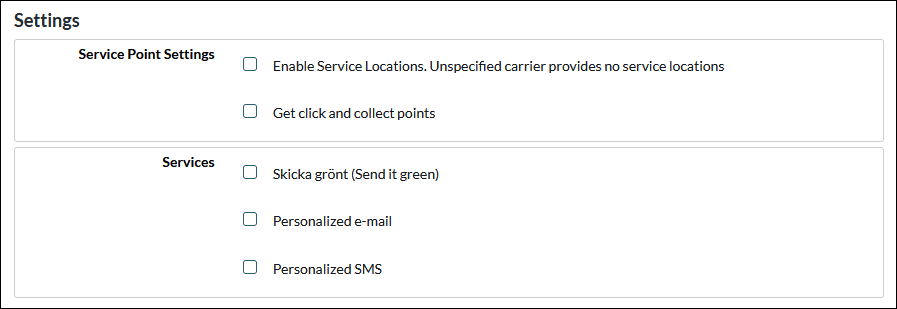
Shipping Templates: Abicart & Shipmondo Integration
Shipmondo allows only one shipping country per shipping method. If you need multiple countries or configurations, use Shipping Templates. This two-step process lets you define as many templates as you need in Shipmondo, then import and assign them in Abicart.
Step 1: Create Shipping Templates in Shipmondo
Log in to your Shipmondo account.
Navigate to Shipments → Templates.
Click + New template and configure:
Sender country
Delivery country
Weight ranges
Package dimensions / types
Carrier settings
Save each template.
Read more about shipment templates:
https://help.shipmondo.com/en/articles/1834976-shipment-templates
Step 2: Activate & Assign in Abicart
2.1 Enable Shipping Templates
In Abicart, go to Settings → External Connection → Shipmondo TA.
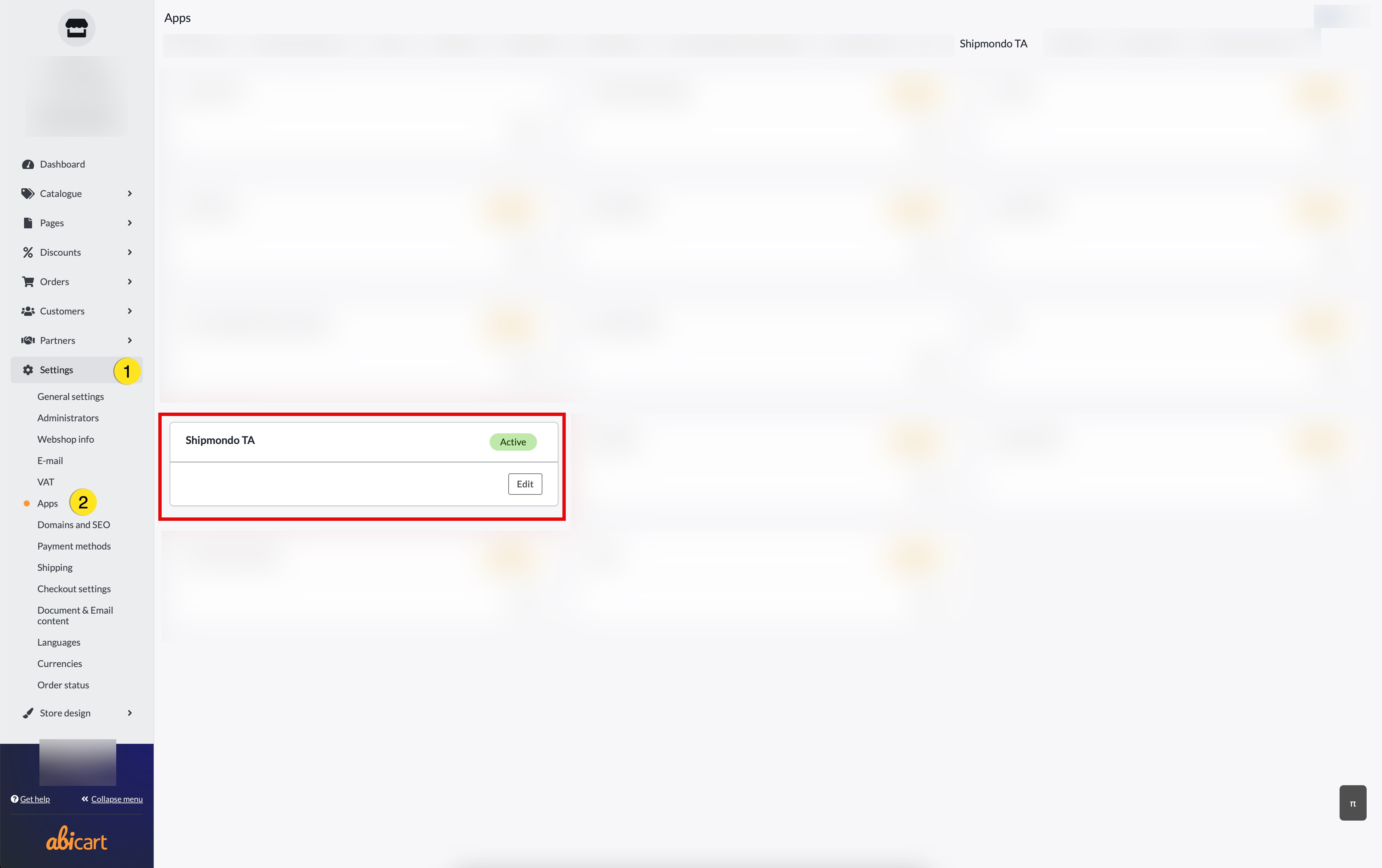
Toggle Activate Shipping Templates.
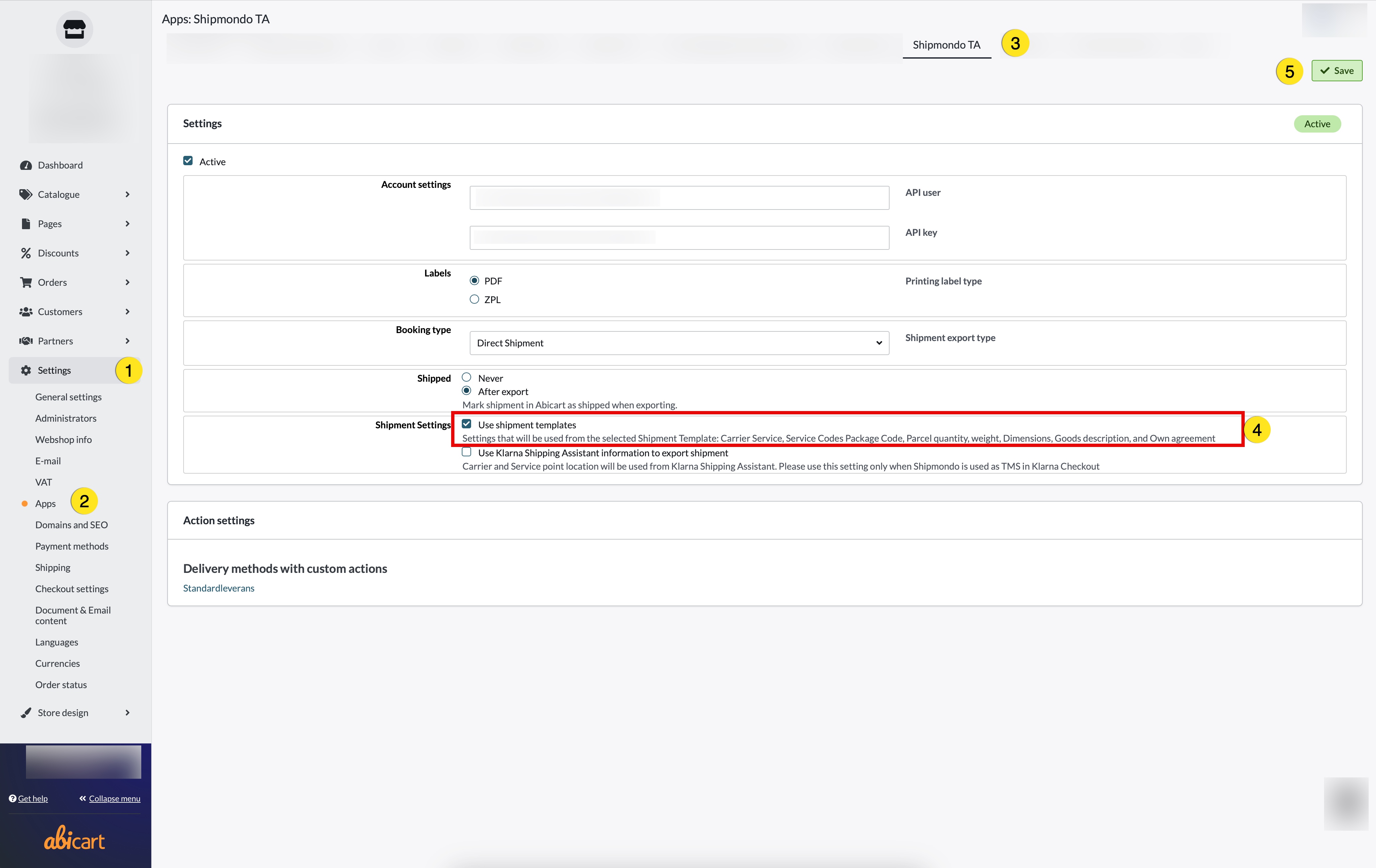
Click Save.
All your Shipmondo templates will now be imported.
2.2 Assign Templates to Shipping Methods
Go to Settings → Shipping → Edit shipping methods.
Choose the method you want to link (e.g. “Standard Shipping”).
Under Shipmondo TA → Action Settings, select one or more of the imported templates.
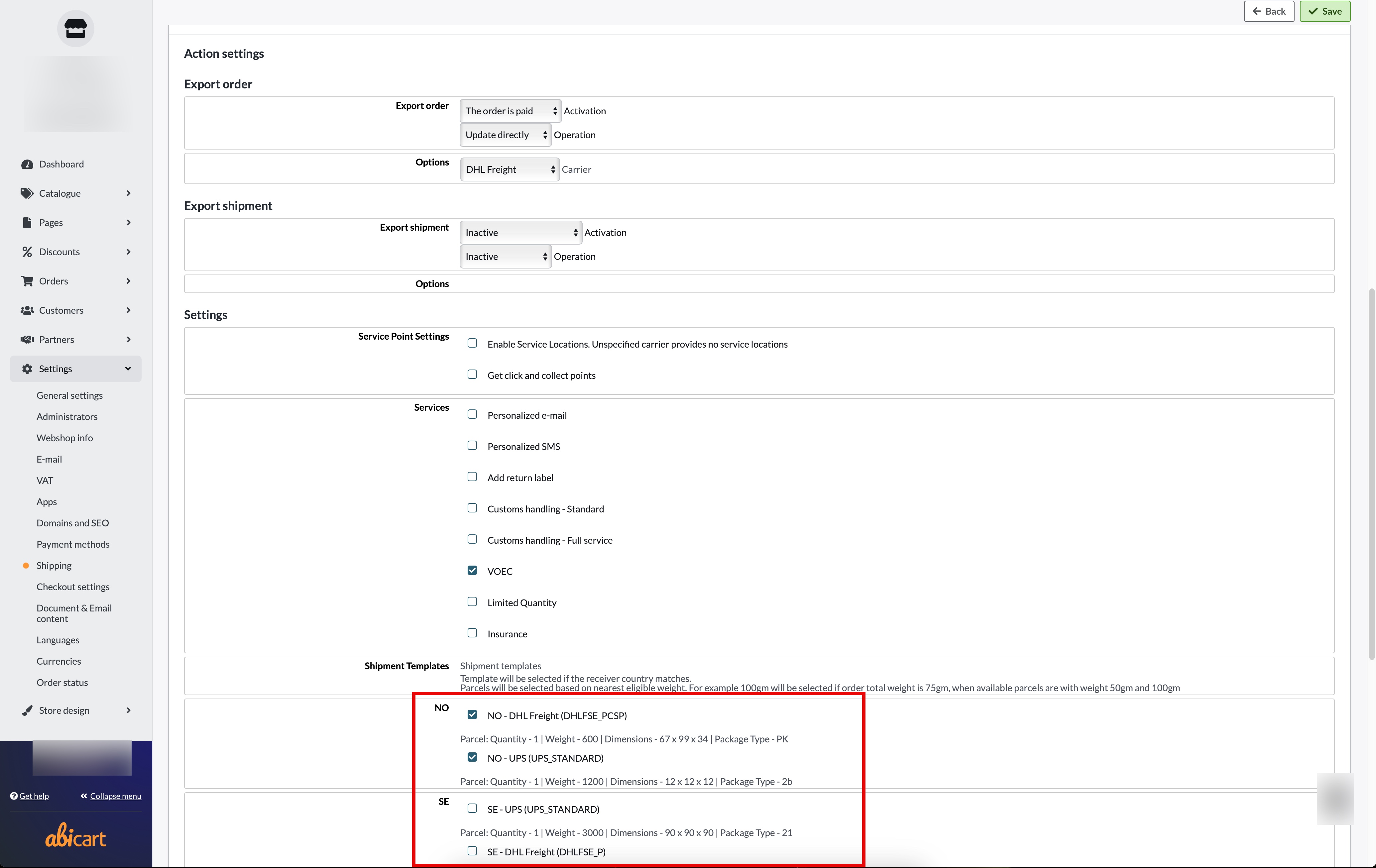
Click Save.
How It Works
When an order is placed, Abicart cross-references:
Order weight
Shipping country
Delivery country
Package type / dimensions
…with your selected Shipping Template. The matched template’s settings are then exported to Shipmondo for label creation and rate calculation.
Restrictions & Best Practices
One carrier per shipping method
Templates only apply to the carrier chosen in the method’s settings—no mixing between carriers.Best-fit template by weight
If multiple templates exist for the same country, Abicart picks the one whose weight-range best matches the order.Package types
Only consider the package types you’ve added (up to 2 types per method).
Summary
Create all required templates in Shipmondo (Shipments → Templates).
Activate Shipping Templates in Abicart (Settings → External Connection → Shipmondo TA).
Assign each template to your Abicart shipping methods (Settings → Shipping → Edit shipping methods → Shipmondo TA).
Your store can now support multiple countries, weight-based rates and custom packaging rules—automatically handled via your Shipmondo templates.