Integration with nShift Delivery (formerly Unifaun Online) - Textalk Abicart

What is nShift Delivery?
nShift Delivery is a complete, secure, web-based transportation management system that manages all your shipments and carriers in one place.
- You'll get your labels, shipping documents, customs documents, shipment lists, reports, etc. printed out.
- EDI is automatically sent to your carriers.
For more information about nShift Delivery, visit their website here >>
Please note that all items must have a weight in order for the orders to be exported to nShift Delivery. You can either enter weight manually on each item or via import. If you need help, please contact our support.
Which shipping services are supported?
- DB Schenker
- DHL Express
- DHL Freight
- PostNord Sverige AB
- PostNord Letters
We will build in more shipping services as we go along.
How do I connect to nShift Delivery?
Click here to order the service. If you have any questions or need help with the registration, the easiest way is to call nShift directly: +46 10 55 17 676.
Activation of the service
Once you have been connected to the service, you will receive login details for nShift Delivery from nShift.
Enter the sender
Log in to Unifaun Online here: https://www.unifaunonline.com/
Go to Maintenance -> Sender
In the "Quick search value" field, enter your store ID number in Abicart. You will find this in the top left corner when you are logged into the store admin.
Fill in the rest of the fields.
Further down the page, you should choose which carrier(s) you will use.
In the"Customer number" field, enter your customer number with the selected carrier.
If you are unsure what to enter in any of the fields, please contact nShift customer service for more information
Create API keys
Go to Maintenance -> API Keys in the left menu. Click on the "New API Key" button.
Fields for API keys
Status - Select "Active" to activate the API key.
Type - Check only "Web Service calls (REST)"
Note - You can enter anything in this field, but to know which integration the API key applies to, you should write "Abicart Integration" or similar.
Valid IP addresses - This field must be empty.
Email - Enter the email address you registered your Unifaun Online account with.
Developer ID - This is your "User ID" at Unifaun Online. The one you log in with.
Then click on the "Finish" button.
Now the following page appears and it is the "Combined ID" field to be used in the store settings.
Settings in the store
Log in to your store and go to Settings -> External connections -> Unifaun Online.
Under the heading "Account Settings", enter the "Combined ID" (as we created above) and also your store ID (in the "Sender Quick Search Value" field). Don't forget to check the "Active" box at the top.
Print target - Make the print settings you want.
Booking - Choose whether the booking should be stored or booked directly in Unifaun Online.
Sent - You can also choose whether the order should be marked as sent or not in the store.
Hide content - You can choose to hide the content of the package label.
Activate nShift Delivery on the delivery methods
Go to Settings -> Shipping and delivery -> select delivery method, edit. Then scroll down the page to "Event settings Unifaun Online".
Export order - Choose when to export the order to Unifaun Online. When the order is placed, when it is marked as paid or manually (export button on the order). If "inactive" is selected, the Unifaun integration is not active for this delivery method.
The "Execution" field should always have the setting "Update directly".
Note that if you want to use"Partial delivery", you must select "Inactive" on "Export order". You will then use the "Export shipment" setting instead.
Option - In this field you choose which carrier and transport template you want to use for the selected delivery method. In our example in the picture above, we have chosen "PostNord Parcel SE".
Export shipment - If you intend to use the"Partial delivery" function, select "The shipment is sent" under "Activation". The "Run" field should have the setting "Update directly".
If you do not want to use partial delivery, select "Inactive" on both activation and execution as shown above.
Option - In this field, select which carrier and transport template you want to use for the selected delivery method. In our example in the picture above, we have chosen "PostNord Parcel SE".
Print favorites
Unifaun Online has something called Print Favorites, these can be used to make settings for shipping that are not made in Abicart Webshop. The settings can control how end customers are notified (SMS. e-mail, letter notification), as well as other additional services that can be used by each carrier. It also provides the ability to control which additional services to use (e.g. Climate compensation, Extended ID control. etc.).
What you need to do is log in to Unifaun's admin and go to Maintenance -> Print favorites.
Create a new print favorite and name it for example "favorite1".
Then scroll down to the "Service and Additional Services/Options" section. There are several different options for SMS, such as "SMS notification", "SMS notification (return option)", "SMS reminder", etc. Choose what you want and also check with Unifaun's support what it costs and how to activate this with them.
When everything is ready, go to the delivery method in your store and scroll down to "Event settings in Unifaun Online" and there you enter the name you named the print favorite in Unifaun. In our example "favorite1". You must enter the exact name with lower case, upper case etc. Then that favorite will be used on the next order placed.
F.A.Q. - Frequently asked questions and answers
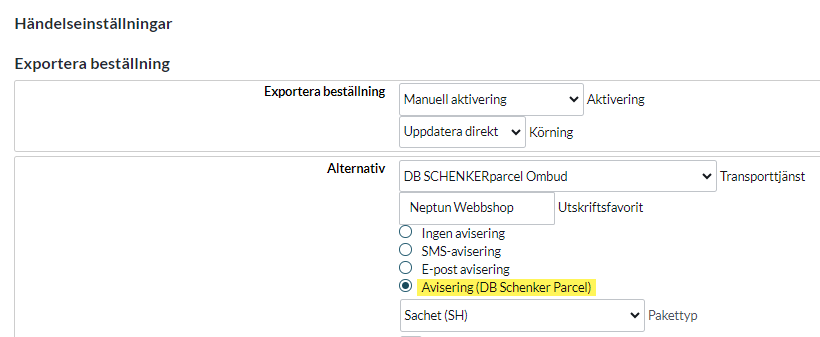
How do I set up so that the buyer automatically receives the tracking number on the delivery confirmation?
A: Then you need to make the following settings:
Customs declarations
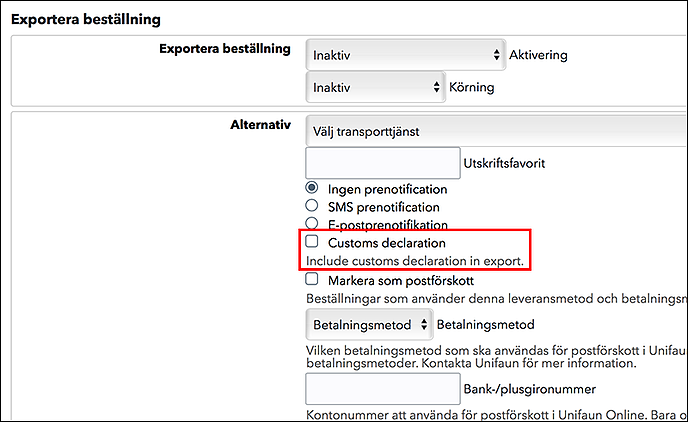
The setting is activated per delivery method by checking the "customs declaration" checkbox. To make the customs declaration fully compliant, your webshop needs to add HS numbers for each product. HS stands for Harmonized System and is an international standard for classifying products. They are used, among other things, to calculate the duties and taxes paid to customs authorities when a shipment crosses a customs border.
Assortment -> Products -> select product, edit -> scroll down to the "Properties" block in the left column. There you will now see a field for the HS number.
Settings -> Shipping -> select delivery method, edit -> scroll down to "Event settings Unifaun Online" and under "Export order" check "Customs declaration".