Integration med Specter - Textalk Abicart

What is Specter?
Abicart has an integrated connection to the Specter Business Management system. Using a modern, web-based ERP system gives you the freedom to work wherever and whenever you want, on both PC and Mac.
NOTE! The integration to Specter is included in Abicart PRO. For the integration to work, all products must have unique product numbers, including the customer's choice (sizes/colors) if used.
The product number must not contain special characters such as å, ä, ö, &, %, ¤, #, €, etc. as well as spaces and commas. Instead of spaces, use hyphens, underscores or write the item number together. The base currency of the shop must be SEK.
For support or questions about this integration, please contact customer service.
Please note that the integration does not support exporting product packages.
Activate Specter in the store
Go to Settings -> External Connections -> Specter
SETTINGS
Account settings
smbID and md5key are provided by Specter. This is used to verify the Specter account against Textalk Webshop and vice versa.
Customer is created
Ignore checking email address when creating a new customer
This box allows you to select customers to be compared against email address. If there is a customer with the same email address in Specter, the information on this is updated.
Ignore social security number when creating a new customer
This box allows you to select customers to be compared against person/org no. If there is a customer with the same person/org no. in Specter, the information is updated on this.
If both of these fields are filled in, both will be ignored and a new customer will be created in Specter - regardless of whether the customer already exists or not.
Orders are exported
Send order confirmation to customer from Specter
This box allows you to send out order confirmation from Specter. Order confirmation from Textalk Webshop will then not be sent to the customer.
Send a copy of order confirmation to administrator in Specter
This box allows you as a webshop admin to receive order confirmation from Specter. Order confirmation from Textalk Webshop will then not be sent out to you.
Include zero amount for shipping cost
If you check this box, a row with zero amount will be sent to Specter if the shipping cost is also zero.
Include zero amount for payment fee
If you check this box, a row with zero amount will be sent to Specter even if the payment fee for the payment method used for the purchase is zero.
Include zero amount for postal advance
If you check this box, a row with zero amount will be sent to Specter even if the cost of cash on delivery is zero, if cash on delivery is added as a payment method in the store.
Include customer field
If you have created your own customer fields in the checkout and want these to follow Specter when exporting orders, this needs to be checked.
Export discounts in percent for each order item
If you check this box, the discount percentage is sent on each individual item, usually we send over the percentage of the discount for the entire order.
Put company name in address line 1
The company name entered by the customer will be added to the Address Line 1 row in Specter.
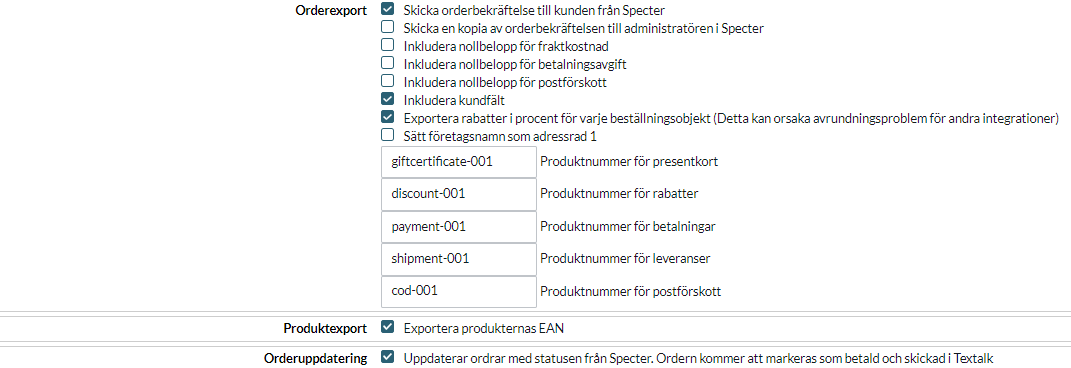
Product number for gift card
Enter a unique product number for the payment method "Gift card".
Note that this also needs to be entered in Specter separately.
Product number for discounts
Enter a unique item number for discounts.
Note that this also needs to be entered in Specter separately.
Product number for gift cards
Enter a unique product number for "Fee to be added at checkout when ordering".
In Textalk Webshop, this is set on each payment method and means a fee that is added at checkout when the customer chooses a specific payment method.
Note that this also needs to be entered in Specter separately.
Product number for deliveries
Enter a unique product number for the delivery method.
Note that this also needs to be entered in Specter separately.
Product number for postal advance
Please enter a unique product number for the payment method "Cash on delivery".
Note that this also needs to be entered in Specter separately.
The following image is only an example:
Product export
Export the EAN code of the products.
Order update
Update orders with the status from Specter. The order will be marked as paid and shipped in Abicart.
Other information
Product import settings
Contact Abicart customer service to enable product import. The following information can be imported Specter >> Abicart:
- Art.nr (product number)
- Product name
- Product description
- Price (Regular price & extra price)
- VAT included
- Stock balance
Price settings
EVENT SETTINGS
Export order
The first list selects whether orders are exported.
Inactive - No export is made.
Order is registered - Order is automatically exported to Specter when customer places the order.
Manual export - Order is exported when you go to the order page in Textalk Webshop and click "Export". In the second drop-down list, select whether to run directly to Specter (Update directly) or not at all (Inactive).
Export product when adding/changing
In the first list, select whether products should be transferred to Specter (Product changed) or whether products should not be transferred to Specter (inactive).
The second list selects whether to run directly to Specter (Update directly) or not at all (Inactive).
HOW DOES THE LINK WORK?
Export of orders
New in this link is that your order number in Specter is displayed on the order in Textalk Webshop.
Discounts are sent as separate order lines with minus balances to Specter.
Gift cards are also sent as a separate order line, which means that it is possible to see all payment methods on an order in Specter when a customer has paid with a gift card.
Order editing and Specter
If you edit an order and a product is added or removed, the stock balance will be adjusted automatically in Abicart but not be synced to Specter. You need to change the stock balance manually in Specter.
Article export
Initial export
When all settings are made and the link is activated, an initial export will be made from Textalk Webshop to Specter. All existing items that have unique item numbers will then be exported. If one or more items already exist in Specter, these will be updated with any new information on the item.
If one or more items do not have an item number, these will not be exported to Specter. Note that it is not allowed to use spaces in the item number.
Existing and new articles
If Item Transfer is activated, items are exported to Specter when they are changed in Textalk Webshop. If an item has the same item number in Textalk Webshop and Specter, the item in Specter is updated directly with the new information (price, name, etc.).
If there is no item with the same item number in Specter, a new item will be created in Specter.
Stock management must be active on items in Textalk Webshop at the first time of export in order for stock to be synchronized from Specter to Textalk Webshop.
Connect the delivery methods between the store and Specter
To connect the store's delivery methods with Specter, you need to find out the delivery methods' ID numbers. To do this, log in to Textalk and then go to Settings -> Shipping and delivery. Click on the delivery method you want to add to Specter.
The delivery method ID number will then appear in the browser's address window on the far right.
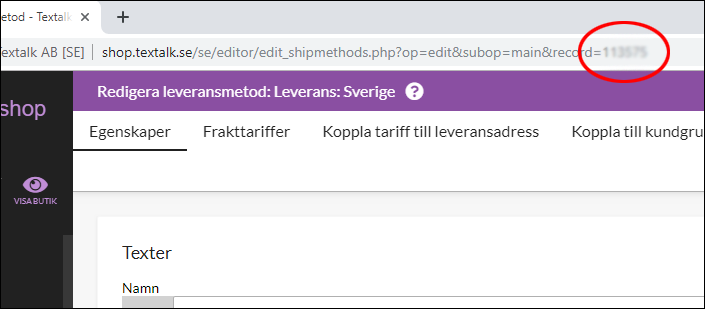
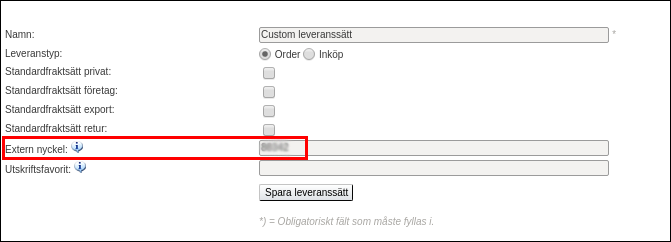
You then enter this ID number in the "External key" field of the delivery method in Specter.
See image below.