Change domain in live webshop - Textalk Abicart
Step-by-step:
1. you have purchased your new domain
2. point the new domain to Abicart according to this manual: Domain: Connect a domain to your webshop
*Point the domain both with and without www.
3. insert the new domain under the old one and wait 24 hours.
Settings >> Domains & SEO >> Domains >> New domain name >> Enter the domain >> Add >> Add www. domain as subdomain >> Save
NOTE!
It may take 1-24 hours before the domain is correctly pointed (step 2) and you can continue with step 3. If it is not possible to add the domain immediately, wait 1 hour at a time until it is possible to add the domain as a subdomain.
4. After the new domain has been a subdomain for 24 hours , delete it from the list of subdomains and add it as a new domain name.
5. Go to URL settings and change the domain name for the store language >> save.
Now set the new domain as the main domain. We go through how to do this in the linked manual.
*Also edit the language prefix and suffix as desired. See the same manual as above.
6. Now put the old domain under the new domain:
i) Go back to "domains" and copy your old domain and main domain and paste into a document.
ii) Delete the old domains from the list in admin to be able to move them (delete subdomain first, then main domain)
iii) Add the old domains as subdomains to the new domain name, one domain at a time (e.g. by copying the domains from the document where you just pasted them).
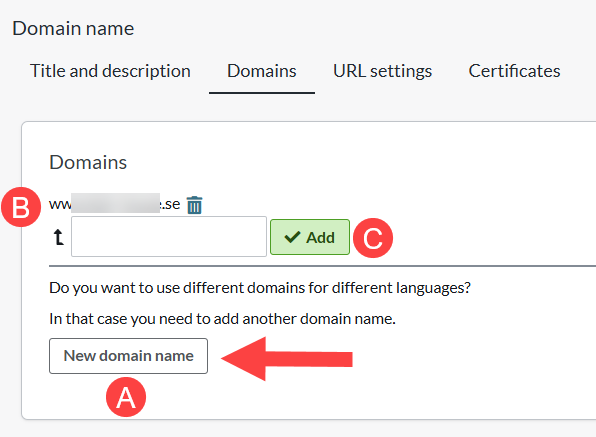
See picture:
A: New domain name - Here you enter your new domain
B: Domain name - Your new main domain
C: Add - Here you enter your subdomain. If the customer has a link with the subdomain, it will automatically redirect to the main domain.
Once this is done, the redirection from the old domain to the new domain will happen automatically. So a customer clicking on an old link will be redirected to the same page with the new domain (if the page still exists).
7. what's left to do:
- Contact any payment methods and inform them that you have changed domain
The same goes for any external tools, such as Google tools: update the service with your domain change.
Then it's done!