Order confirmations via Facebook Messenger - Textalk Abicart

This feature is included in the Abicart Plus and Pro subscriptions at no extra cost.
What is required to use Facebook Messenger?
- You must have a page for your store on Facebook (a regular personal account is not sufficient).
- The store must use one of our responsive themes.
- The store must have an active SSL certificate.
What does the checkout look like for the buyer?
In the checkout, a new block appears that looks like this:

What does the order confirmation look like in Messenger for the buyer?
Once the order has been placed, a message is sent with a summary of the order that looks like this:

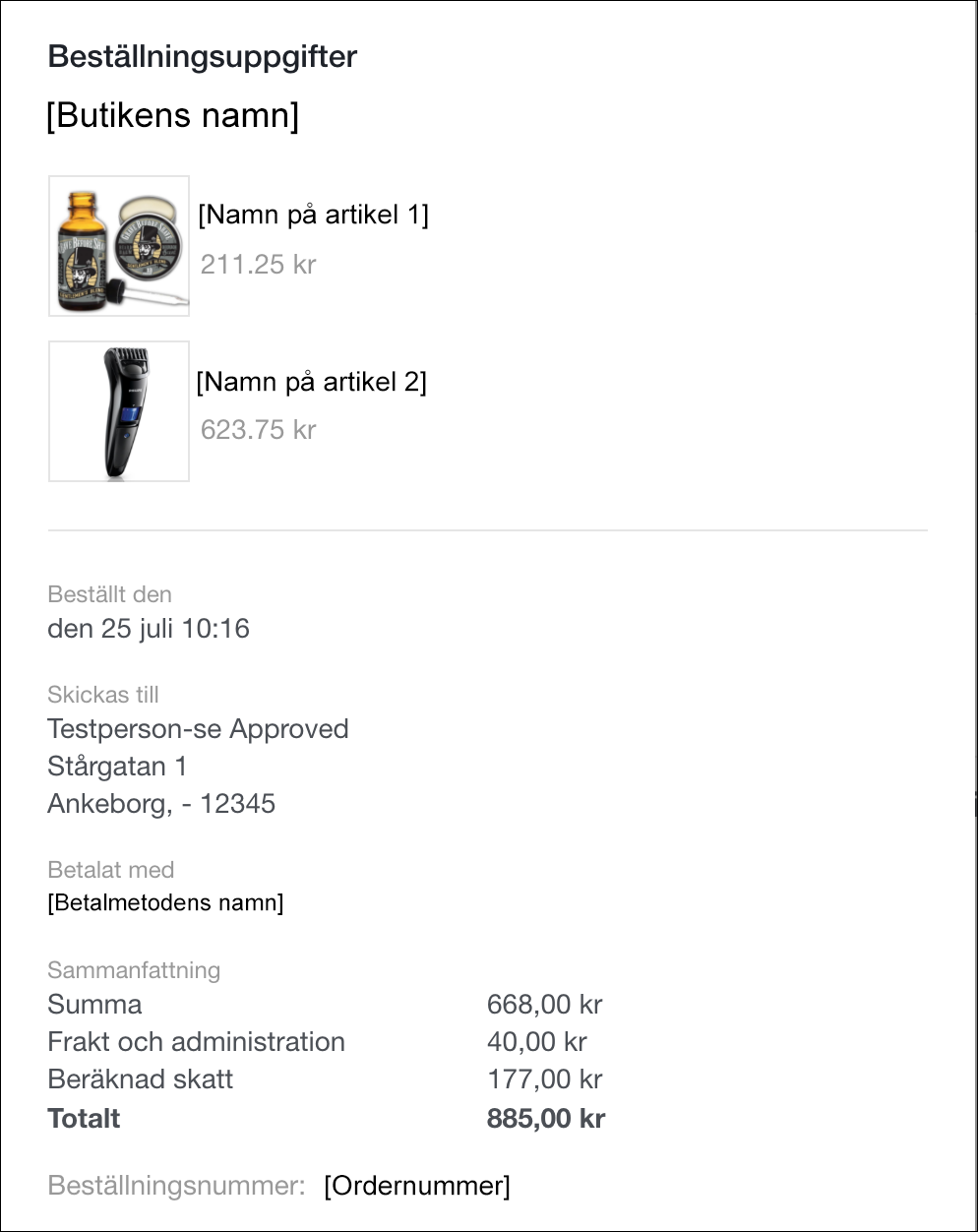
The customer can also click on the order confirmation to view a more detailed order confirmation which looks like this:
Activate order confirmations for Facebook Messenger
Go to Settings -> External Connections -> Facebook Messenger.
Check "Active" and then click "Continue with Facebook" and log in with your usual personal account. Keep in mind that this personal account must be the administrator of your Facebook page.
Once you have logged in, the list at "Page" will be updated with a list of all Facebook pages for which you are an administrator. Select your store's Facebook page and save.
Now you need to "whitelist" the store's domain in Facebook so log in and go to your Facebook page.
- Click on "Settings" at the top of the page.
- Click on "Messenger Platform" on the left.
- Add your store's domain to the "Whitelisted Domains" box
Here's a more detailed guide in Facebook for developers.