How do gift cards work? - Textalk Abicart

Gift cards are included in the PLUS and PRO subscriptions.
How do gift cards work?
You can sell gift vouchers in your shop or generate a gift voucher code that you issue yourself. When the customer uses a gift card, the amount is deducted directly from the total amount at the checkout. This means that the gift card can be used to pay for all or part of your purchase, as long as the gift card lasts. If the gift voucher does not cover the entire order total, the remainder will be paid using any available retail method at checkout.
What is the difference between a discount code and a gift card?
Both codes are entered in the same field. The gift card is deducted from the total amount at checkout, while a discount is deducted from the products in the shopping cart.
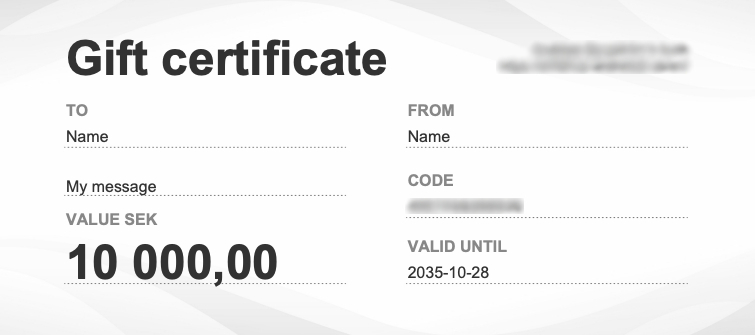
The appearance of the gift voucher PDF sent out by email is edited in admin.
If you want to give the customer a gift card with your own design, you can make a gift card in, for example, Photoshop >> paste the code >> save as PDF >> email to the buyer manually (or print and deliver physically).
There are different ways to create gift cards:
1. Gift card product
Create gift card products via admin and let your customers buy gift cards in your webshop. When the order with the gift card is marked as paid in admin, an automatic email is sent to the buyer or recipient. Then they receive the gift card as a PDF.
*Only this option sends a gift card PDF to customers automatically. The other options below generate a code you issue yourself.
2. Create gift card yourself via admin (Gift card code)
When you create a gift card via admin, you will receive a code to hand out. There is no gift card PDF sent via email, but you can of course paste the code into a self-designed gift card and give to the customer.
Orders >> Gift cards >> Create gift card
3. Generate gift cards in bulk - two ways
If you need to create many gift cards, you can generate gift cards. This is convenient if you, for example, sell a large number of gift cards to companies via your own invoice. You have two options, see a) and b) below.
Note! No gift card PDF is sent for generated gift cards.
a) Generate gift cards
Contact Abicart support and ask for help to generate gift cards. Please provide the following information:
- Currency
- Total amount
- Number of gift cards
- Validity - e.g. 2026-12-31 (if no selection is made, the gift cards will be valid for 1 year)
b) Generate gift cards according to file
Create a file and send it to support with your request. See example file under "Attached file" at the bottom of the page.
Mandatory fields in the file:
- Currency
- Total (amount)
- Validity period (expiredate)
- Sender's email (from_email) (can be store's or buyer's)
*Note that the file contains information such as email address, sender, recipient, etc. This is to give you a good overview when the gift card is listed in admin. No gift card PDFs are sent to buyers/recipients.
Once the codes are generated, you can clean up the file and send it to the customer. E.g. so that the file only contains currency, amount, validity time and the code itself. The customer can specify a column for recipients and fill in who gets which code if desired.
Only you and your webshop administrators can see the "Original value" and "Current value" of the gift cards. See Orders >> Gift cards.
*If you enter a code in column H, each code must be unique (see example file at the bottom of the page).
Activate gift cards in the store
In order to use gift cards in the store, you must first add a payment method and then activate in the theme.
Step 1) Add the payment method for gift cards
Go to Settings -> Payment methods -> Add new payment method.
In the list, select "Gift Cards" -> click on "Add" -> then click on the save button.
Step 2) Activate the gift card field in the theme
Go to Appearance -> Themes -> select theme, edit -> Content -> Checkout.
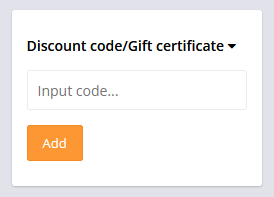
In the "Discount Codes & Gift Cards" block, select "Enabled" and save. Now the input field will appear at checkout:
Step 3) Allow gift card for active payment method in the store
For most payment methods, you need to enable them to be combined with gift cards at checkout. The setting for this can be found under Settings -> Payment methods -> Click on the active payment method the store has. Check the setting for "Allow gift cards" -> Save.
The payment methods that require you to make this setting are:
- Klarna Checkout
- Svea Checkout
- Payson Checkout
- Swedbank Pay
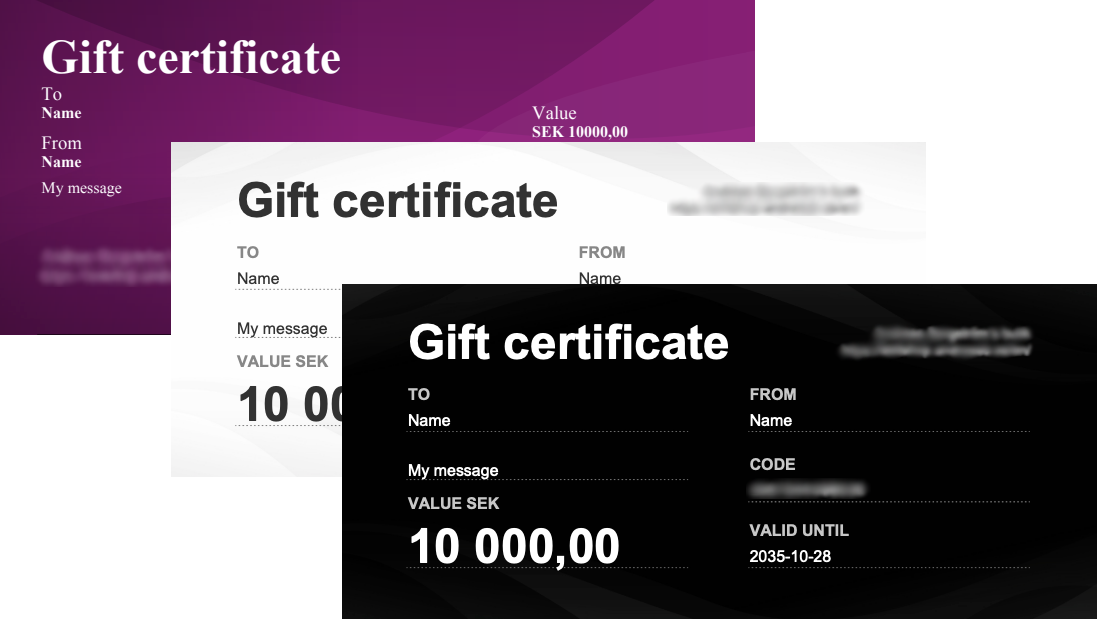
Step 4) Choose the appearance of the gift card
Go to Assortment -> Settings -> Gift Card Settings -> Select Gift Card Template -> Save.
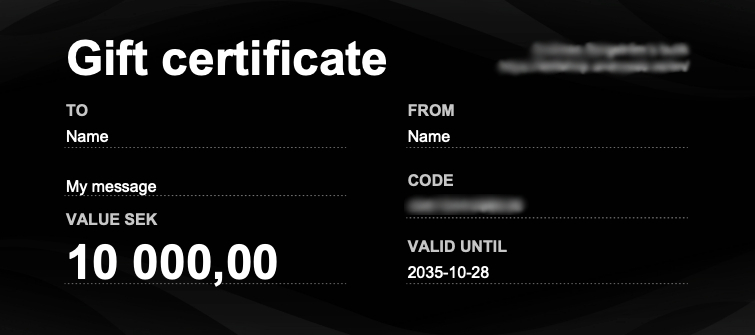
There are three colors to choose from:
What is a gift card product?
A gift card product is a product to sell gift cards. The store can create different gift card items with different amounts, e.g. $100, $500, $1000, etc. and then customers can buy the gift cards to e.g. give away to a friend or similar.
A common question is whether it is possible to create a gift card product without an amount, where the idea is that the buyer sets their own amount. Unfortunately, this is not possible; gift card items can only be created with fixed amounts.
Step 5) Create a gift card product
Go to Assortment -> Products -> New Product -> New Gift Card
You can basically do all the same settings as for a regular product, such as entering a description, linking to product groups, etc. We will only go through the most important properties here such as validity period, name and price.
Validity period
Enter a validity period for how long the gift card should be active. In Sweden, the most common validity period is set to 10 years, but the store owner can choose this themselves.
Name of the gift card
Enter a name for the gift card product, for example "Gift card 500 SEK".
Pricing
Enter a price for the product, for example 500 SEK.
What is a gift card code?
If you as a store owner want to give away a gift card, for example to a winner of a competition or perhaps as compensation, you can generate a code directly in admin that you then give to the customer.
Note: No code is automatically sent to the customer when you create a gift card code in admin. You must ensure that the customer receives the code yourself, for example via email or SMS.
Create a gift card code
Go to Orders -> Gift card -> New gift card
Gift card code
The easiest way to create a code is to click on the "Generate code" button. This will create a random 13-digit number. You can also enter your own code if you wish.
Note: Gift card codes must be unique. You cannot create multiple gift cards with the same code. If someone has used a gift card with the code "gift-100", for example, that code is used up. You cannot create a new gift card with the same code again.
Name of the recipient
Optional field where you can enter the name of the recipient of the gift card.
Recipient's email address
Optional field where you can enter the e-mail address of the gift card recipient.
Sender's name
Optional field where you can enter the name of the sender of the gift voucher.
Sender's e-mail address
Optional field to enter the e-mail address of the sender of the gift voucher.
Original value
Enter the value of the gift card, for example 500 SEK.
Current value
A gift voucher can be used several times until the full amount is used. This field shows how much money is left on used gift cards.
In our example, we create a new gift card and then we enter the same value as we entered in "Original value", ie 500 SEK.
Currency
If the store has several currencies activated, a list of these currencies is displayed here. You then choose which currency the gift card should be created with. In our example, we choose SEK.
Valid until ...
Here you choose how long the gift card should be valid. For example, one month, one year or 10 years. In our example, we choose one year.
Important info when it comes to buying gift card items
If a customer has purchased a gift card product, the code will be sent out only after you have activated/debited the order. Go to Orders and click on the order. In the "Perform action" box, make sure to check the "Mark as paid" box and then click on the green "Perform selected actions" button. The order will then be marked as paid and the gift card will be activated; email with PDF will be sent to the customer. The gift card code is displayed on the gift card product at the top of the order.
Example gift card PDF: