Edit orders - Textalk Abicart

Order editing is included in the Abicart Plus and Pro subscriptions.
What is order editing?
This is a function used to change an order placed if, for example, you receive a return or if a customer wants to remove or add a product.
What can I edit?
You can add and remove products, edit customer information, adjust VAT settings, change the shipping fee and change the delivery method. Partners and commission settings cannot be changed.
If you use Klarna Checkout Global (also called Klarna Checkout v3), you can only change customer information in Klarna Online. The customer information field is therefore locked on all these orders.
Things to keep in mind
If an order is paid with your own payment methods such as "own invoice", prepayment, cash on delivery or similar, you can add and remove products on the order without any problems.
If an order is paid via a third party, such as Klarna, Svea, Payson, Nets or similar, you can only edit the order so that the order value is reduced compared to the original purchase amount. The reason for this is that in most cases a credit check is made on the buyer and then only applies to the original purchase amount.
In some cases, you can add products to the order so that the order value increases, but only in the payment company's administration. We are not allowed to make these changes from our platform.
Email address and shipping address cannot be changed if the customer used Klarna Checkout. This is because Klarna retrieves the delivery address from the population register.
How do I edit an order?
Go to Orders -> Click on the order number.
In each box, "Information about ordered products", "Order", "Customer details", "Store notes" and "Delivery" there is an icon, a pencil in the right corner. Click on it to edit the content of each box.
How do I cancel an order?
Click on the "Cancel" button in the top right corner. If the payment method allows it, a signal will be sent to the payment method to cancel the order. In some cases, the signal is not allowed and then you need to log in to the payment method's admin >> search for the order >> cancel manually. A prompt for this will come up in admin if the signal does not go over, feel free to check the order in both systems regardless of the first few times so that you feel comfortable with the flow.
Below are some editing examples
Change the shipping fee
First, click on the edit icon in the top right corner of the "Information about ordered products" box.
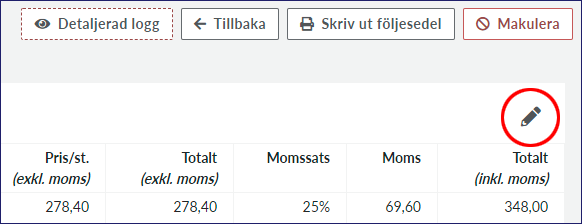
Then two new icons will appear to the right of the shipping fee. Click on the pencil to edit the fee and on the trash can to remove the fee completely.

Change the stock count
If you change the "Quantity" or "Price/item" the amount is automatically recalculated. The original amount will always be displayed below:
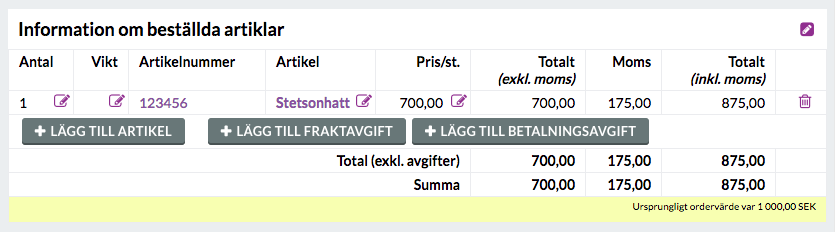
You can also add products, shipping fee and payment fee via the sub-products buttons on the order.
Send a new order confirmation
After editing the order, you can resend the order confirmation to the customer. Click on the "Resend order confirmation by email" link at the bottom of the order:
Order editing and Klarna
If you edit the order before you have activated the order (marked it as paid), you can send the changes to Klarna via the "Send changes to Klarna" button. If you edit the order after the order has been activated, or if the "Send changes to Klarna" button is not available, you cannot send the changes to Klarna. You will need to log in to the Kustom portal and edit the order there manually. If the order was activated with the original amount, you need to make a manual refund of the difference. You do this in Kustom's merchant portal.
NOTE! In some cases, we (Abicart) are not allowed to change the order in Klarna via our integration. If the button "Send the changes to Klarna" is not available, it means that we are not allowed to change the order via the integration. This means that you have to change the order in Klarna Online, as if the order was activated.
Reduce order total:
If the order is not yet 14 days old, you can edit the order and reduce the order total in Abicart before marking the order as paid. When you mark the order, the new order total is sent to Klarna.
If the order is older than 14 days, you need to edit the order manually in both Klarna and Abicart. After that, you can contact customer service to get help marking the order as paid in Abicart.
Increase order total:
The order must be edited both in Abicart and in Klarna manually, regardless of whether 14 days have passed or not. Increased order total will not be sent via the integration according to Klarna's rules.
When both systems have the correct order total, you can mark the order as paid in Abicart.
Order editing and Specter
Stock balance is automatically changed in Abicart when you edit an order. If you use an ERP system such as Specter, the stock balance will not be synced over there. You need to change this manually in Specter.
Returns
If the entire order is to be returned, cancel the order. The stock balance will be settled automatically. Check with your payment method if the order amount is refunded automatically or if you need to refund manually.
Partial return
Edit the order according to the previous instructions. When you remove a product from the order, its stock balance is automatically adjusted. Resend the order confirmation and review the partial refund with your payment method.
How do I delete an order?
An order delivered to the end customer should never be deleted. If you try to delete an order, it will be canceled, restoring the stock balance and sending an email to the customer.
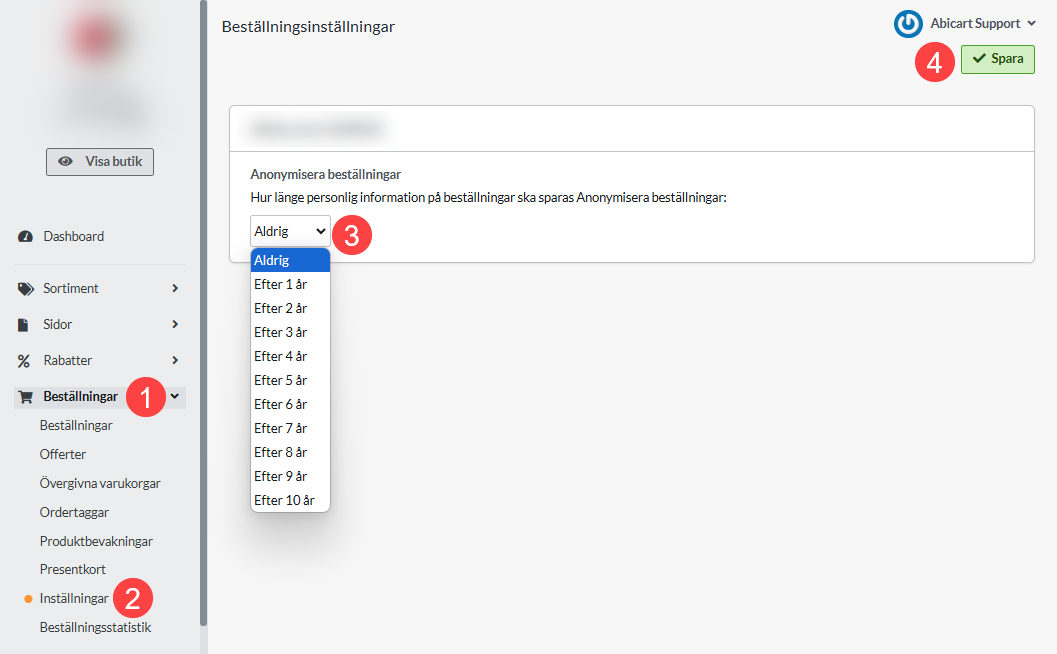
Instead, go to Orders >> Settings and set "Anonymize orders" >> Save