Orders >> Offers - Textalk Abicart
 > Offers - Textalk Abicart" />
How the Orders >> Quotes function works
Offering your customers a simple and smooth shopping experience is an important part of running a successful online store. With Abicart's "Quotes" feature, you can easily create an order for your customer and send order confirmation to the customer to approve. It makes the ordering process easier if you and the customer already have contact about what they want to order. In this manual article, we go through how to create a quote in Abicart, step by step.
Step 1: Log in to Abicart admin
Log in to your Abicart admin account.
Step 2: Navigate to "Orders >> Quotes"
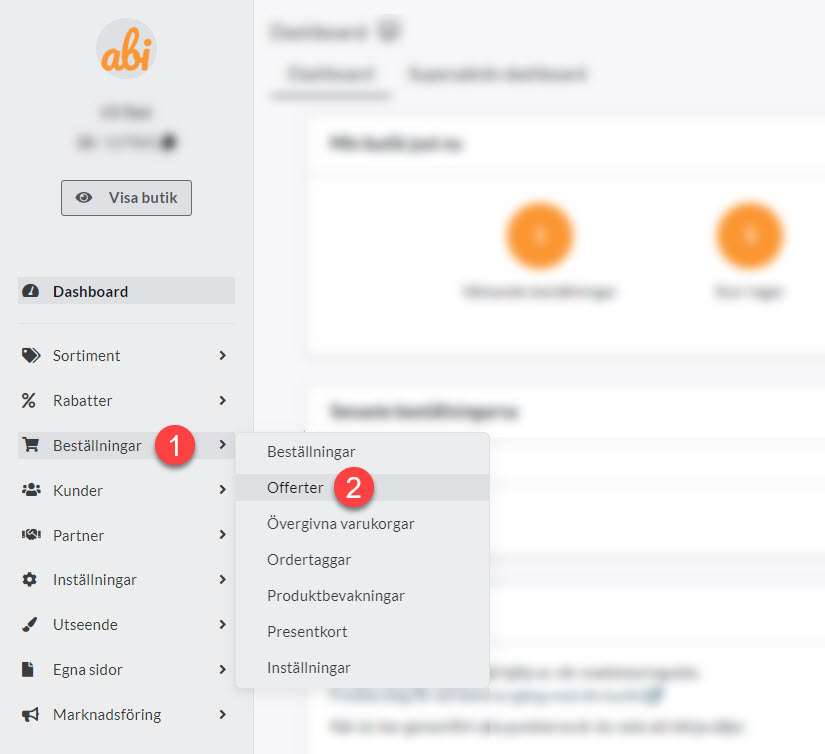
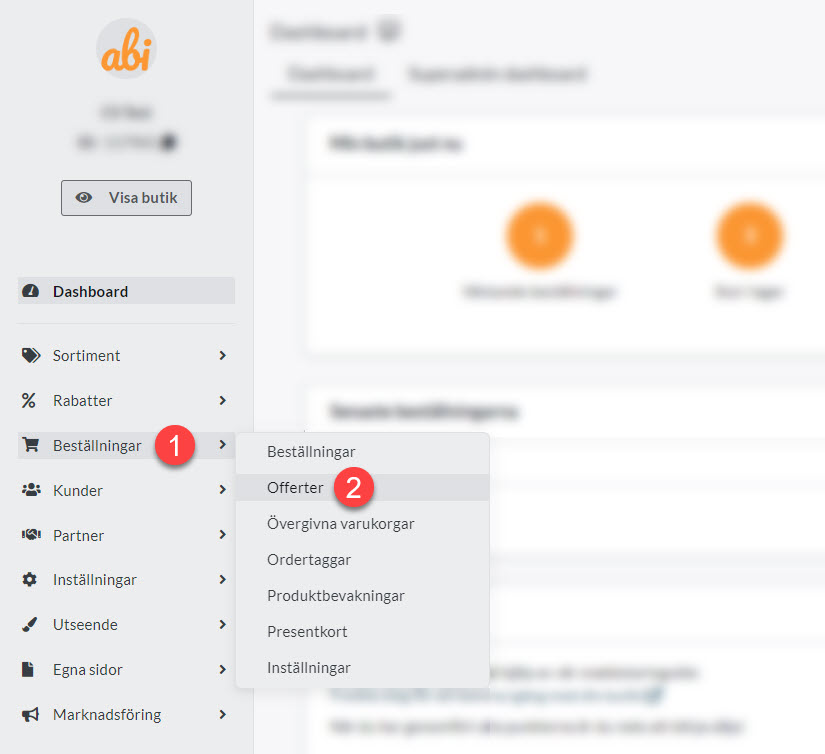
In the menu on the left, click on "Orders" and then on "Quotations". Here you will see an overview of all quotes that have been created.
Step 3: Create a new quote
Click on the "Create order/quote" button to create a new order. This will take you to a page where you select the order:
- Currency
- Language
- Payment method
- Delivery method
Step 4: Click on "Add"
Now you will be taken to the order page and can fill in what remains.
Step 5: Fill in customer details
Fill in the customer's details, such as name, address and contact information. Ask the customer for the correct details if you have not already received them.
Step 6: Add products to the quote
Click on "Add item" to add the products the customer wishes to order. Then search for the item name or item number >> Click on the correct item from your search results >> Then click on "Add to cart".
Now you can enter the quantity and edit the other available fields. You can add shipping fee and payment fee and edit the price of the product.
Step 7: Edit the delivery method
If you want to change the delivery method, you can do so now. In that case, click on the pencil in the "Delivery" box.
Step 8: Finalize the order and send order confirmation to the customer
Once you have added all the necessary details, click on "Finalize purchase". An order confirmation will be sent to the customer. Contact the customer via email in the way you have been in contact and ask them to review the order. If the customer wants to change something, you can continue editing the order as long as the order is not marked as paid. You can add, remove and e.g. edit the price as long as the order is not marked as paid.
Step 9: Invoice the customer manually
After the customer has approved the order confirmation, you can invoice the customer manually. Invoice via your ERP system or another external invoice support service, or process the payment via another manual payment method (e.g. via bank transfer). Once you have invoiced/confirmed that you have received the payment (e.g. via bank transfer), mark the order as paid. You can download the receipt for the order under "Print" on the order page.
Step 10: Pack & send the order
When you have packed, booked and sent the order, mark the order as sent on the order page.
Done!