Start your online store on a platform that grows with you
Start easily, scale fast. With our reliable platform, you can focus on your sales while we take care of the technology - so you can focus on building your business.
Try it free for 30 days







The Nordics’ first e-commerce platform
For over 25 years, we’ve helped thousands of businesses get started and grow online. As the first e-commerce provider in the Nordics, we continue to develop the future of online retail for companies that value stability, reliability, and long-term growth.
See what we can do for you
Easy to start a webshop
Get started and sell in a few simple steps
Choose a design template and upload your products.
2. Set up payment and shipping
Choose payment method and shipping – we have everything built-in
3. Start selling!
Publish your webshop and get started right away.
You shouldn’t have to be technically skilled to sell online
Many people who want to start an online store get stuck on technical setups, settings, and complicated choices. We do the opposite: Abicart handles all the hard parts for you — so you can focus on your business. See what you get with Abicart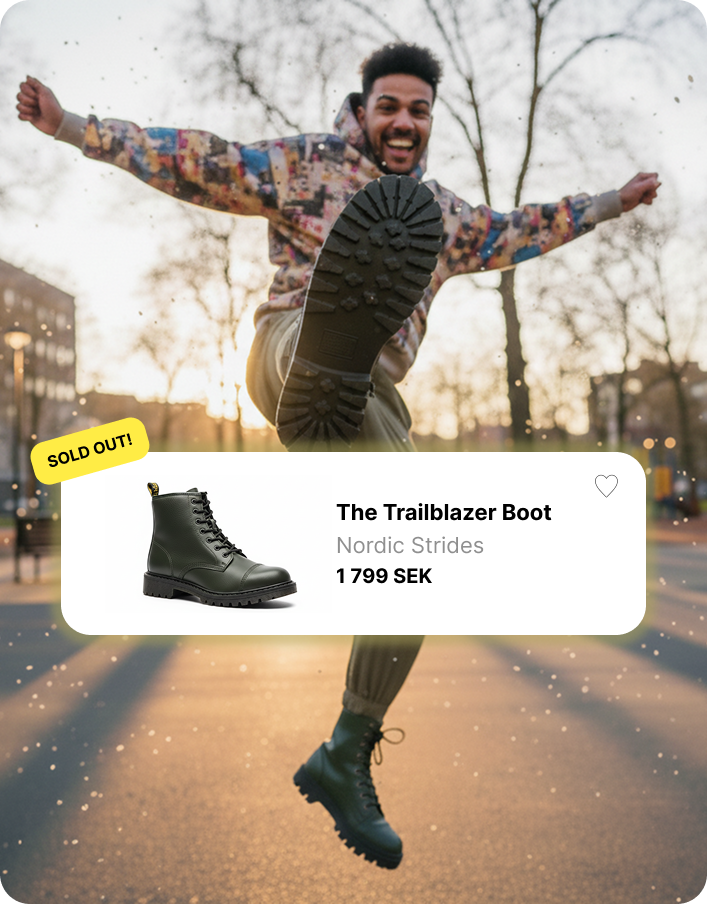
We are very satisfied with Abicart as a platform and we have had it since 2009 without wanting to switch
Humlegårdens Ekolager
Easy to get started, low entry barrier, a reliable platform and personal support.
For small and medium-sized businesses Franchise Networks and Retail ChainsCentral management, individual stores, scalability, and powerful integrations.
For franchise networks and retail chains Publishers and Media Houses
E-commerce for subscriptions, events, products, and digital services.
For publishers and media houses
Powerful, easy to use, and built to grow with your business
- Super-simple product and order management
- Built-in marketing tools
- Support for multiple languages and currencies
- Ready-made integrations (payments, logistics, accounting, and more)
- A stable and fast platform that handles high traffic
- Mobile-friendly design as standard
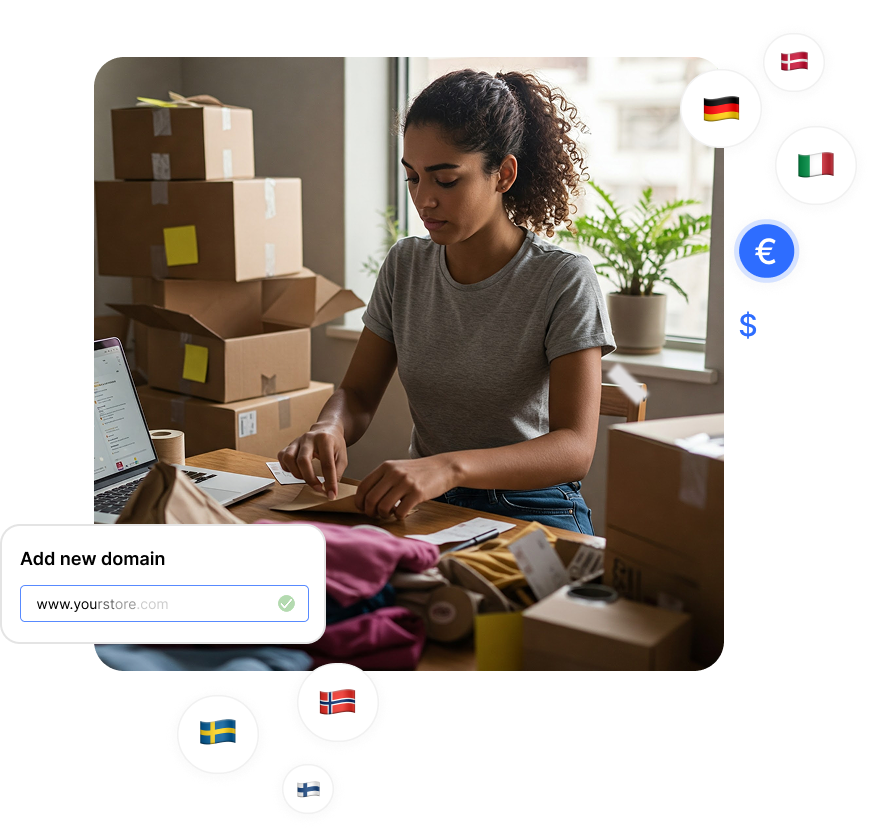

The right tools. Ready when you are.
Integrations between Abicart and popular services are already in place. All you need to do is choose which ones you want to connect to your online store. See integrations and partners
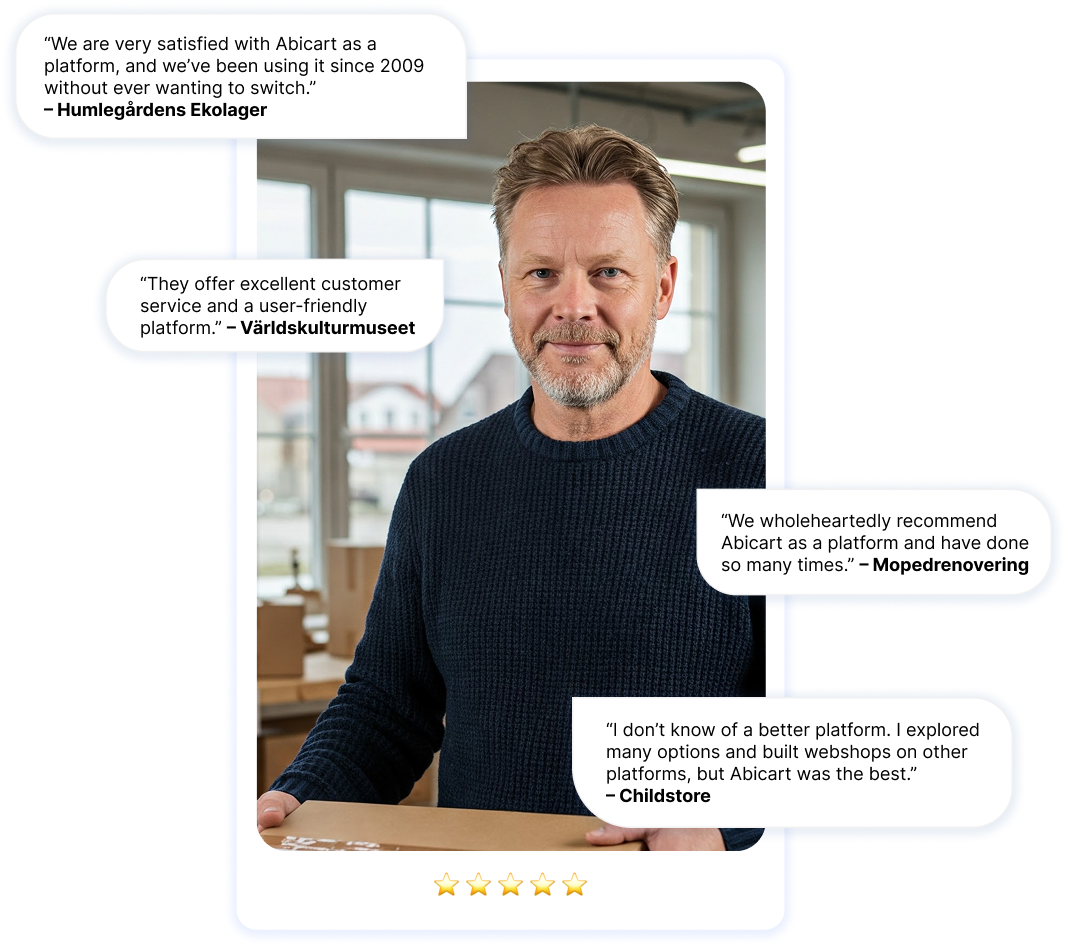
Thousands choose Abicart every day
Try Abicart with no commitment. See how easy e-commerce can be when you don’t have to worry about the tech.
Start a free demo store Contact us