Creating and linking a Tag Manager account - Textalk Abicart

Containers
In English, this is called a "container". When you log in to the Tag Manager for the first time, you create a container which is given a "container ID". This id you should put in your theme. We'll walk you through how to do this below.
In a container you put tags, triggers and variables.
Tags
A tag is a snippet of code that is added to a page. You might have a Facebook pixel that needs to be entered into Google Tag Manager. Then you put it in as a tag.
Releases
The release tells you when and where to use the tag. A tag doesn't work without at least one trigger.
Variables
Variables can be used in both tags and triggers. They contain some kind of value, such as order value.
Create and link a Tag Manager account
Go to http://www.google.com/tagmanager and log in with your Gmail account.
First we need to create an account and then a container that will be given an ID. This id will be added to the store's theme.
Click on "Create Account".
In "Setup Cointainer" there is a field for "Container name", there we enter the store's web address (domain name).
In "Where to Use Container" we select "Web".
Then click on the "Create" button.
Once you have done this, a box with code will pop up.
Copy the code that starts with GTM- .
So only the code that we highlighted in red in the image below needs to be added to your theme:
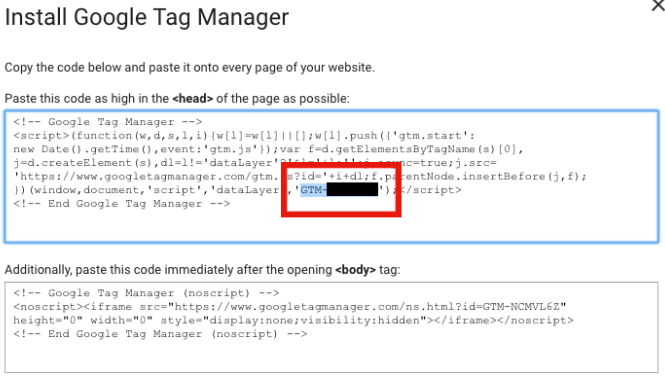
then click "OK" to close the box.
Now we need to add this GTM ID to the store's theme.
Go to Appearance -> Themes -> select theme, edit -> Extensions -> Google -> Google Tag Manager.
Enter the GTM code in the field for Google Tag Manager. Don't forget to save.