Google: Add Search Console to your theme - Textalk Abicart
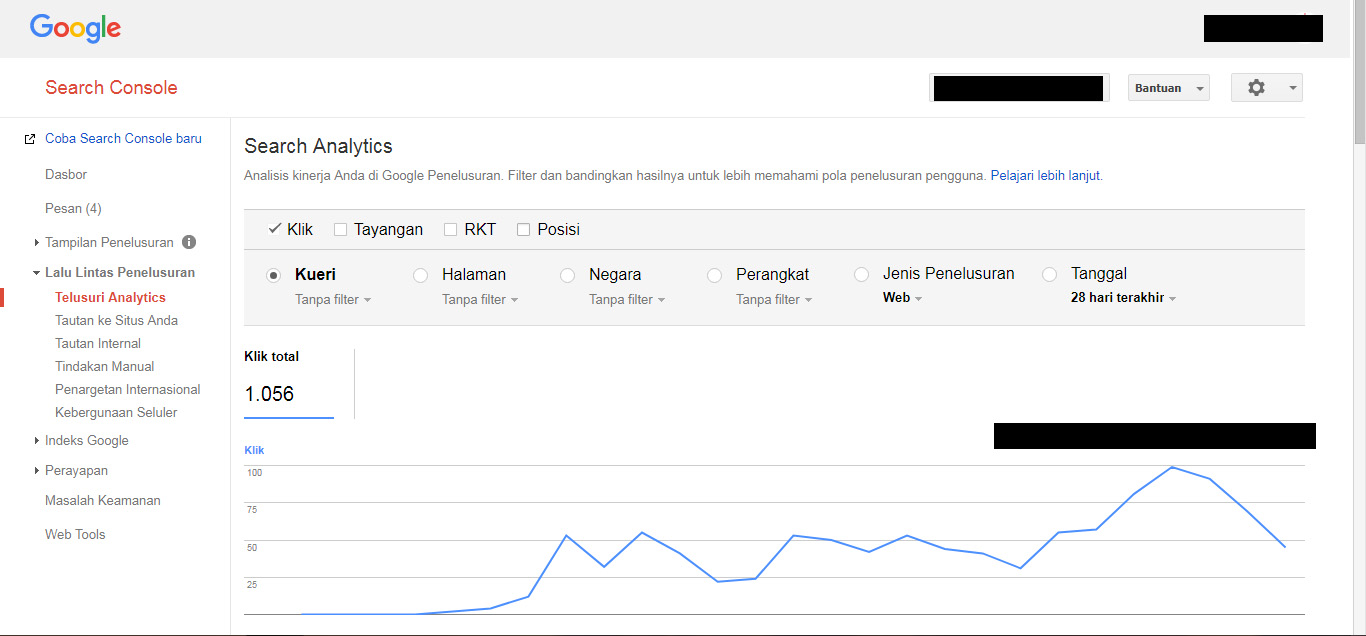
Adding the domain in Search Console
Log in to Google Search Console.
In Google Search Console, under Home page, there is a field for "Website". Enter your store's address (domain) in that field. Then click on the "Add property" button.
Once you click on "Add property" you will see two tabs, "Recommended method" and "Alternative methods". Click on the "Alternative methods" tab and select "HTML tags".
You will now see a meta-tag that looks something like this:
<meta name="google-site-verification" content="xXxXxXx" />.It is the content contained in "content" that we need and will put into the theme. Copy (CTRL + C) only the content inside the quotation marks in content.
Do not click on "Verify" yet.
Add the code to the shop's theme
Open a new tab in your browser and then log in to the store. Go to Appearance -> Themes -> select theme, edit -> Add-ons tab -> Google -> Google Search Console.
Paste the code in the Google Search Console field.
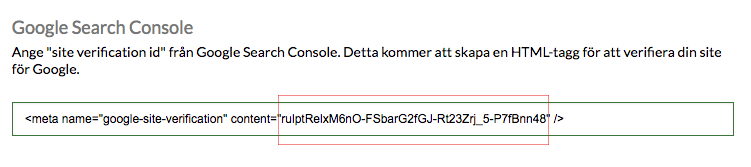
Make sure that only the content inside the quotation marks in "content" is included.
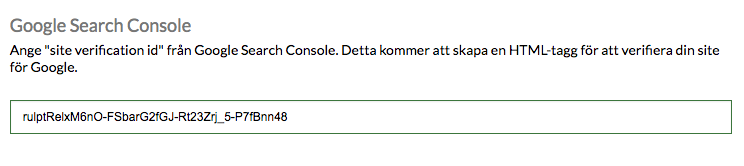
Save.
Verify in Google Search Console
Go back to the Google Search Console tab in your browser, then click the Verify button. You've now verified your domain in Google Search Console. Great job! :-)