Google: Set up goal conversion in Analytics - Textalk Abicart

Note that target conversionis notthe same as e-commerce tracking.
Create goal conversion in Analytics
Log in to Analytics account
Here's how to set up Google Analytics account for responsive themes to enable tracking of completed goals. This goal we're creating now will give you a funnel of how many customers came to a completed purchase.
Start by logging in to your Google account and clicking on the "Gear".
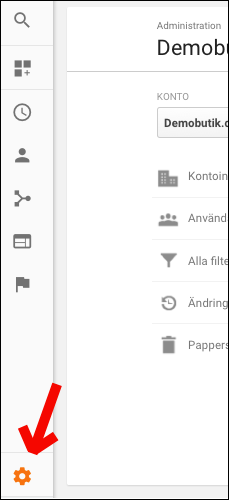
Under "View" you will find "Goal".

Create a conversion goal
Create a conversion goal to measure, for example, how many of your visitors reach a campaign page or a new product that you recently launched. Click on "New goal".
Name it for example "Completed purchase".
In type we select "Goal" and click "Next step".
- In "Goal settings" select "Custom" and then click "Continue".
- In "Goal description" we type for example "Campaign" then type should be on "Goal". Click on "Continue".
- In "Target information" we select "Start with" and type the file name for the page (product or product group). e.g. /summer campaign/. Tick: Shift-sensitive.
- "Value" we leave off because there is an e-commerce tracking that you can activate instead if you want to follow the value of your orders.
- Don't forget to save!
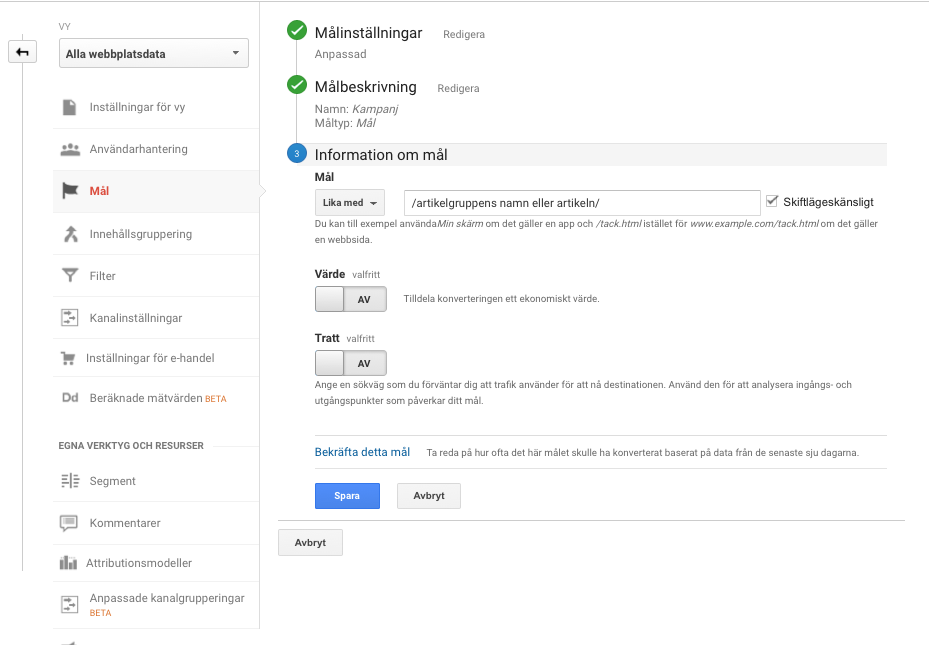
Now this page will be tracked and you will find the statistics under your profile → Conversions → Overview.
Please note that the statistics displayed in Google are delayed by a maximum of one day, so it may take a while for the correct results to appear.
Please also note that orders placed by a logged-in administrator are not reported to Google Analytics.