Google: Add Analytics to your store - Textalk Abicart

Create an account in Analytics
Go to https://analytics.google.com/ and log in (or create an account).
Once you have logged in, click on "Register".
Fill in all the details:
- Account name (e.g. company name)
- Property name (e.g. shop name or URL followed by GA4).
Be sure to choose the right time zone and currency from the beginning. You can change the time zone at a later date but the new setting will not apply retroactively. - Business details
- Business objectives (you can select "Get baseline reports" here if you don't know).
- Accept the terms and conditions
Now it's time to start collecting data. Select the Web platform and enter your store's URL and a name for your stream, leaving the default settings filled in. Click on Create stream.

In this mode, do not use the script in the installation instructions. Close the box and instead copy the measurement id that was created (format e.g. G-111222AAA8).
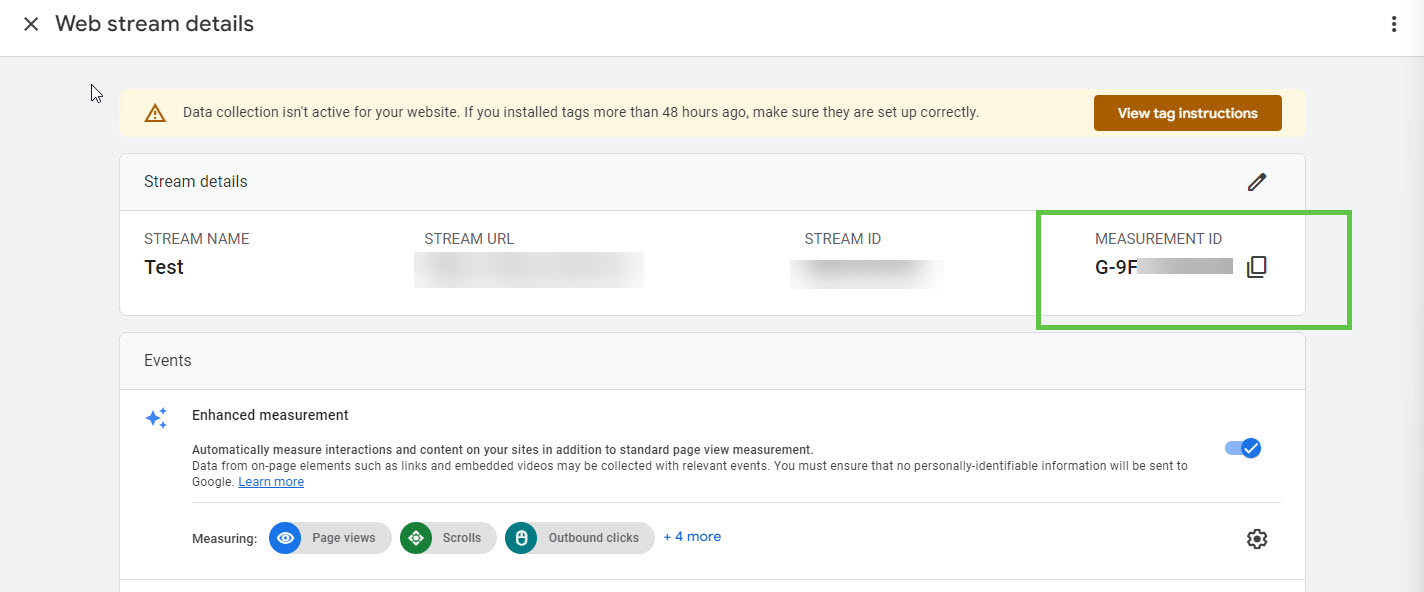
Add the ID to your theme
Now we will add the measurement id you copied to the theme.
Go to Appearance -> Themes -> select theme, edit -> Add-ons -> Google -> Google Analytics.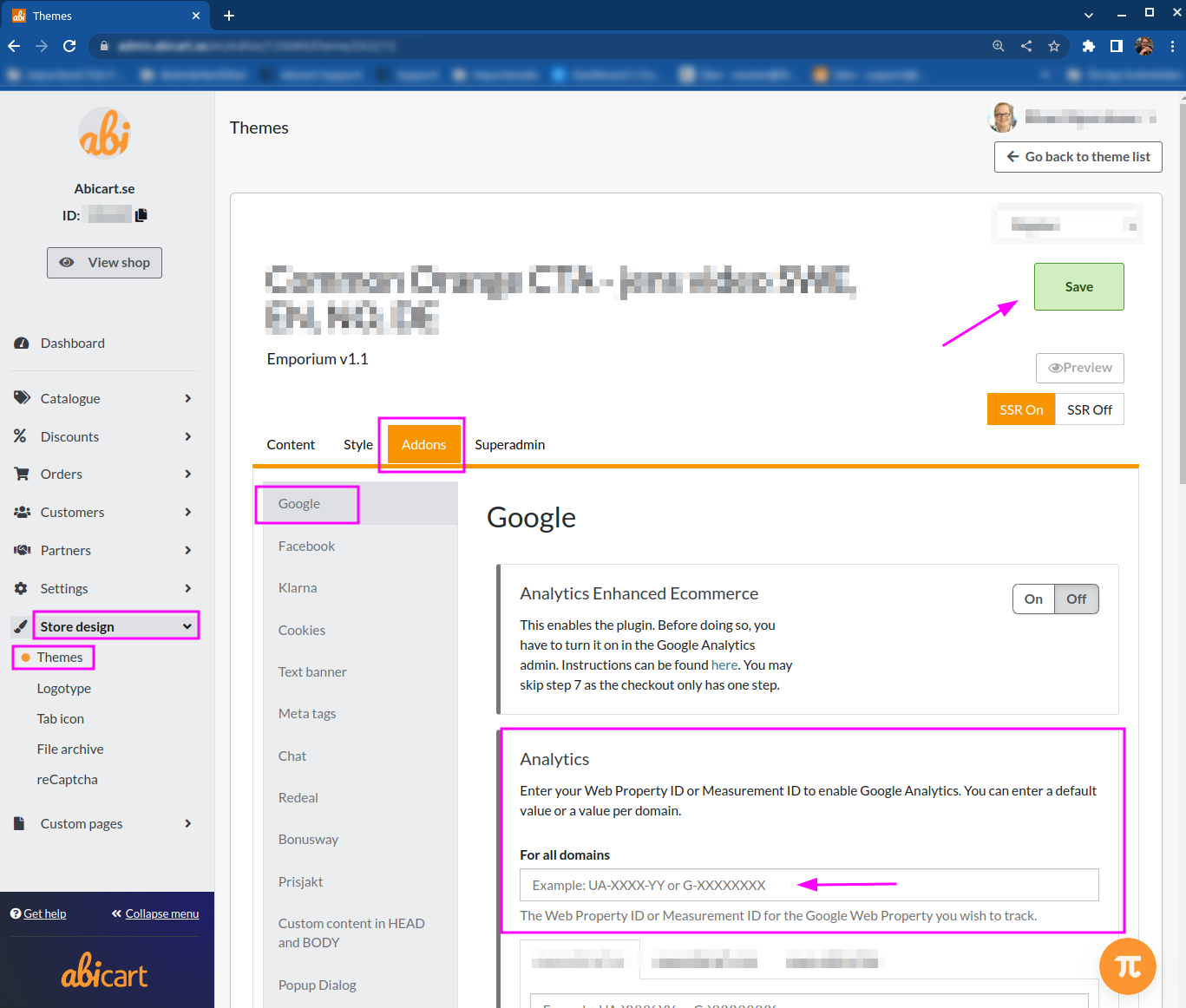
Enter your ID given to you by Google in the field. Google Analytics and Save.
Important information for those obtaining an SSL certificate
When you get an SSL certificate, you need to change from http to https in Google Analytics.