Google Ads Enhanced conversions - Textalk Abicart
Now we're sending you user parameters to help you set up enhanced conversions via Google Tag Manager.
To set this up, follow these steps:
Step 1
Log in to Abicart admin:
Store design >> Themes >> Edit >> Addons >> Google >> Google Tag Manager.
Enable the Enhanced Conversion option, as shown in the image.
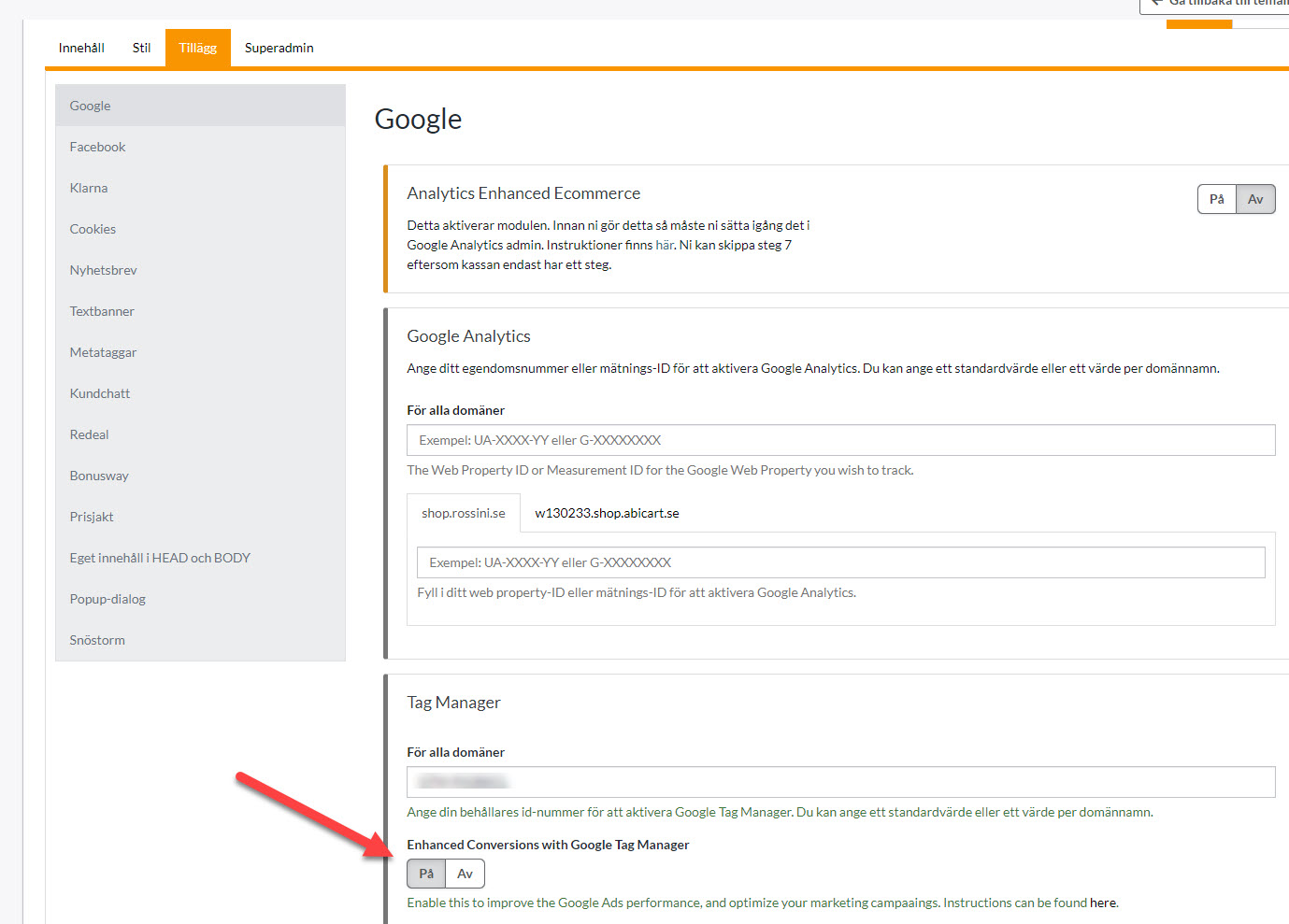
Step 2.
Configure Enhanced Conversions in Google Tag Manager:
Step 1
Log in to Abicart admin:
Store design >> Themes >> Edit >> Addons >> Google >> Google Tag Manager.
Enable the Enhanced Conversion option, as shown in the image.
Step 2.
Configure Enhanced Conversions in Google Tag Manager:
- Log in to Google Tag Manager.
Make sure you are in the right container linked to your website. - Create a new tag for Enhanced Conversions
- Activate Enhanced Conversions and enter your Conversion ID and Label from your Google Ads account.
- Map your Data Layer variables.
Use the Enhanced Conversion settings to map your user data (that we already send) with your Data Layer. Make sure the data from Abicart matches the fields required by Google Tag Manager. - Set up triggers.
Add a trigger for when a conversion event occurs (such as on the purchase confirmation page). This ensures that the tag is executed at the right time. - Test and publish
Use Preview mode in Google Tag Manager to test your enhanced conversion tag. If everything looks good, click Submit and publish your changes.
Google support
For basic guidance on how to set this up, see information from Google
Setting up enhanced conversions for the web with Google Tag Manager