Global Product Settings - Textalk Abicart

Product information
Product number
Set whether you want to generate product numbers (item numbers) automatically or if you prefer not to enter product numbers automatically.
Note that this setting only works when creating products manually. Not via import.
HTML in product descriptions
Select "Allow full HTML" to access the HTML editor.
If you need to add scripts, embed video clips, etc. you must enable "Allow full HTML" for it to work.
Products without price
Choose how to handle products without price.
- Products entered without a price are available in the store for viewing and ordering
- Products must have a price to be entered and displayed in the store
Product monitoring
Check the box to activate the setting:
Allow your visitors to watch products that are not in stock.
Note that you also need to activate a setting in the theme for the feature to work. Appearance -> Themes -> Edit active theme -> Content -> Product page -> Product watch
Units for products
The setting allows you to specify a unit for each product.
Stock alerts
Turn off all texts informing about stock alerts in the store.
Stock reservation
A feature to activate the reservation of the stock balance. This is to prevent multiple customers from buying the last product when, for example, a new collection is launched or there is a sale when many people shop at the same time.
When "Reserve item inventory" is active, a reservation of the product takes place when the customer clicks on finalize purchase at checkout. This prevents customers from being able to complete an order after stock has run out. The product will be reserved for 10 minutes.
The setting is enabled for all products that have "Enable inventory management" ON.
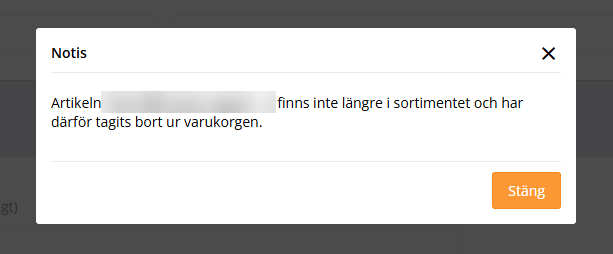
Please note that the reservation takes place when the customer clicks on Finalize purchase, and not when the product is added to the shopping cart. There is still a risk that the end customer can put the product in the shopping cart and it will be reserved before they have had time to click on Buy. In this case, the customer will be notified that the product is no longer available.
So what is required is:
- Activate the setting and save
- Activate "Enable stock management"
- Make sure the product has a stock balance
- Make sure that this setting is inactive "Allow orders even if out of stock and show stock message
New for a set number of days
Created products will be marked as news for a fixed number of days. The end date can always be changed afterwards on the created product. If you leave the field blank, new products will not be marked as news.
Number of days until publication
Newly created products will have a publication date set a few days later and will be marked as hidden. Once the product has been created, the publication date can be changed by editing the product. Leave the field blank to publish the products immediately.
Settings for item group
Presentation
Show items from subgroups in item group lists
Discount settings
Choose whether to apply the discount only to the products that have the selected product groups as their primary product group or to apply it independently to all product groups.
Primary product group only (default)
Only the products that have the selected product group as their primary product group will be subject to the discount.
All product groups
Activate this setting if you want the primary product group to be ignored. All products included in the product group selected in the discount product selection will be subject to the discount.