Digital withdrawal function - Textalk Abicart
On June 19, 2026, new amendments to the Distance Contracts Act (DAL) will enter into force. The biggest change is the requirement for a digital withdrawal function - popularly known as the 'undo button'.
The aim of the law is to strengthen online consumer protection and counteract so-called 'dark patterns' (designs that make it difficult for the customer to cancel or change something). In short: it should now be as easy for a customer to cancel a purchase online as it was to complete it.
New legal requirement: the 'cancel button' in e-commerce
What does this mean for you as an online trader?
-
Clear and easily accessible function: You must offer a clearly placed function (e.g. on "My pages" or via a direct link in the order confirmation) where the customer can notify you that they want to use their right of withdrawal. The customer should not have to call or send a manual email.
-
Immediate confirmation: when a customer clicks that they want to cancel their purchase, the system must automatically send out an acknowledgement of receipt (a receipt) to the customer immediately.
-
Unchanged withdrawal period: The right of withdrawal itself does not change - the 14-day withdrawal period still applies to the goods/services covered by the law. It's just the way the customer can notify it that will be simpler.
-
The importance of complying with the law: if your online shop lacks this feature after June 19, it may be considered a breach of the Marketing Practices Act, which could lead to sanctions and a significant extension of the customer's cooling-off period
How does it work in practice?
The customer flow
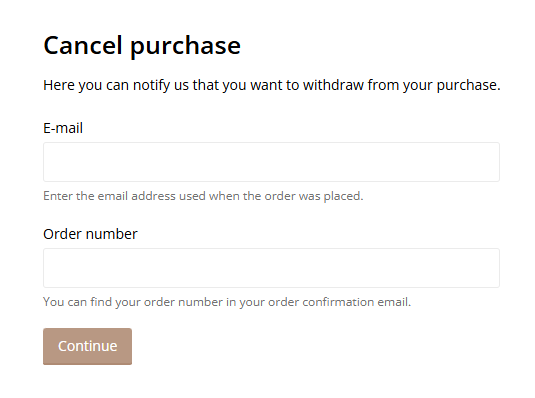
To cancel their purchase, customers go to a dedicated withdrawal page. There they fill in the order number and associated email address.
Once the system has verified that the order is in the store, a new page appears where the customer can write a message and submit their request.
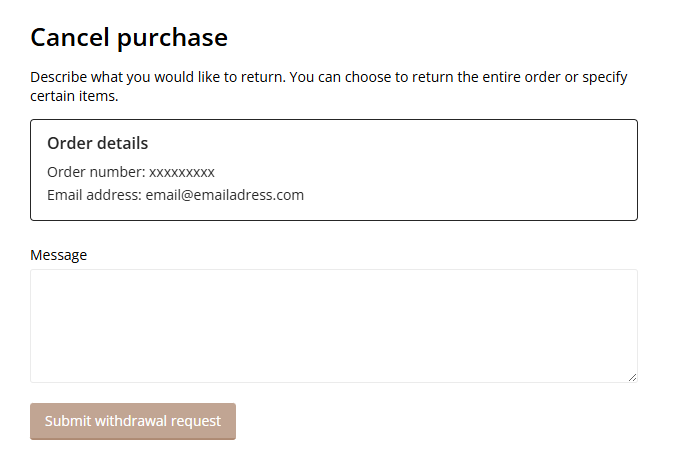
Once the customer has clicked Submit withdrawal request, an email is sent where they need to confirm their request. As soon as this is done, the case is forwarded to the shop.
Store flow
Incoming cases are collected in Abicart's admin under Orders -> Withdrawal request tab. This gives you a convenient overview where you can directly manage and update the status of the orders.
Manage orders
Under Orders -> Withdrawal request tab, all incoming cases from your customers are collected. New, unmanaged cases are automatically given the status New. To easily sort through the list, you can filter your cases based on the status choices All, New, Approved or Denied.
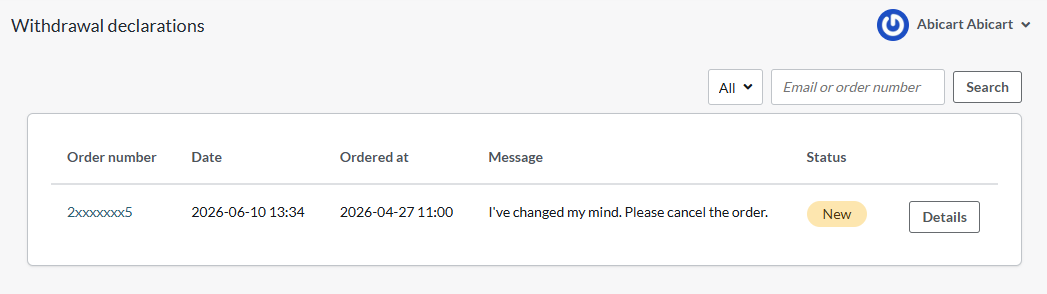
Click on "Details" to see a detailed view of each withdrawal request.
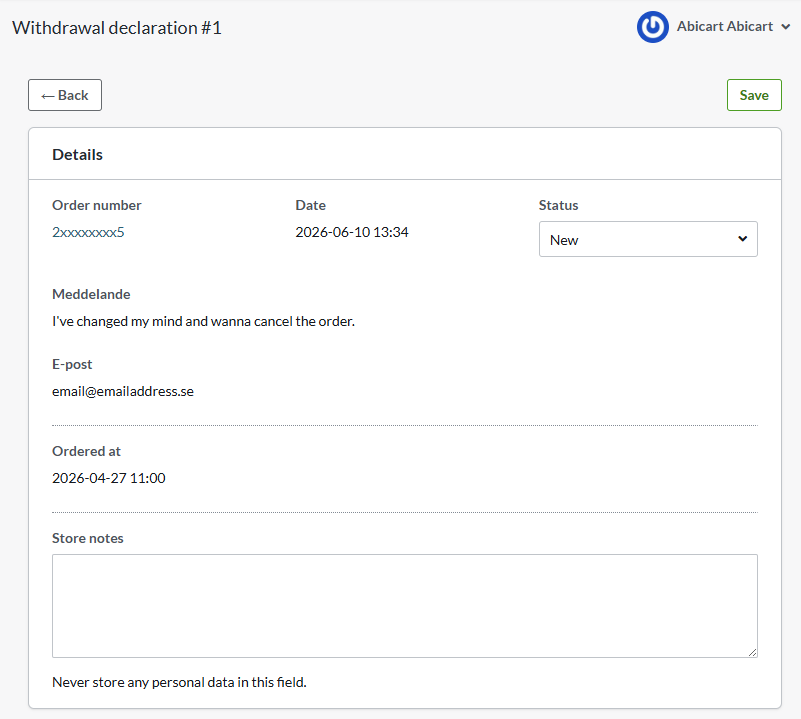
Please note that the order cannot be changed directly in this view. The page only shows the customer's withdrawal request - here you manage the status of the case and can add your own notes. If the order needs to be adjusted or canceled, this is done on the order page. Click on the order number to go there.
Once processing is complete, mark the request as 'Accepted' or 'Refused'.
Activate the "undo button" in your shop
Go to Appearance -> Themes -> edit the active theme -> Content -> Footer.
Scroll down to the Link to withdrawal form setting.
Select the On option. If you want to change the default text for the link, you can do so in the field directly below.
Click Save when you are done.
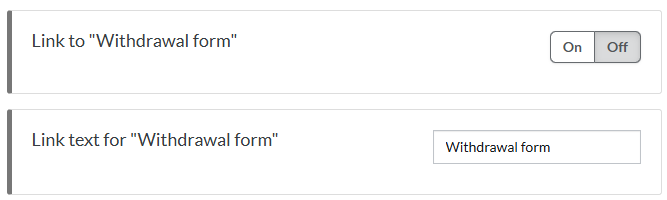
Once activated, the link will appear at the bottom left of the store, under the store address details.

Create your own link to the withdrawal form
If you want to link to the form from elsewhere in the shop - for example from the menu or the "Terms & info" page - you can easily create a plain text link.
Here's how to create a text link:
Go to Pages -> System pages -> Cancellation request. Copy the address in the URL field.
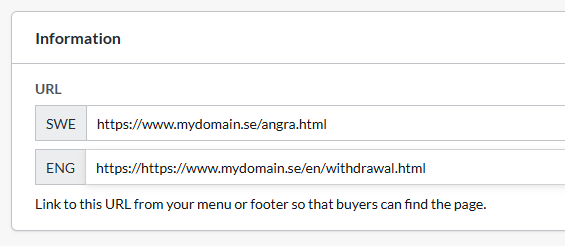
Navigate to the page where you want to place the link, for example "Terms & info"(Pages -> System pages -> Terms & info).
Type the text that the customer should click on, for example "To the withdrawal request form". Select the text with the mouse and click on the link icon in the toolbar to paste your URL.
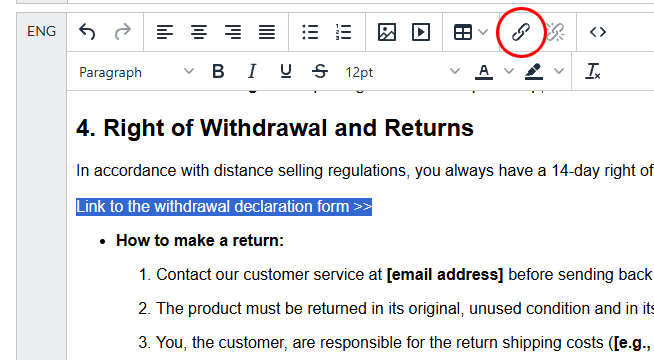
Paste the link to the withdrawal form in the "URL" field and save.
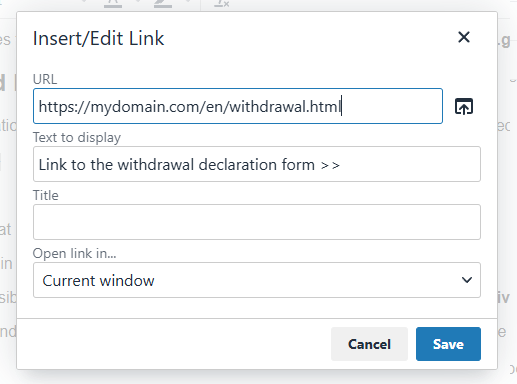
Then click save again so that your own page saves the changes.
Add a link to the menu
Go to Pages -> System pages -> Withdrawal request. Copy the address in the URL field at the top of the page.
Then navigate to the menu in the theme. Appearance -> Themes -> edit the active theme -> Content -> Menu. (In some themes, such as Fabrikk, the menu is under Content -> Header)
Scroll to the bottom of the page to "Menu items".
Click "Add", select "Custom link" and paste the link to the withdrawal form in the field below.
In the "Link title" box further down, enter the name of the link in the menu.
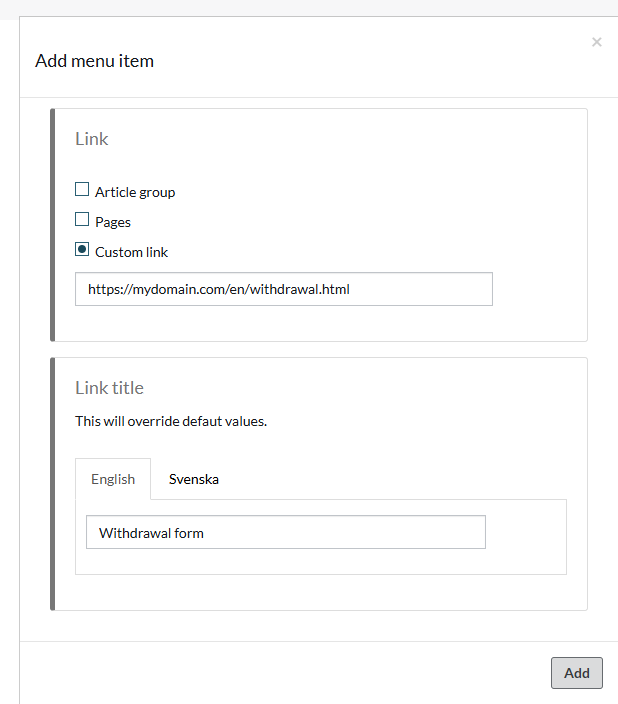
Click on "Add" and then on the save button in the theme.