Products - Textalk Abicart
Product
The most common thing you have in your store are regular products. Here you can enter various properties such as name, description, price, stock balance, item number, weight, shipping information, etc.
Packages
A product bundle must contain at least two products and you can set a new price for the bundle itself, regardless of the base price of the products in the bundle. Example: If you create a package with three products that cost 50 SEK each, you can enter your own package price of 120 SEK.
Service
What distinguishes a service from a regular product is that the blocks (properties) for e.g. stock balance and shipping are missing.
Gift card
If a customer wants to give away a gift card, you can use gift cards in the store. The store owner then creates gift cards with different values, e.g. 100 kr, 250 kr, 500 kr, etc. The customer can then buy one or more gift cards which they then give away. Either it is sent out by email or the buyer can print and give away a physical gift card that serves as payment in the store.
Create a new product
Go to Products -> Click on the "+ New Product..." button top right -> select "New Product".
On this page (tab "Product Properties") there are several different boxes containing different settings.
Copy the product >> Save as draft >> Enter the correct price >> Save as draft >> Save as usual.
Read more about the comparison price & the new law on sale prices here (Lowest price last 30 days)
Texts
This box contains settings for the product name and descriptions. If you have activated multiple languages, fields for each language will be displayed for each property.
Name of the product
Enter a name for the product. Keep in mind that this name is important for search engines, so instead of just entering "t-shirt", you should think about including the manufacturer or similar in the name as well. For example, "T-shirt from [brand]".
Introductory text
This field appears on the product page just below the product name and is meant to be used for a short summary of the product.
Description of the product
This field is intended to be used for a long detailed description of the product.
Pricing
This box contains settings for prices, VAT and the possibility to activate a quote function. If you have activated several currencies and set them to be manual, a field for each manual currency is displayed in each price field. However, the most common is that you have a base currency and then link other currencies to this base currency. Then the system can calculate prices in these other currencies automatically based on the current exchange rate.
Regular price
A field to enter a regular price for the product.
Extra price
A field to enter an additional price for the product.
Note that the new pricing system with price lists can also be managed under Products -> Pricing.
VAT rate
If a product should have a different VAT rate than the standard VAT rate, you can enter it here.
Under Settings -> VAT -> VAT rates -> Default VAT rate for store items, enter a basic VAT rate for all products.
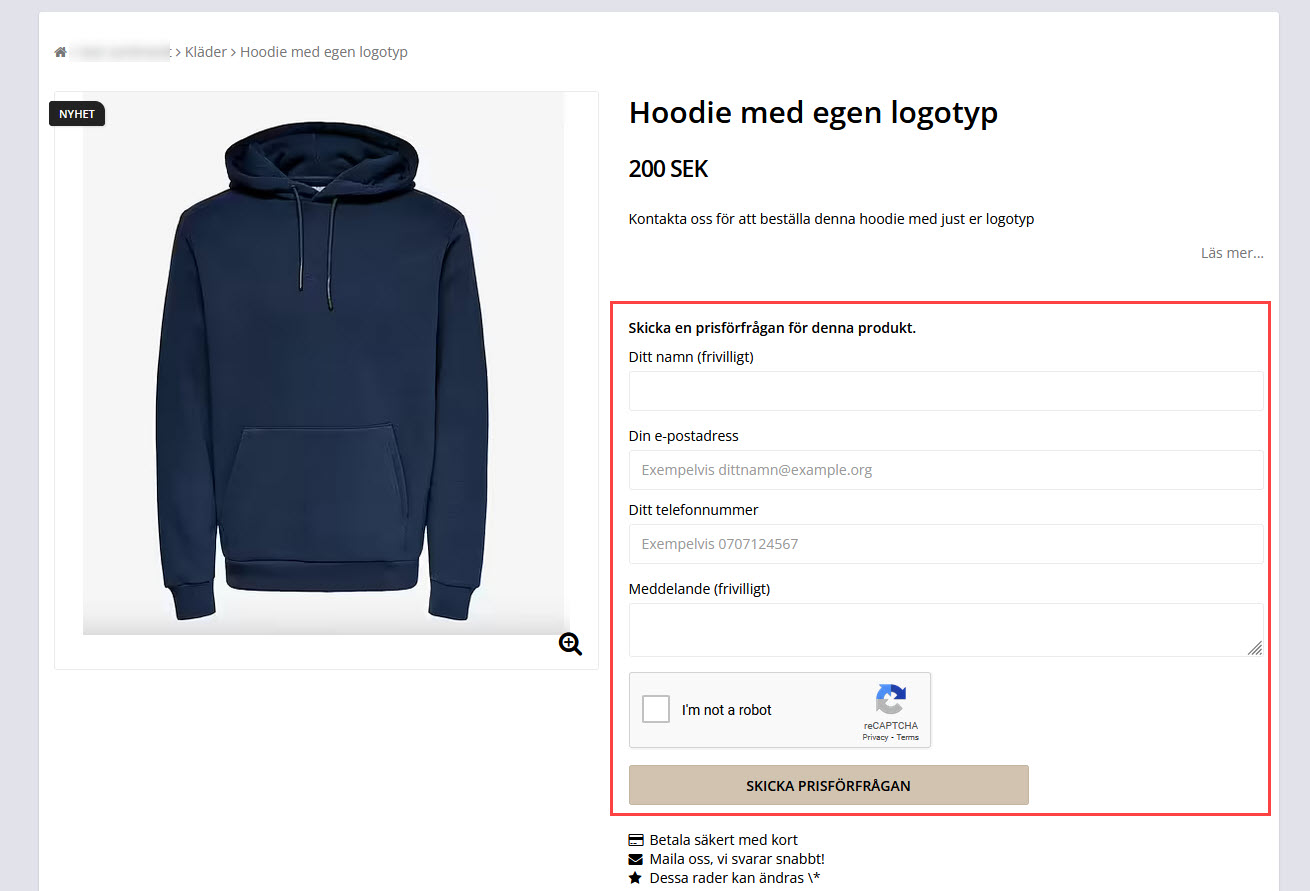
Show "Request a quote" instead of "Buy" for this item.
In some cases you may not know what the product will cost, and you need to get a quote. You can activate this setting on the product. Instead of a buy button, the customer will fill in an email address and mobile number, they also have the option to fill in their name and a message. After that, the customer will be able to click on "Send price request." The details and the item in question will be sent by email to the store owner.
By default, you must enter a price for the products in order to create them. If you want to create products without a price, you can change this setting under Products -> Product settings -> Items without price.
Stock management
This box contains settings to enable inventory management, enter stock balances, and display various stock messages to the customer.
Enable stock management
This setting must be enabled for stock management to work.
Stock balance
Field to enter the stock balance.
If you are using customer selections and have enabled inventory management, enter the stock balance of each selection in the "Customer selections" tab.
View stock balance
If you want to show the product stock balance to the customer, activate this setting. The stock balance is shown on the product page and if the balance is 0 or less, the stock message from the "Stock message for items not in stock" field is shown instead.
Hide the item if out of stock
If you want the product to be hidden when it sells out, you can enable this setting.
Allow orders even if out of stock and show stock message
You can set it up so that products that have sold out can still be purchased. The field "Out of stock message" will be displayed and the product can be purchased as usual.
Stock message for out of stock items
If you have enabled stock management and "Show stock balance", this field will appear on the item page. Here you can enter a text that informs when the product is expected to be back in stock, for example "Temporarily out of stock. Back in stock in 3-4 days".
Send me an email when stock is low
A field to activate a setting for the store owner. If you want to be alerted that a product is about to run out of stock, you can activate this feature. You will then also need to enter a value in the "Stock Alert Limit" field, i.e. when the alert should be sent out. For example, if you enter "2" in the field, the system will send out an email to the store owner (the email is sent to the email address specified under Settings -> Email -> Email orders) when the stock balance becomes two or lower.
Hide product if out of stock
Check the box to hide the product when stock runs out.
Stock location name (for sorting in pick list)
Enter the name of the storage location here.
Properties
This field contains settings for weight and product template (included in Abicart Plus & Pro).
Weight
If you use a transportation service like Unifaun and/or Pacsoft, you must enter the weight of all products. The weight should be entered in grams and it will be summed up on all items in the cart to calculate a shipping fee based on the total weight.
Product template
If you have created product templates, these will be displayed in a list here. Select the template that the product will use. Product templates are created under Products -> Product templates.
Quantity
In this field you can control how many quantities of the product must be purchased. By default, you can buy anything from one to as many products as are in stock. However, some products you may want to sell in 6-packs, 10-packs, or similar, and then you can set this here.
Minimum steps for quantity
The number that the customer can order must be a multiple of this number. The default is "1".
The most common is that you sell products individually and then you enter "1" in this field. But if you sell, for example, a 10-pack, the "Minimum step for quantity" will be 10 pieces.
Minimum quantity
The minimum number that may be purchased. Default is "1".
For example, if you sell a 10-pack, enter 10 as the minimum number. Then the minimum number that can be purchased will be 10.
Maximum quantity
If you want to limit the number of this product that can be purchased, enter the value in this field. Default is "0" for unlimited quantity.
Hide quantity input field (item display)
If you do not want the customer to be able to choose the quantity of the product, you can activate this setting. The customer can then only buy the value entered by the store owner in the "Minimum quantity", "Minimum quantity increment" and "Maximum quantity" fields above.
Never show quantity input fields
The setting above (Hide quantity input fields) only applies on the item page and if you do not want the buyer to be able to change the quantity in the cart/checkout, you must also check this box.
Item settings
This field contains settings about whether the product should be displayed as new, for display only, etc.
Novelty
If you activate the article as news, it will appear on its own page "News". You can also add a block of products to the start page of the theme and select the "News" link. Then only the articles that are marked as news will be displayed.
Customer-specific file
If you want the buyer to upload an image/file to the product before it is added to the shopping cart, activate this setting. For example, if you sell products with your own prints. Then the buyer can easily attach an image to be printed on the product.
Customer specific file is necessary
If you have activated the setting above, "Customer-specific file", you can make this setting mandatory, so that the buyer must upload a file to be able to add the item to the shopping cart. Then you tick this setting.
If only this setting is enabled, nothing happens. The "Customer specific file" setting must be enabled for "Customer specific file is required" to do anything.
Exclude from related items
Abicart Plus/Pro includes a function to show related items under an item on the item page. For example, accessories or "Others also bought". In some cases, you may not want to show certain products in a relationship list and you can disable them with this setting.
For display only
If you only want to display a product without it being available for purchase, you can enable this setting. For example, if it is an upcoming product, you can add it earlier and then make it purchasable when it comes into stock.
Text in order confirmation
A field where you can enter a text for this particular product that appears in the order confirmation.
Note that there is a general field for "Text in order confirmation" under Settings -> Document and email content -> Order confirmation -> Text on order confirmation.
You should only use this field if there is something specific to this particular product that you want to inform about.
Information
In this field there is a setting to hide the product and to show the product type.
Hidden
A setting to hide the product. The product will not be displayed in the store but only in admin. In the product list, the product row is also marked as dark gray.
Product type
There are four different product types and here you can see which type it is. Product, package, service or gift card.
Categorization
Settings for selecting product groups, and optionally selecting Google Taxonomy (requires the Google Shopping add-on).
Product group
Select which product group(s) the product should belong to.
In Abicart Plus and Pro, a product can belong to unlimited product types. In Abicart Go, a product can only belong to one group.
Google Taxonomy
For Google to accept the Google Shopping product feed, you need to select Google Taxonomy for each product. The categories are predefined by Google and you cannot change or add your own. You must select one of the ones listed if you want to use Google Shopping.
Identification
The identification field contains properties to identify the product.
Item number
An item number can contain letters, numbers and some special characters.
Some external systems (transportation systems, financial and checkout systems, etc.) may have restrictions and not allow certain special characters in the item number such as spaces, & characters, hash tags, periods, commas, etc. Therefore, these special characters should not be used as part numbers, only letters (a-z), numbers (0-9), hyphens (-) and underscores ( _ ).
MPN / SKU (Manufacturer's Product Number)
A field for the manufacturer's product number.
GTIN (Global Trade Item Number)
A field for the GTIN. If you are using Google Shopping, you must enter a GTIN number, or enter a brand name for the product.
Images
A module to upload images of the product. Supported image formats are JPG, PNG, GIF and WebP.
You should use the .JPG image format and have an image size of at least 1000 x 1000 pixels. The system will rescale the image to different sizes and then display the "best" size depending on the visitor's screen size.
In addition, we transcode uploaded images to AVIF. However, the format is only used if the browser supports that format. It is not possible to upload or import AVIF images.
Attachments
A module to upload an attachment to the product, such as a PDF file with technical specifications or similar.
You should not use the attachment feature to sell digital files, such as PDFs or similar. The attachment will be available on the product page for all visitors and will be downloadable without having to buy the product.
We have a downloadable file selling feature that you can use to sell digital files.
Shipping
In this field there are different shipping settings and display of shipping notifications.
Free shipping
If you want a specific product to be free shipping, you can enable it here. If there are some products that are free shipping and others that are not, the regular shipping fee will be applied to the order.
If all items in the cart are free of shipping charges, no shipping fee will be added to the final total.
Bulky
A feature to tag a product as bulky, for example if you sell products that are physically large but may not weigh much and should not use the regular shipping fee.
Usually, you create a shipping method (Settings -> Shipping and delivery) that can handle bulky products (e.g. "Pick up in store") and then disable bulky products on all other shipping methods.
If the customer has at least one bulky product in the cart, only the delivery method(s) that can handle bulky products will be displayed at checkout.
Delivery information
Under Products -> Shipping information, you can create different shipping templates that display different texts depending on whether a product is in stock or sold out. You can then link the templates to your products. You can tag a shipping template as "default template" and it will be activated by default on all products. You can then manually change the shipping template or turn it off completely via the settings here.
- Show the store's default shipping information template ("[Template name")
- Show no shipping information
- Choose your own item-specific shipping information template
Store owner's notes
A text field for notes. Only shown in admin, not in store.