Pricing, price lists and graduated prices - Textalk Abicart

We ALWAYS recommend copying the price list you want to edit. Once you have applied e.g. percentage price change, you cannot go back one step if it goes wrong. If you edit in one copy, you can always start again in a new copy if the first attempt was wrong.
What are price lists?
A price list is a list of prices that you can link to the shop's basic price, additional price or to a customer group that should have customized prices.
The advantage of price lists is that you can prepare price changes in peace and quiet, a couple of days before the price change is to take effect and then switch the price list manually or via a schedule when the new prices are to take effect.
Price lists are managed under Assortment -> Pricing
In Abicart Plus and Pro, unlimited price lists are included. In Abicart Go there are only two price lists, Global (regular price) and Global (extra prices).
Things to keep an eye on
- Normal prices, extra prices and purchase prices are managed in separate price lists, which are then linked to where they should be used.
- Sub-stores and customer groups can be linked to price lists which are then used instead of the main list. Several sub-stores and/or customer groups can be linked to the same list.
- If a price field is left empty, the product is not available for purchase. If the store allows free items, you can enter 0 as the price, but an empty field will also make the product non-purchasable with that setting.
- If you change prices on the product page or product list, the price in the active price list will change.
- Prices are listed including or excluding VAT depending on the store's basic VAT settings (Settings -> VAT -> Price management). You cannot have some price lists including VAT and others excluding VAT.
Conversion
When the functionality is activated, existing prices will be converted to the new structure. However, the store should go through the prices and confirm that it looks right, as various settings affect how the conversion takes place.
Normally, three different price lists will be created, one for regular price, one for extra prices and one for purchase prices. If no product has an extra price or purchase price, only one price list is created, Global (regular price).
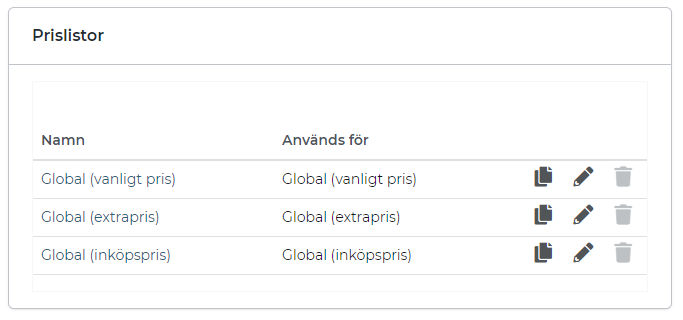
Linking price lists
Under Assortment -> Pricing -> "Usage" tab, you link the store's price lists.
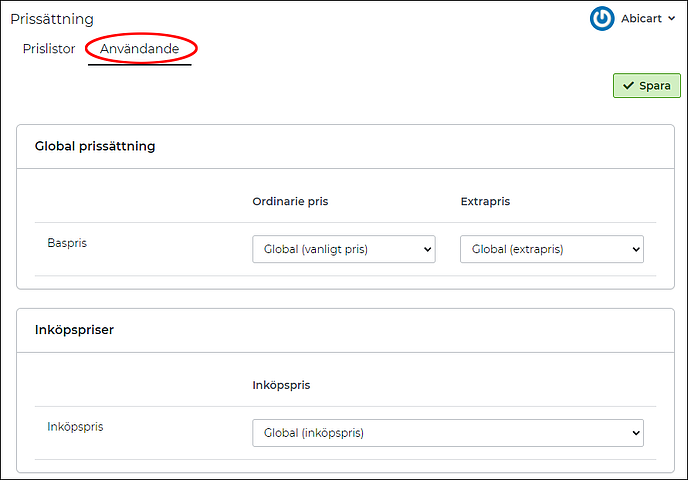
In the example above, we have three price lists linked in the store. Regular price, extra price and purchase price.
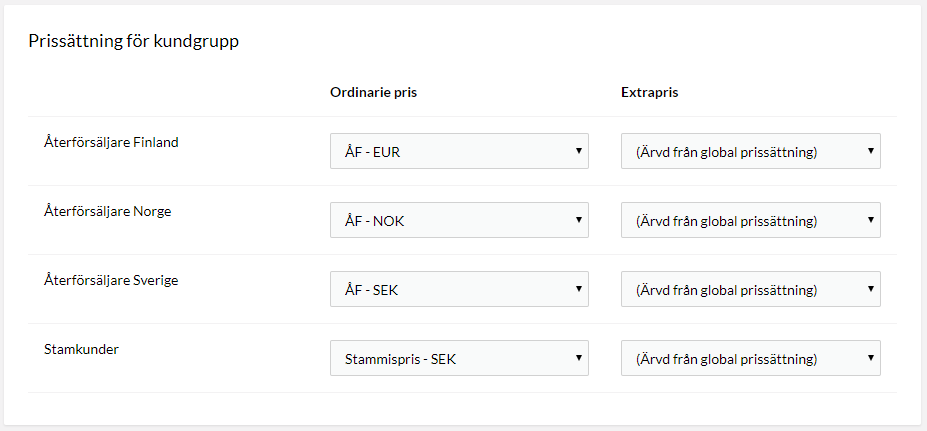
If you use customer groups, you can easily set which price list each customer group should use. These are shown under the block with "Global pricing".
Create a new price list
You can create a new price list in a few different ways. The most common is to go to Assortment -> Pricing and click the "+New price list" button in the top right corner. This creates an empty price list without any prices.
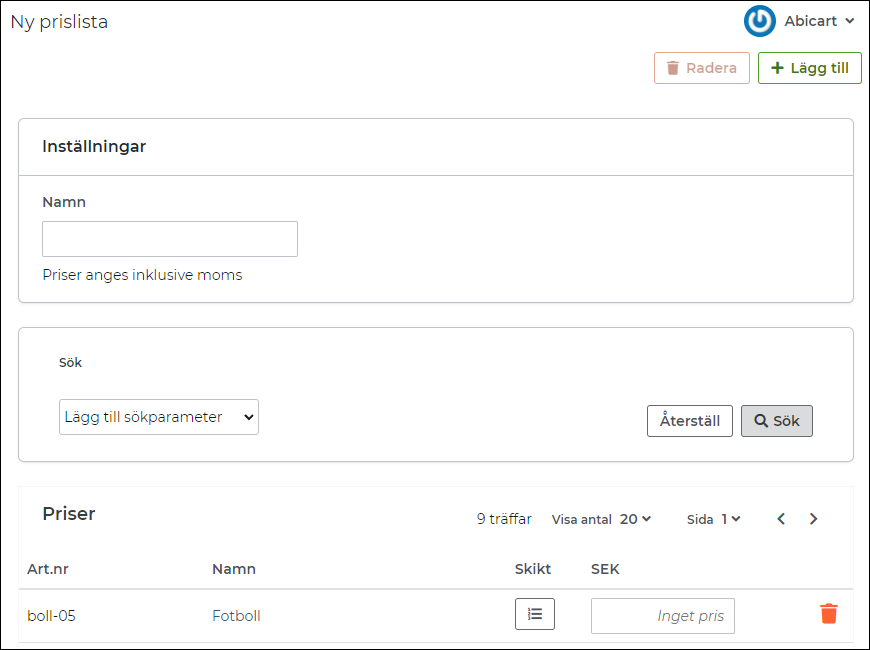
Name - Enter a name for the price list, for example "Black Friday", "Promotion" or similar. This is not displayed anywhere towards the customer but only in admin.
Search - If you have many items and only want to enter prices for some, you can easily add a search parameter for product number or product name and then search for which items to price.
If you do not want to create an empty price list but want to copy and edit an existing price list, this is also possible. In that case, go to an existing price list, then click on "Tools" in the upper right and then select "Create copy of this price list". You can then rename it and update the prices manually.
Updating prices in a price list
You can update prices in four different ways:
Change manually on the product page in the administration
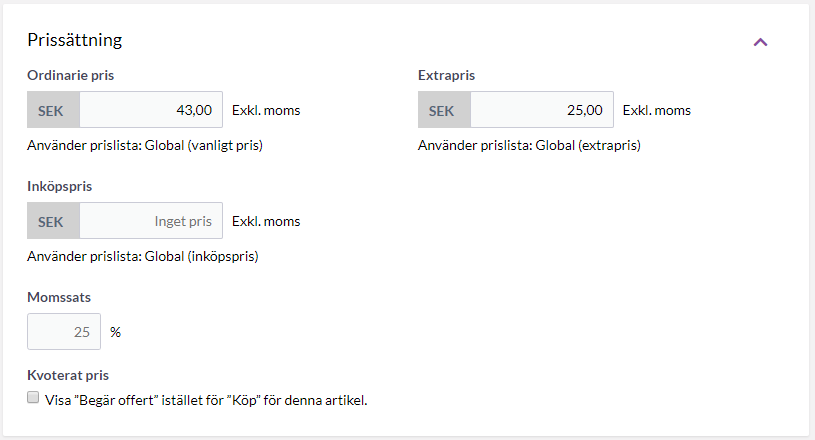
Enter the product as usual (Assortment -> Products -> Edit product -> Price) and enter the new price. For example, if you change the "regular price" and "extra price" on the article, the price lists for each price will also be updated, in this case "Global (regular price)" and Global (extra price).
Change manually in the product listing
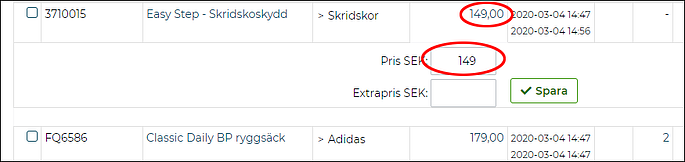
Go to Assortment -> Products and click on the price in the product list. Then enter the new price in the box below.
Change manually in the price list
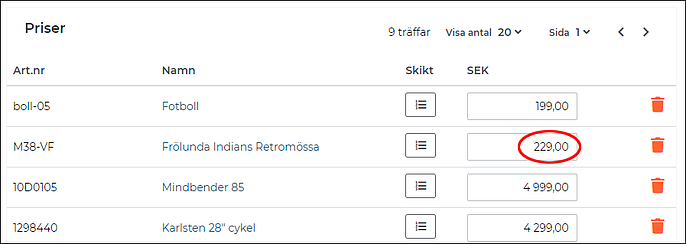
Go in and manually edit the price list (Assortment -> Pricing -> click on the edit icon "pencil" to the right of the price list). All items are then listed in a long list and you can make manual changes behind each product.
Change prices via text file import
If you want to update all the prices in a price list or perhaps create a completely new one, you can do this by importing a text file.
What should the file look like?
The file should contain at least three columns with the following headings:
- Article
- Qty
- Currency code, for example SEK
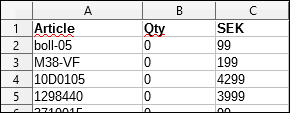
If you have several currencies, you enter these in each column after each other. See example.

To update an existing price list, go to Assortment -> Pricing and click on a price list via the edit icon (pencil) on the right. Then click on the gear in the upper right, "Tools" and then "Import prices from file". 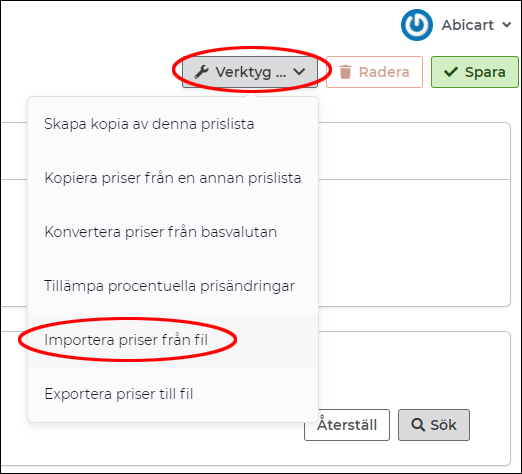
This opens a pop-up window where you select your import file.
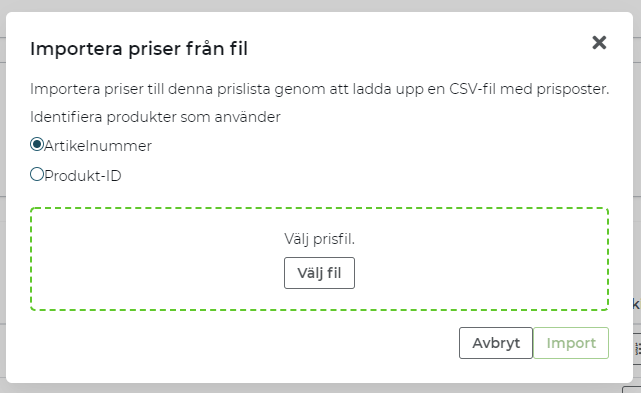
There is a setting where you can choose between product number and product ID. This is if you do not have your own product numbers on your articles, you can use the database's product ID instead.
Select the file and click "ok". The file will then be analyzed and if everything is okay, a green box will appear below.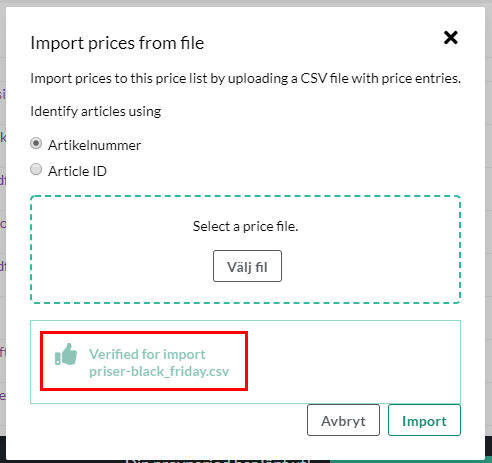
Then click on the import button and wait. The import may then take a while depending on how many items are included in the price list.
Once the page has reloaded, everything is ready and the new prices have been loaded into the price list.
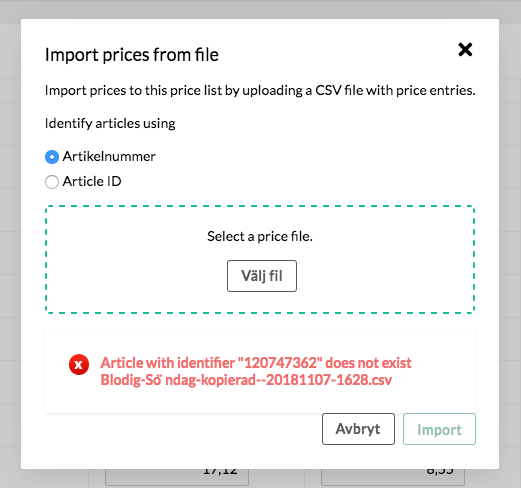
If something is wrong, for example if there are two items with the same product number or if the product number does not exist, this will be shown in the box.
Remove tiered prices via import
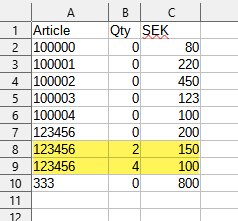
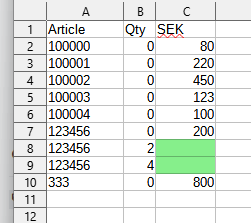
To remove tiered prices via import, export the price list. Then edit the file and delete the price; the value in the "Qty" column should remain. See example:
Column A = Item no.
Column B = The quantity
Column C = Price
This is what the file looks like after export:
Edit the file so that it looks like the image below. Then import the file into the price list in admin again.

Scheduling
(Webshop Plus and Pro only)
The store can schedule a price list to be activated at a specific time. The function replaces the previous "scheduled extra prices", also known as "Black Friday", and is done under Discounts -> Scheduling.
The function switches which list to use for extra prices at the specified time. It is also possible to set if/when the system should revert to the previously active price list.
Create a new schedule
Discounts -> Scheduling -> +Create scheduled event
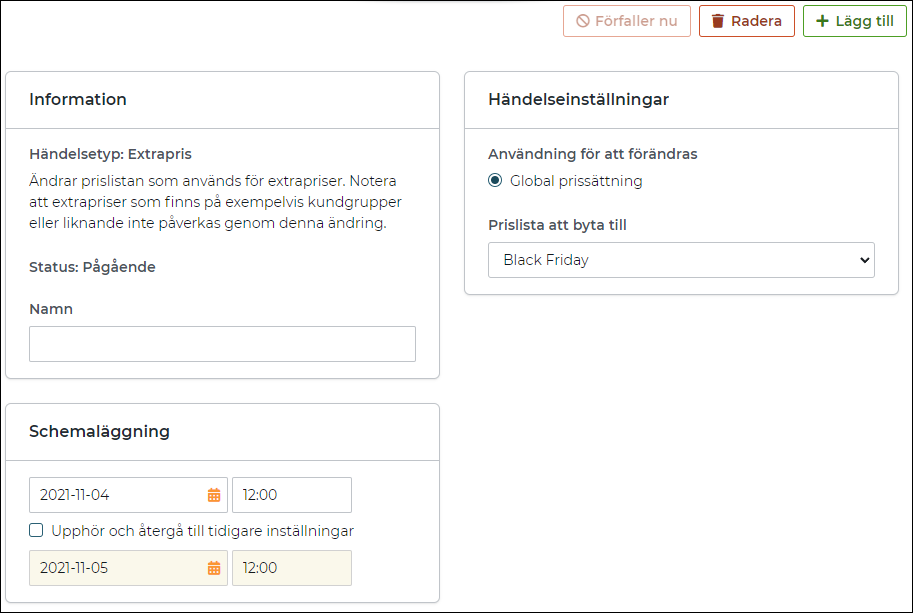
Name - Enter a name for the schedule, for example "Black Friday". This is not shown anywhere to the customer, but only in admin.
Scheduling - Enter a date when the price list should be activated.
If you want this price list to be temporary, you can check "Deactivate and return to regular price list" and enter a new date when this price list should be removed.
Event settings - Specify which price list to activate. The list shows all the store's price lists.
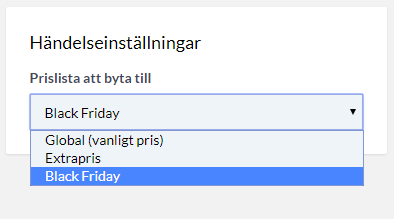
In this example we choose "Black Friday".
Then click on "Add" to activate the scheduling.
Tiered prices
If you want to give customers a cheaper price the more of the same product is purchased, you can create tiered prices. Go to Assortment -> Pricing and then choose which price list you want to use and click on it.
Between the name and the price there is an icon with some dots and dashes. Click on it.
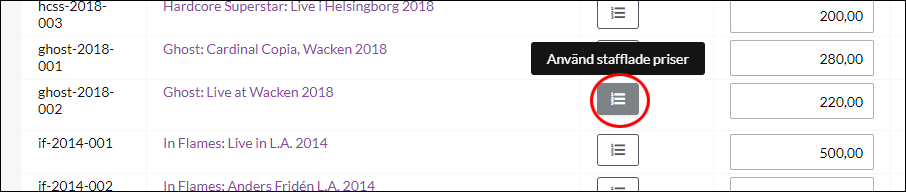
This will add a row, a box for quantity and then a box for price.
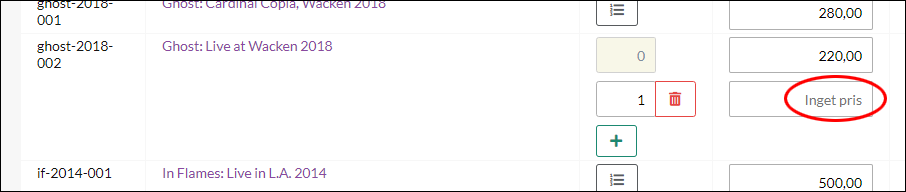
In this example, we want to give customers a discount if they buy three items, so we enter a three in the box for quantity and the price what the unit price for three pieces should be, 120 SEK.

Then just save the price list. Done.
In the example above, the unit price will be SEK 220 if you buy one or two items. If you buy three or more, the unit price will be 120 SEK.
If you exceed a limit, the price applies to all quantities (not just the quantity that exceeds).
Show tiered prices on the product page
To show the price steps on the product page, you need to activate this in the theme.
Go to Appearance -> Themes -> select theme, edit -> Content -> Product page.
Scroll down to "Price table" and click the "Enabled" button and save.
Note! Displaying tiered prices on the product page only works on regular price. It is not possible to display the table on the product page for any graduated extra prices.
Show extra price in percent or value?
To show the extra price in SEK instead of -x%, edit the store theme:
Go to Product group page >> Scroll down to Extra price in percent >> Change to "value" >> Save
Done!