Translations - Export/import texts in multiple languages - Textalk Abicart

You must first go to Settings -> Languages to activate the languages you want in your store.
If you want to activate a language but do not want to display it in the shop directly, click on the language in "Hidden". Then only the language fields will be displayed in the shop administration.
Do not make changes during this process
Note: When exporting texts, do not make changes in the shop before importing the new language. Exported language strings are imported with the same keys, so if you make changes in the store before importing, there is a risk that text strings will be imported incorrectly.
Video guide
Export file for translation
Go to Settings -> Language -> Export.
Export translations
Here you will see several choices that need to be made.
Which language do you want to translate from? - Here you will see a list of the languages entered in the store under Settings -> Languages.
For example, if you want to translate from Swedish to English, select Swedish. Your exported file will then contain three columns: Id, source language (in this example in English) and an empty column where you write your translations.
Which file format do you prefer? - You can choose between three different formats in which the file will be exported, CSV (semicolon-separated text file), ODS (Libre Office) or XLSX (Excel).
If you are not sure which to choose, we recommend XLSX, which can be easily opened in Excel.
What data do you want to include? - If you want to translate all the texts already entered in the shop, tick all the boxes for Articles, Article groups, Delivery methods, Payment methods, Delivery information, Article template, Own pages and Theme.
Theme - Here a list will be displayed with all the store's themes. Select the store's active team. In the exported file, there is a ready column for the translations (translation) in the export file, where you enter your translations for the language of the respective text field.
Then click on export.
Where do I put the translations in the file?
Once you have exported a file, open it in a spreadsheet program, such as Excel, Libre Office Calc or similar. The file should then contain three columns, key, content and translation, and look something like this.
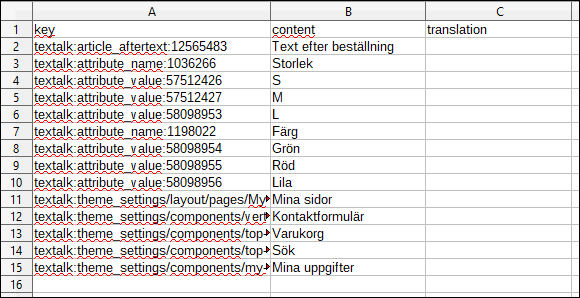
Column A: key - This column contains the property to which the text applies. For example, in the picture above, line 2 is an "article" with article ID 12565483 and the content "aftertext" which is the field for text that appears after the order. In column B of line 2 we can see the English text that applies which is "Text after order".
Column B: content - In the second column, the English text is shown in this case (as we chose to export the translation from English above).
Column C: translation - In the third column we translate the text in column B into the language we want to add to the shop, for example English.
How do I import a file once the texts have been translated?
Once you have translated a file and want to import translations, go to Settings -> Language -> Import.
Import translations
Select the language to import - A list of the store's active languages will be displayed. If you have translated a file from English and entered English texts in column C, select "English" from this list.
Select the file you want to import - Select the translated file from your computer.
Then click on the import button. Done!
Important information
Please note:
When exporting texts, do not make changes to the store before importing the new language.
The language must be added to the store.
You can only import one language at a time.
If you have exported the file as CSV, the file must be saved with the character encoding "UTF-8" and the delimiter set as "comma" in order to be imported.