Product export - Textalk Abicart
Product export is a function to save all products in a text file. You can choose to export all properties, or just selected ones.
How do I use product export?
Go to Products -> Export. Here you can choose which properties you want to export. Once you have made your selections, press the "Export" button located in the top right corner.
Now you have a text file with the properties you selected, which you can use for whatever you want. The file can be opened in spreadsheet programs such as Excel, Numbers, LibreOffice Calc, etc.
NOTE! Remember to always export the art.nr property. It is the primary key used to identify each item. The item number must be present in order to import the file again.
A more detailed instruction on this can be found further down in the article.
Things to keep in mind
Before exporting, you should review the store's export settings. These can be found under Settings -> General -> Export settings.
Here you can choose how the file will be saved, you can choose for example "Delimiters" and "Character encoding".
Delimiter
There are three different "Delimiters" to choose from:
comma
semicolon
tab
If you choose "comma", the file will be saved with the extension .CSV.
If you choose "semicolon", the file will be saved with the extension .SKV.
If you choose "tabulator" the file will be saved with the extension .TAB.
All these three formats can be opened in any spreadsheet program. The most common way is to save the file with "comma" and get a text file with a .CSV extension.
Character encoding
A character encoding is a way of representing, encoding, a selected set of characters, of binary digital encoding used in communication and data storage in computers. There are two character encodings to choose from:
ISO-8859-1 (Latin 1, Western European)
UTF-8 (universal)
Most commonly, Windows uses "ISO-8859-1 (Latin 1, Western European)" and Mac and other operating systems use UTF-8.
Exporting a file
Go to Assortment -> Export.
This displays all properties that can currently be exported. Select the properties to be exported, and also tick the box "Include column headings in first row" at the bottom left. Then click on the export button in the top right corner. Then you just have to wait a bit. Normally it takes 5-10 seconds for the file to generate if you have 500-1000 products. If you have more products, it may take much longer.
Open the file in the spreadsheet program
Once the file is exported, we open it in our spreadsheet program. Remember to open the file after the export settings we made above. If we saved the file with file extension CSV and character encoding UTF-8, the file must be opened this way in the spreadsheet program for it to be correct.
Once the file has been opened, check it quickly and make sure the contents are in their columns. Also check that special characters such as å, ä, ö are correct.
If something is not right, do not save the file now. It will not be possible to use it again. In that case, close the file without saving.
Tips and troubleshooting
Below are examples of common errors that can occur if you have opened the file with the wrong delimiter and/or the wrong character encoding.
The examples shown below are made in the free program "LibreOffice Calc" which can be downloaded here.
File opens incorrectly
If everything is "all over the place" and not column by column when you open the export file, you have chosen the wrong delimiter. If å,ä,ö and other letters have been replaced by "strange" characters and symbols, the wrong character encoding has also been chosen. In the example below, both the delimiter and the character encoding are wrong.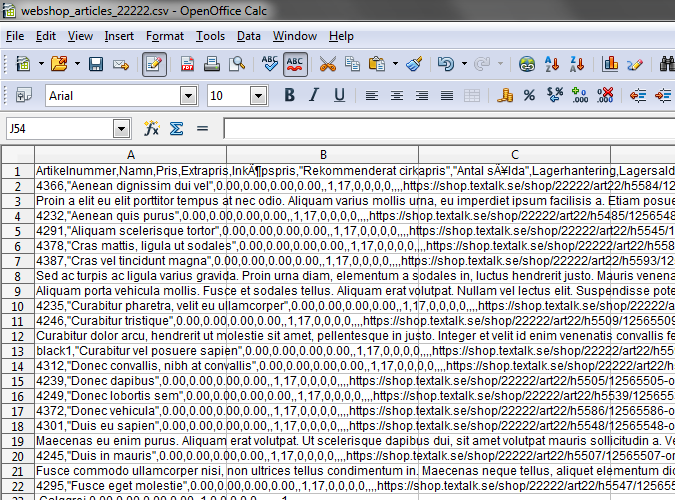
- Review the export settings (settings > general) and change the delimiter and character encoding. Then re-export the file. Now it should open correctly.
- Choose how the spreadsheet should open the file. In Calc you will always be asked how to open the file.
- Choose the character encoding.
- Select delimiter.
- Preview what the file will look like when opened.
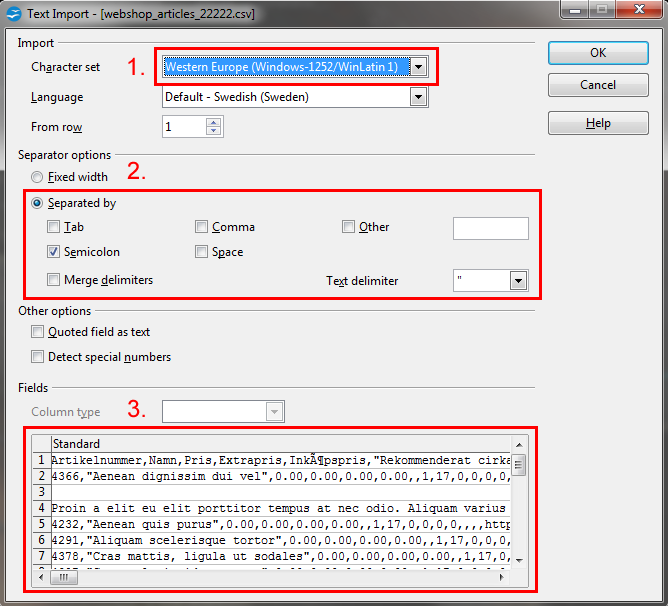
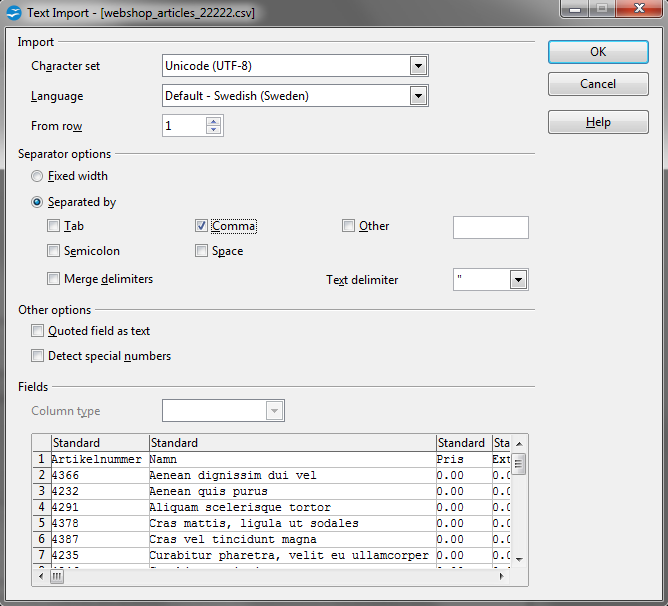
To open the file correctly in this example, we need to change:
- character encoding to "UTF-8"
- the delimiter to comma.
- Now we see in the preview that it looks correct.
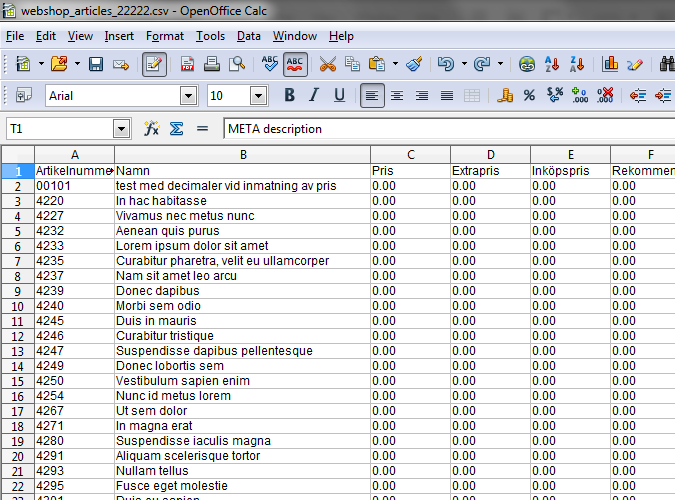
Then when we open the file, it looks good:
Price with decimal point instead of comma
For the Swedish language, commas are used as decimal separators in prices. In English, for example, it is a period instead.
If you open the export file and the decimal separator of the prices is a dot instead of a comma, you need to change the separator in the export settings. If you use a semicolon as the delimiter, the comma will be used as the decimal separator. If you use a comma as a delimiter, the decimal separator will be a dot.
In the example below, "comma" is selected as the delimiter.
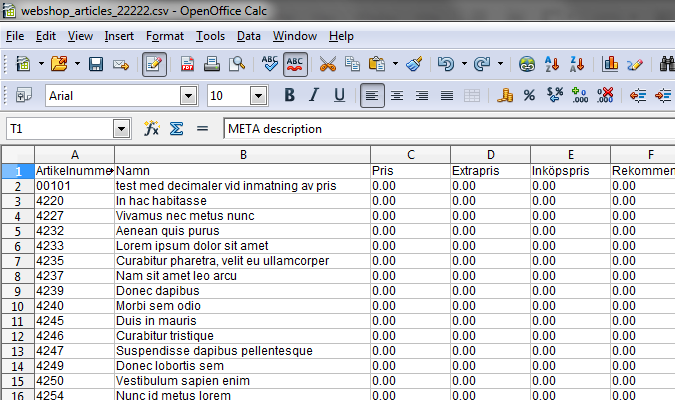
In the example below, "semicolon" is chosen as delimiter.
First zero disappears in some columns
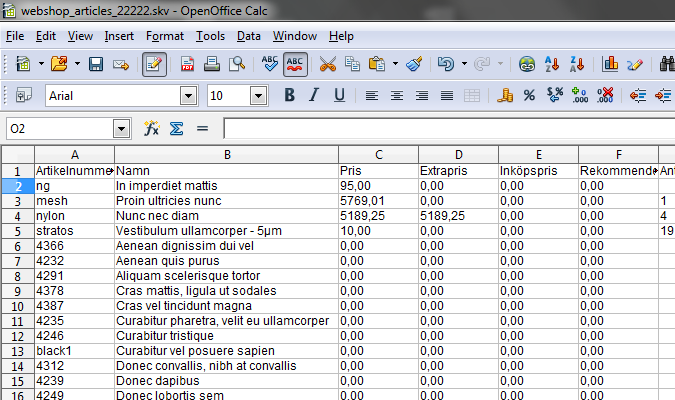
Sometimes item numbers and/or other fields start with a zero followed by other numbers. Some spreadsheet programs automatically interpret fields containing only numbers as numbers and the leading zero disappears when the file is opened. To prevent this from happening, we need to tell the program to interpret the columns as text and then the zero will remain. We do this before opening the file in Calc.
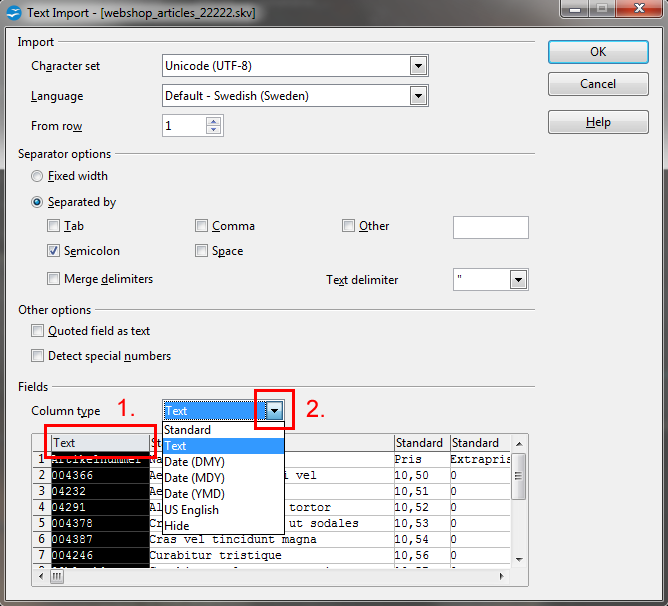
1. Click on the column heading containing leading zeros to select the column.
2. Then select "Text" from the drop-down list.
When the file is opened, the leading zeros will remain.