Image import - Textalk Abicart

Video guide
How does the image import work?
You cannot add an image directly to the import file, instead you must enter a file name or URL for the image. The image must be available on a server at the time of import and it works to import images from an FTP server or a web server. The images will be downloaded and placed on the respective product at import time.
After the image import is complete, the images can be deleted from the server.
Web server
For imports where the images are on a web server, enter the full URL of the image in the image column of the import file.

FTP server
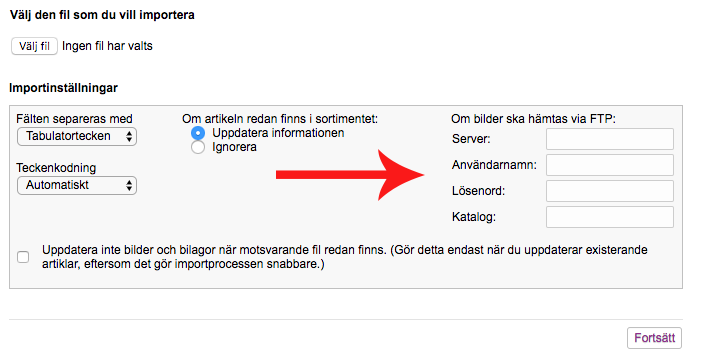
For imports where the images are on an FTP server, you need to enter the login details (server, username and password) for the server in step 1 of the import (Products -> Product import).
In the import file, enter the file name of the image in the image column.

To import the file into Abicart, fill in the fields for FTP settings.
Go to Products -> Import. Enter the server, username, password and directory.
Importing multiple images on the same product
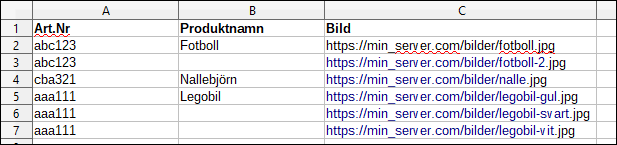
If you are adding multiple images to a product, you must create a new line in the import file for each new image.
The product number (Column A) is repeated for each new image and then you place the new images in the correct row in the image column (Column C).
In the example below, the soccer ball will have two images and the lego will have three images.