Embed a video or youtube clip - Textalk Abicart

I have a video clip, can I upload it to the file archive?
Yes, you can upload the video clip to the file archive, but you should always use a streaming service such as YouTube, Vimeo or similar for your videos. If you have filmed something, for example, with your mobile phone and upload the video file directly to the site, visitors must download the entire video file before they can watch the clip. This can make the whole store very sluggish and slow to load. Therefore, you should always upload the video to YouTube, for example, and then "embed" the clip from there on your site.
Important to keep in mind
Abicart's themes are responsive, which means that the design adapts to visitors' screen sizes. Usually when you copy an embed code from a streaming service, there is a fixed width and height in the code which means that the video clip is not responsive. We'll go through how to make the clip responsive further down this page.
Embedding a link from YouTube
- Once you have uploaded a video to YouTube, click "Share" below the video
- Then click on "Embed" and copy the code
- You paste the link in the article description of the article where the video should appear.
- Go to Products -> select product, edit paste the code in "Description". Save.
Making a video responsive and full-width
A video embedded in the theme will not automatically adjust to the visitor's screen size.
Solution: Go to https://embedresponsively.com/ and paste the link from YouTube or Vimeo and click "Embed". NOTE! Keep in mind that it should be the URL that you copy from the address bar and not the sharing link.
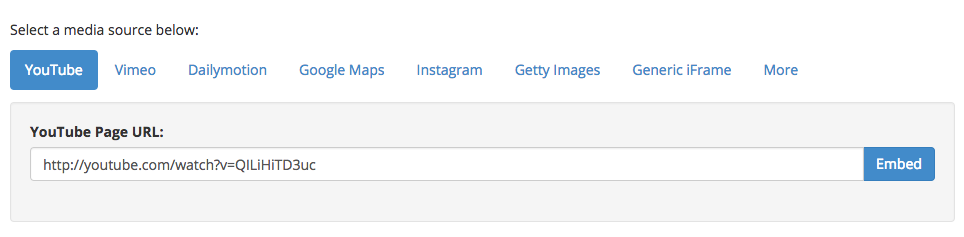
The code that appears consists of a CSS part and an HTML part that you need to paste in two different places. The code that is between the "style tags" you put into your stylesheet in the theme and the HTML code that comes after the style tags (highlighted in the image) you paste into the source code in a separate HTML module.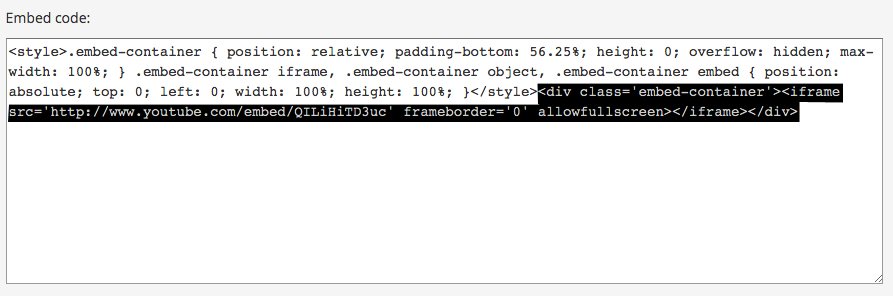
You can also put the video on a product page:
Products -> select product, edit -> paste the code "Description".
Example:
Embed a link from YouTube shorts
When the video you want to embed is a "shorts" video, you need to edit the URL you get from YouTube.
The link you get looks like this: https://youtube.com/shorts/exempelvideo
It needs to be edited to look like this: https://youtube.com/embed/exempelvideo
Copy + paste the code below into your editor and then replace these fields:
- Video URL
- The optimal size for a Shorts video is 315px x 560px, but you can change the image size as needed. Make sure that the aspect ratio is maintained.
- Frame border in pixels (px)
<iframe width="315" height="560"
 src="https://www.youtube.com/embed/exempelURL"
 title="YouTube video player"
 frameborder="0"
 allow="accelerometer; autoplay; clipboard-write; encrypted-media; gyroscope; picture-in-picture; web-share"
 allowfullscreen></iframe>
Follow these steps:
1. open the video on Youtube
2. copy the video link found in the address bar of your browser.
(or) Click on Share > Copy.
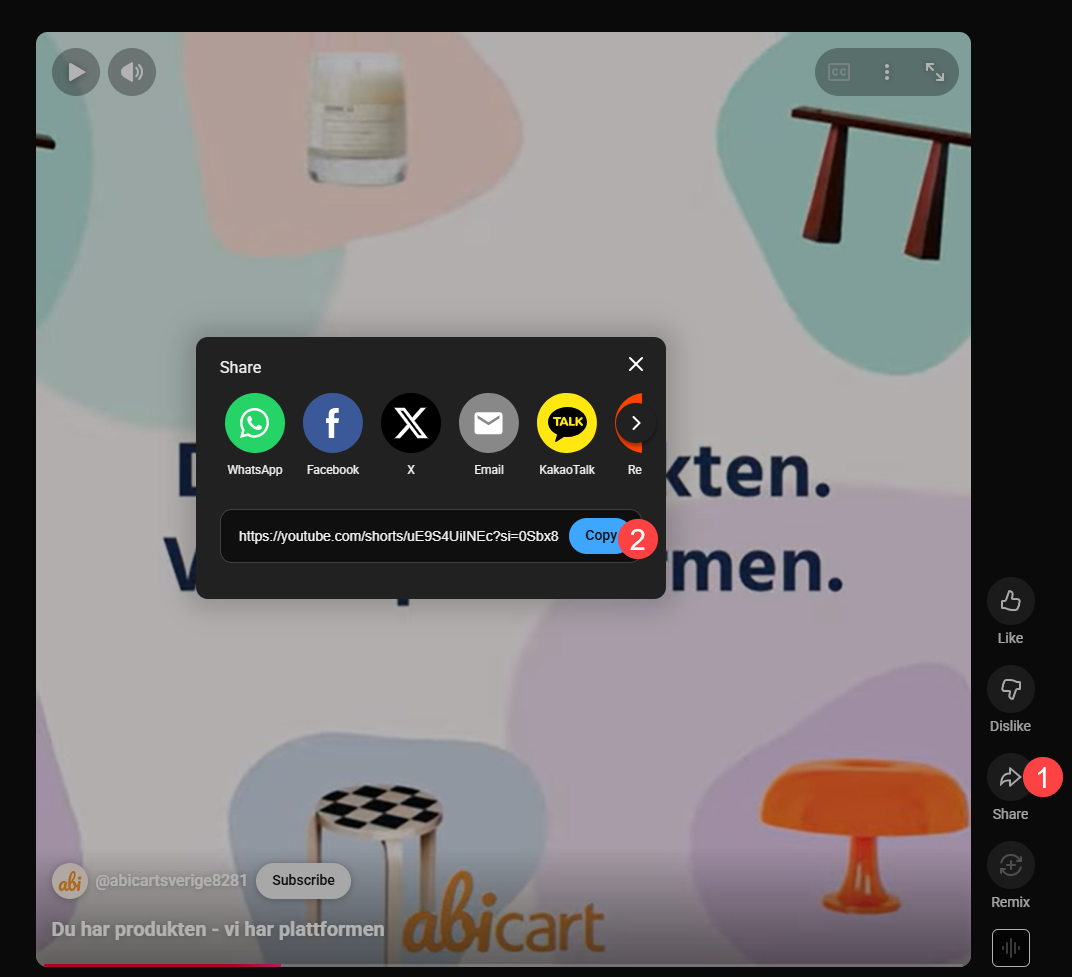
4. Paste the copied video link into the iFrame code mentioned above.
5. Replace /shorts/ with /embed/ in the video URL:
Before: https://youtube.com/shorts/exempelvideo
After: https://youtube.com/embed/exempelvideo
6) Change the width/height if it needs to be customized.
For example, the code should now look like this:
<iframe width="315" height="560"
 src="https://youtube.com/embed/uE9S4UiINEc?si=0Sbx8nxSh7hAOcVc"
 title="YouTube video player"
 frameborder="0"
 allow="accelerometer; autoplay; clipboard-write; encrypted-media; gyroscope; picture-in-picture; web-share"
 allowfullscreen></iframe>
5) Insert the code in the source code (<>) of any HTML block.
For example, it can be a product description, a separate page, product group or the star page.
When you put the code in the store, the video will appear like this: