Delivery information - Textalk Abicart
Delivery information
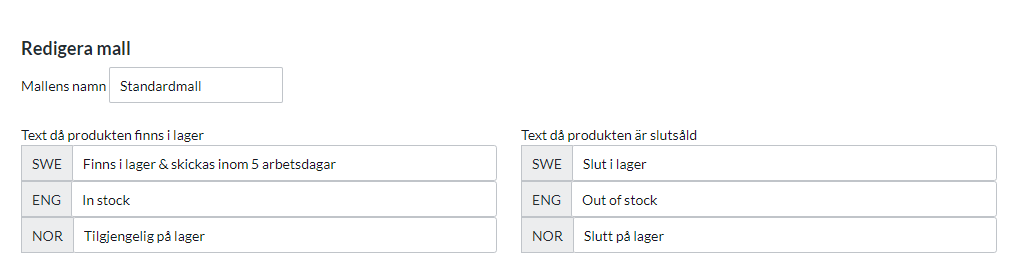
Shipping information is a text message that appears on the product page, at checkout and on the order confirmation depending on the shipping template and the stock balance of the products. You can set a text for when the item is in stock, and another text for when the product is sold out.
The most common is to have a template that has a text message for when the product is in stock and another text when it is sold out. For example, "In stock. Immediate delivery" and "Out of stock. Delivery in 8-10 days".
You can create several different templates with different texts, but each product can only have one template active at a time.
Stock message
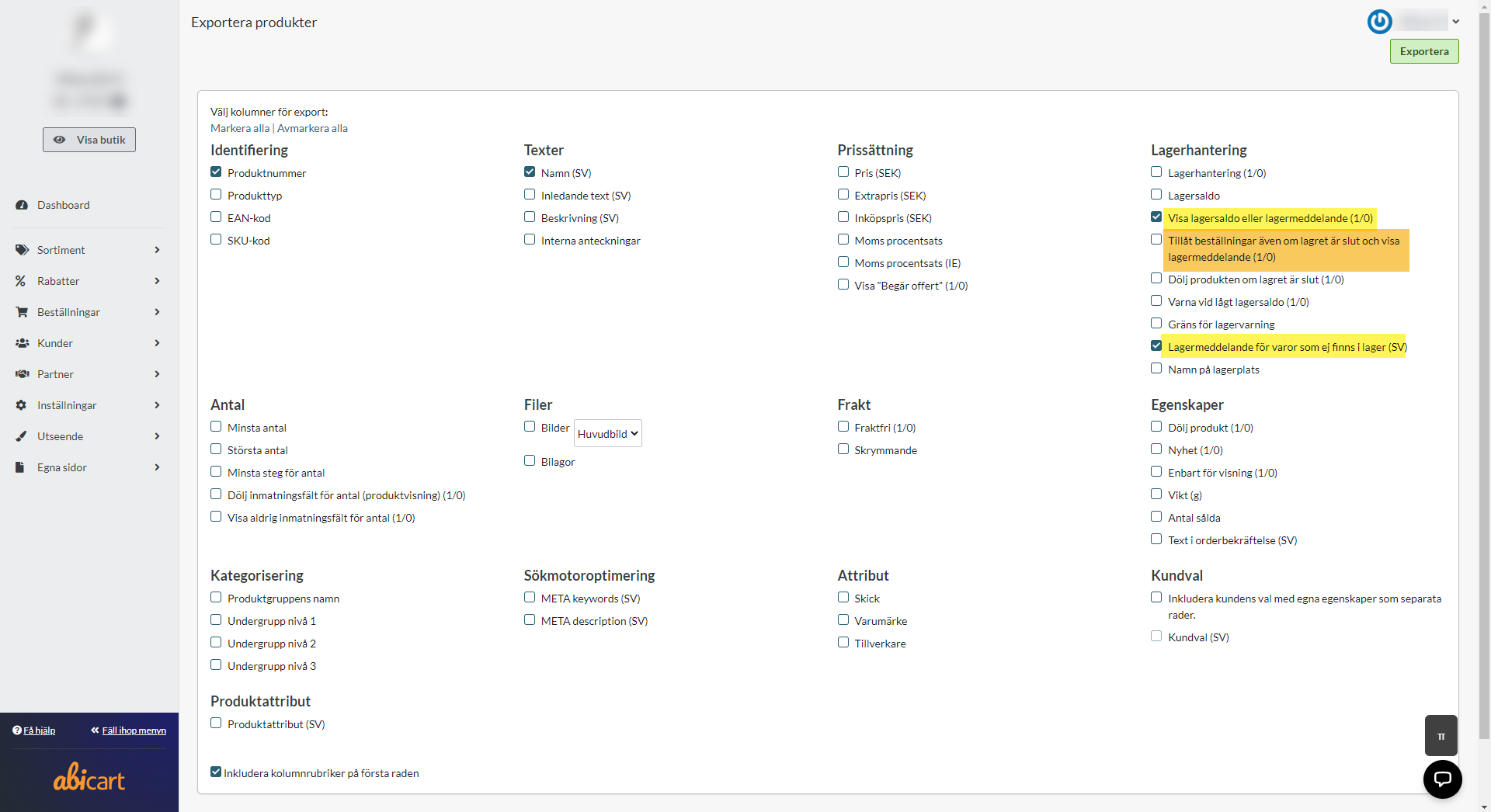
Stock message is a product setting under Inventory Management (Assortment >> Products >> Edit a product >> Inventory Management). The stock message & its related settings are also available via export/import.
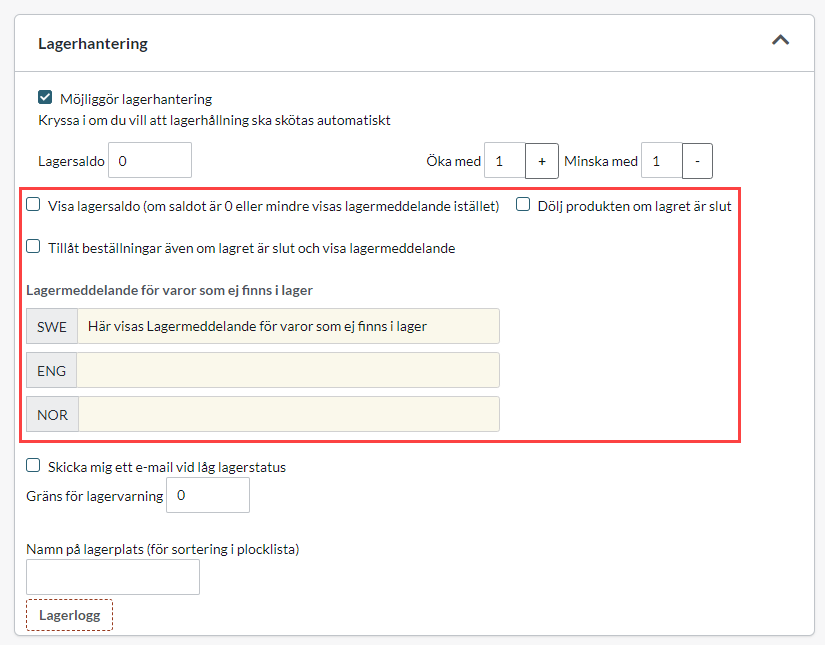
Send me an email when stock is low
Check this box to receive an email notification when stock is low. The email will be sent to the same email specified under "Recipient Order Confirmation Copies" (Settings >> Email)
What is the difference between delivery information and "Show stock balance/Stock notification for goods not in stock"?
In order to show delivery information and stock balance/stock message, it is required that "Enable stock management" is activated.
The delivery template is intended as a general text that can be used for products: general delivery information.
The stock message, on the other hand, can be written more specifically and vary from product to product.
The delivery template can only be edited in admin, but the choice of delivery template per product can be done both manually via admin and via import. See more info under the heading "Import delivery templates".
Stock message can be edited manually via admin and via export / import. See image example below.
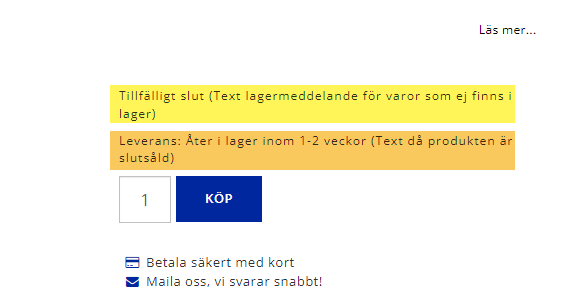
If you use both delivery information and "Show stock balance/Stock message for goods not in stock", two messages are displayed at the same time. Sometimes this can be good, other times it might cause confusion. Use only one of these functions at the same time delivery information and stock message do not fit well together.
Example stock message & delivery information on product page:
Example properties for export when you want to edit stock message via import:
The properties highlighted in yellow are needed to activate and enter the stock message. The orange highlighted property is only needed if you want the product to be ordered despite being out of stock.
What is required for shipping information to work
For the feature to work, it must:
- "Enable stock management" must be active on the product.
- The product's stock balance must not be empty.
- There must be at least one delivery template.
Create a delivery template
To enter a delivery message, you first need to create a delivery template.
Go to Products -> Delivery information.
Under "New template" there are three fields that you can fill in.
Name of the template
Enter a name, for example "standard template", "template 1", "5 days delivery" or similar.
The name is only displayed in admin.
Text displayed when the item is in stock
Enter a text, for example "In stock, immediate delivery".
Text when the item is out of stock
Enter a text, for example "Out of stock. Back in stock in 8-10 days".
Do not forget to save.
You can create several different templates but each product can only have one active template.
Choose the default template
When you create a shipping template, it automatically becomes default template. If you have created several delivery templates, you must select one of the templates as the default template. You do this by ticking the ring to the right of the template name. (If you change the label "default" to a new template, all products that have "Show store default template for shipping information" will get the new template).
Delete a shipping template
If you want to delete a template, select the template via the checkbox in front of the template name and then click the "Delete selected" button.
Select the delivery template on the products
Go to Assortment -> Products -> select product, edit -> scroll down to the box "Shipping" -> Shipping information.
Here you have three different choices:
Show store default template for shipping information
By default, the default template is selected on all products.
Show no shipping information
No template will be used.
Choose your own product-specific template for shipping information
If you select this, all shipping templates available in the store will be displayed and you can choose a different template than the default template.
Importing delivery templates
If you have many products that will use different templates, you can make an import to avoid having to manually select each product.
Under Products -> Delivery information, there is a box at the top with the heading "Import delivery information".
To import the delivery template on the products, a text file is needed that is semicolon separated and contains two columns.
- Column A should contain the item number
- Column B should contain the name of the shipping template. It must be the exact name in lower case, upper case, etc.
Note that you can only change the template via import. It is not possible to change to"Show no delivery information".
