Customer's choice (sizes and colors) - Textalk Abicart
What is the customer's choice?
There are two different types of customer choice, "option" and "optional text". The option creates a list of choices for the buyer, such as sizes and colors.
The "optional text" is a text field where the buyer enters a text. For example, if you are selling a printed sweater, the buyer can enter the text for the print in the text box.
Why use customer choice?
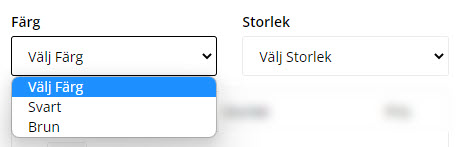
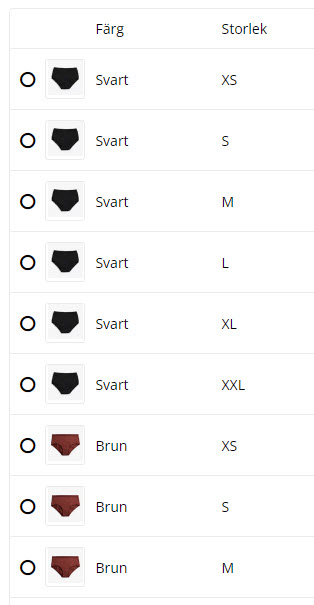
If you sell products that come in many different varieties, it may be easier to have one item with different choices than to have 20 almost identical items. The choices are presented as a drop-down list (options) or a bulleted list (variants) on the item page, allowing the buyer to easily select a color and/or size of the item and then add it to the shopping basket.
Another advantage of creating customer choices is that the filter function works in combination with it. You can then select a color and/or size on a category page and it will list all items that have that size in stock.
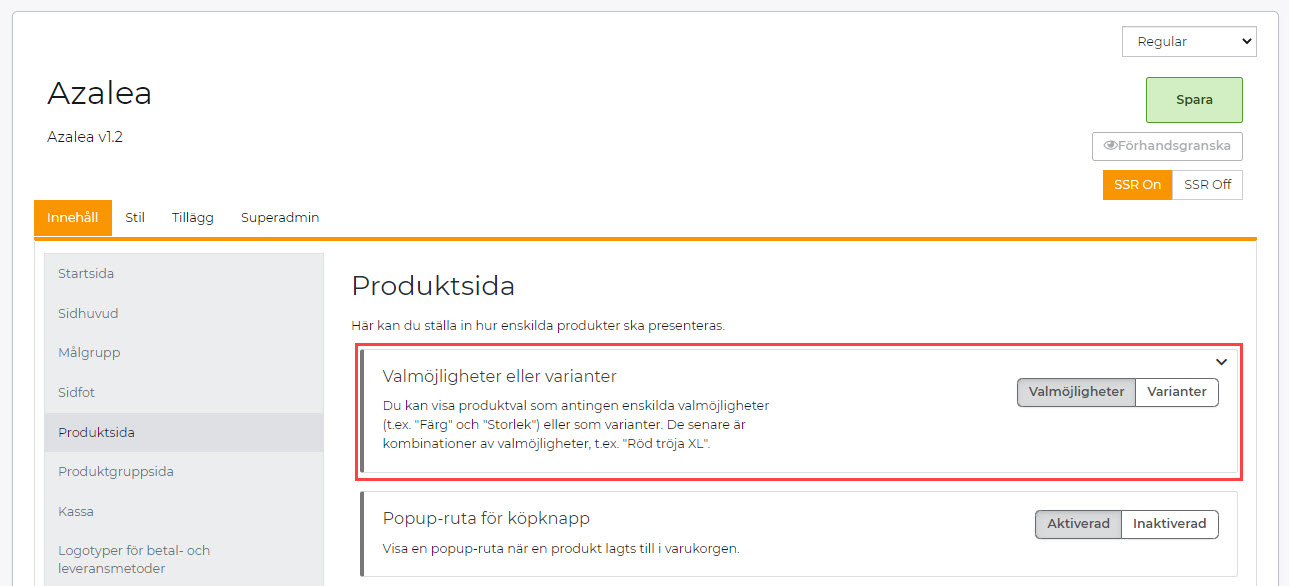
Example options:
Example variants:
Create customer choice
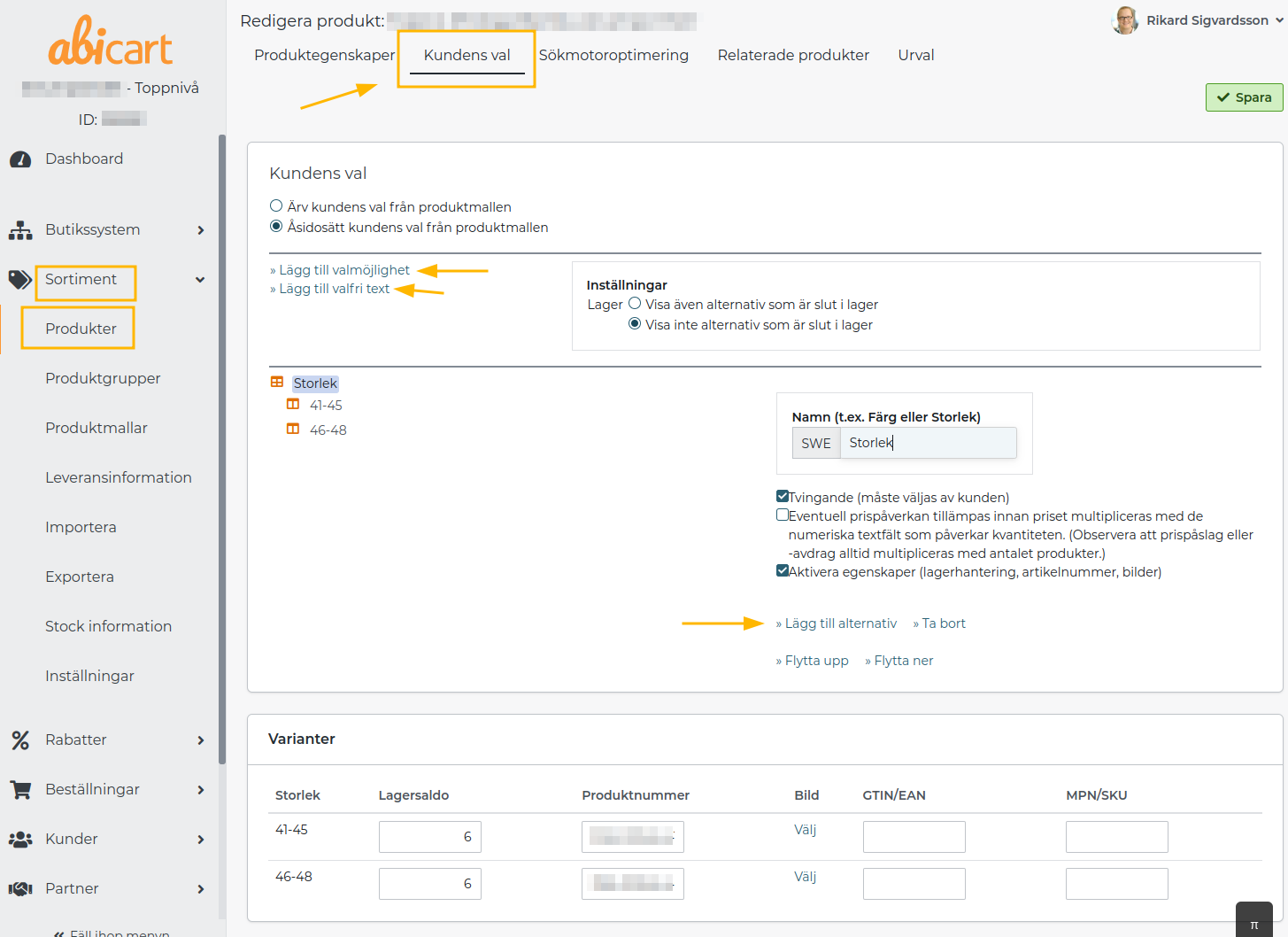
Go to Assortment -> Articles -> select an article, edit -> tab "Customer's choice".
Click on the link "Add choice". This will open a box on the right where you can make several choices.
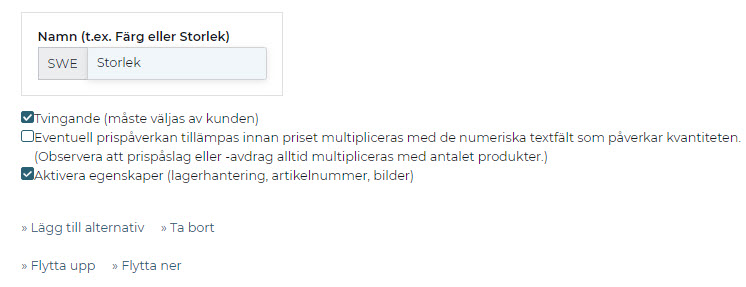
Name
Enter a name for the option, for example, Size or Colour. In our example, we are going to create a color with three choices, so we enter "Colour" as the name.
Mandatory (must be selected by the customer)
Should the field be mandatory or optional for the buyer? In our example, the buyer must choose a color so we check this box.
Any price impact is applied before multiplying the price by the numeric text fields that affect the quantity.
If you have an item with a price per square meter, you can create two text fields, one for width and one for height. If you tick this option, the value will be multiplied in these two fields before the price is calculated. In our example, we will not use this so we leave the box unchecked.
Own properties (stock balance, article number, image)
If you want to be able to specify stock balance, and item number or to be able to link an image to each selection, activate it here. In our example, we want to have a stock balance on the different colors so we tick this box.
Create variants
Then we need to create the variants for the customer to choose from. In our example the different colors. Click on the link "Add options". The content of the box changed and now three new headings appear.
Name of the option
Here you enter the name of the variant, in our example colors. We enter "Blue" in this box.
Price impact
If the choice made by the customer will affect the price, a value can be entered here which will be added to the basic price of the article. In our example, the color choice costs nothing extra so we leave this field blank.
Weight impact (grams)
If the choice the customer makes will affect the weight, a value can be entered here which is added to the basis weight of the article. In our example, the color choice weighs nothing extra so we leave the field blank.
Then we repeat the step and click on " Add options again. We enter a new variant, in our example, we write "Yellow". We repeat the step again and enter "Red". Then we click on the Save button in the top right corner.
Now we have created a customer choice with three colors that the buyer can choose on the item. In this view, we can enter the item number for each variant. If you have activated stock management on the article (under the tab Article properties), there are also fields for stock balance at each variant.
In order to link different images to the variants, you first need to upload the images under the tab Article properties at "Image". Then a link, "Select image" will appear at the far right of each variant and you can then choose from the uploaded images.
Do the variants have to have article numbers?
It is not a requirement to use item numbers but if you have an integration to a store or POS system then you must have them for the link between systems to work. Similarly, if you want to easily update stock balances or prices of the variants via an import, each selection must have a unique item number.