Changing the VAT rate in the shop - Textalk Abicart
Also read: How does VAT work in the shop?
Under Settings -> VAT you will find the setting for thedefault VAT value for the store's products. The VAT rate specified there is used for all items with the VAT setting "Default VAT".
All products have default VAT selected automatically when they are created. The setting can be found on the product page in admin under Pricing -> VAT percentage. If the product has a different VAT rate, enter the correct VAT rate per product:
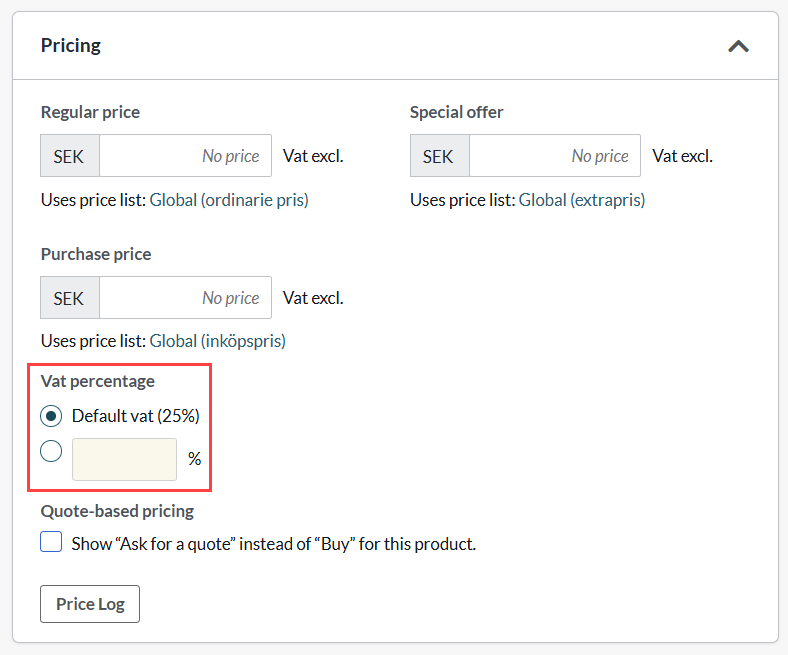
There are three ways to edit the VAT rate for your products:
- Change the standard VAT rate
- Change the VAT rate per product manually
- Change VAT rate per product via import
1) Standard VAT
Settings -> VAT rates -> Set the Default VAT value for the items in your store -> Save
*Note that the product must have "default VAT" enabled to get the VAT rate you set as default VAT. If you previously had 12% as standard VAT and also 12% as your own VAT rate per product, you also need to change the own VAT rate when you change the standard VAT. You can do this according to point 2 or 3.
2) ChangeVAT rate per product manually
To change the VAT rate per product, go to the product page in admin:
Assortment -> Products -> Click on the product you want to edit -> Pricing -> VAT percentage -> Enter VAT rate -> Save
*Repeat for all products concerned
3) Change VAT rate per product via import
To change the VAT rate for multiple products with their own VAT rate, export the assortment -> Change to the correct VAT rate in the file -> Import - Done!
Note! Note that all products need to have a unique article number to be imported. If products do not have an item number, you need to enter it first. Please contact customer service if you need help generating random item numbers.
Step 1) Export the following:
- Item No.
- VAT percentage
Read more about exporting here - Product export
Step 2) Change to the desired VAT rate in the file
Sort the file according to the VAT rate column and change e.g. all 12% to 6%.
If you changed the default VAT rate from 12% to 6%, change the products that still have 12% in the file, to 6%. Then you have changed the products that have their own VAT rate.
Step 3) Import the file
Read more about importing here - Product import
Note: If your prices are entered including VAT, the final price is not affected by a change in VAT rate. If, on the other hand, your prices are quoted excluding VAT, the final price will change, as VAT will be added at checkout.