Bulk Price Adjustments - Textalk Abicart
There are two ways to change product prices in bulk.
Option 1: Bulk Discount via Assortment → Products
Use this option when you want to apply a discount to specific products.
Steps:
- Go to Assortment → Products.
- Select the products you want to discount.
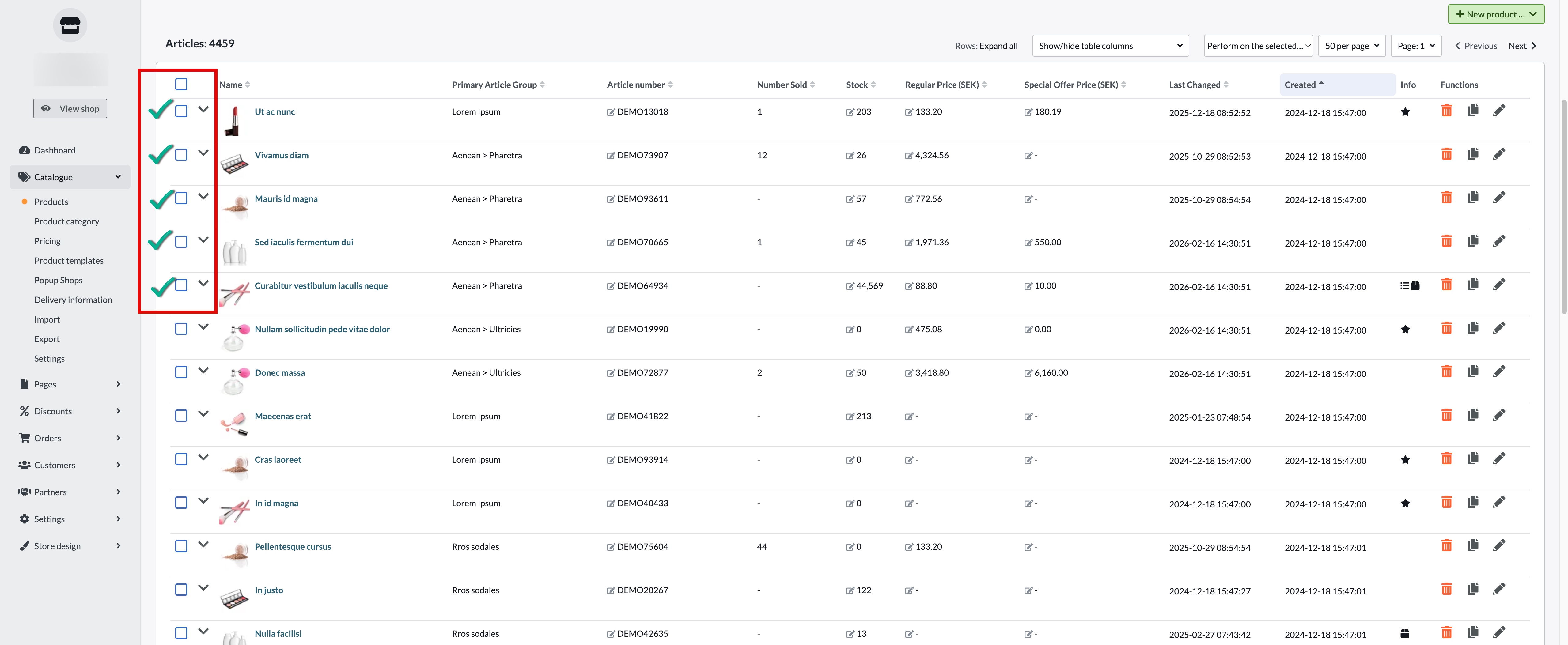
- Click Perform action on the selected.
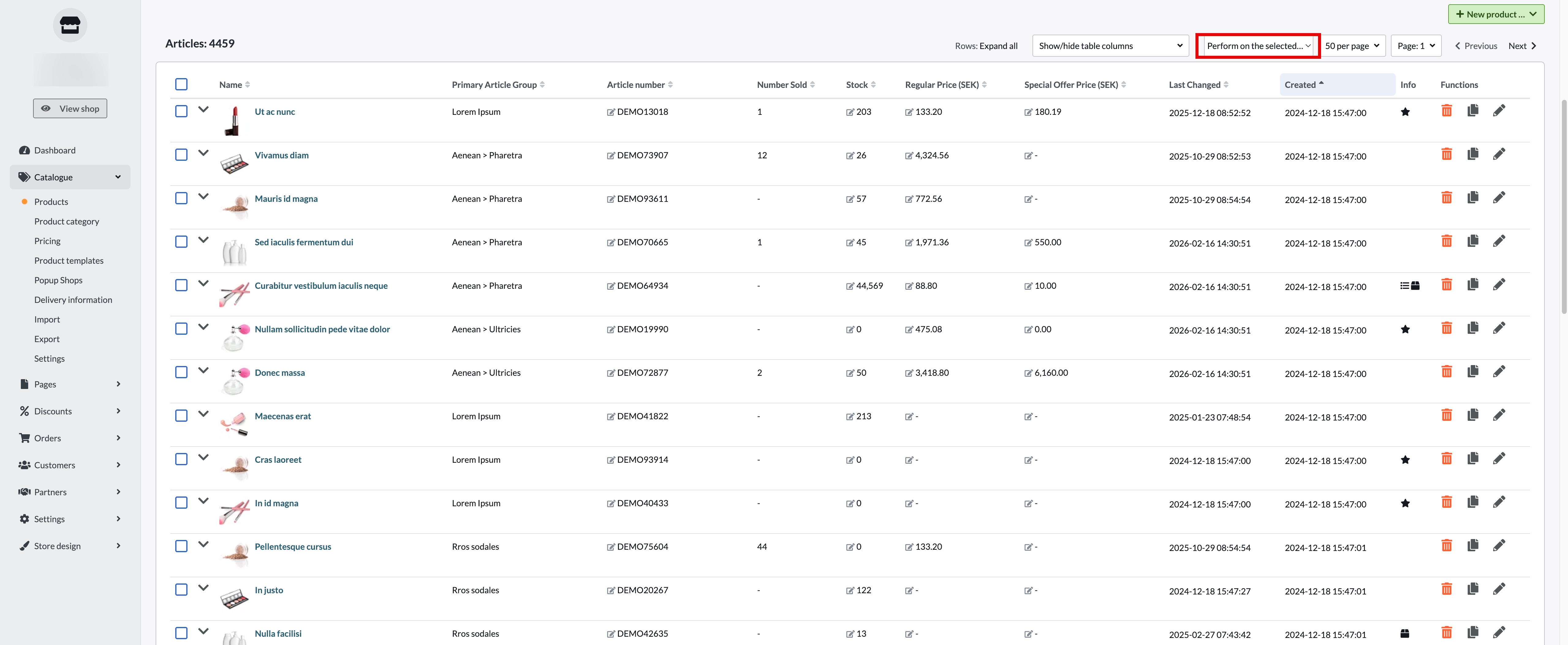
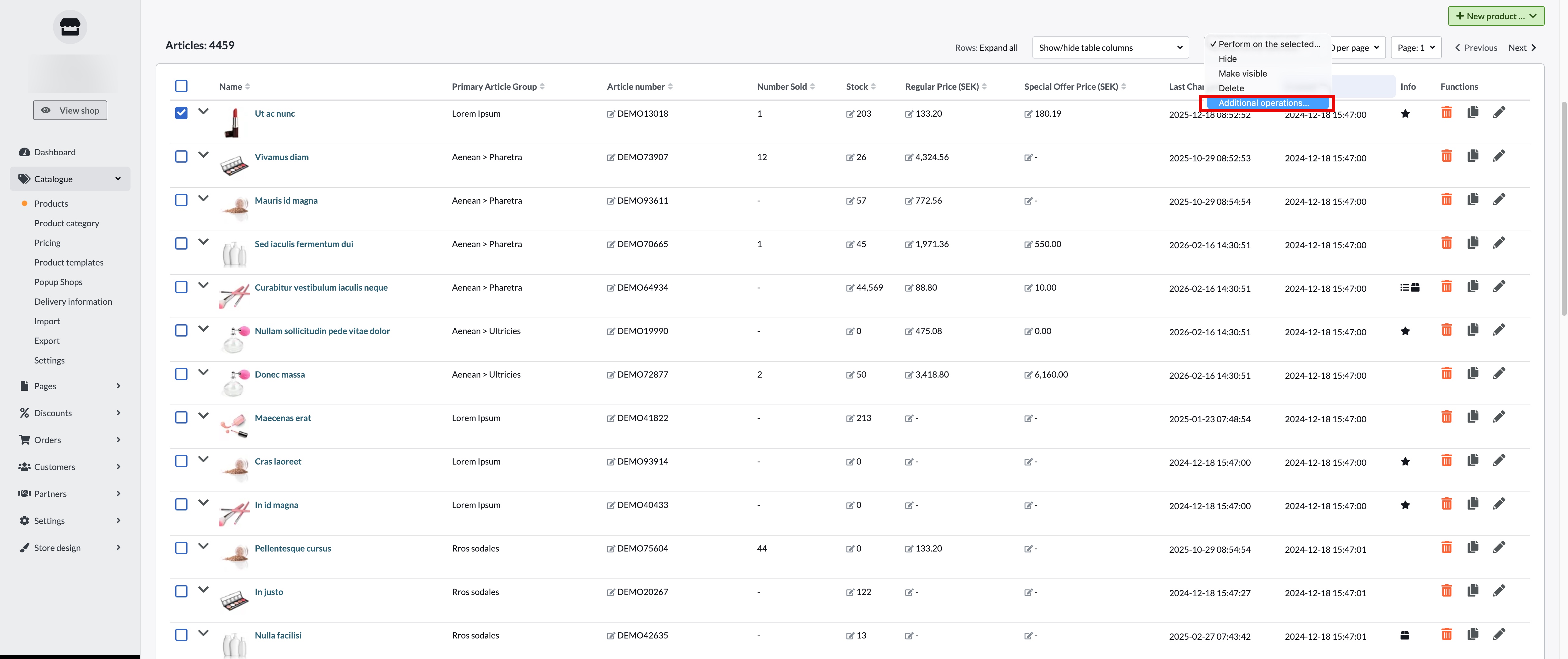
- Select Additional Operations.
- Enter the percentage you want to reduce the price by (for example, 20).
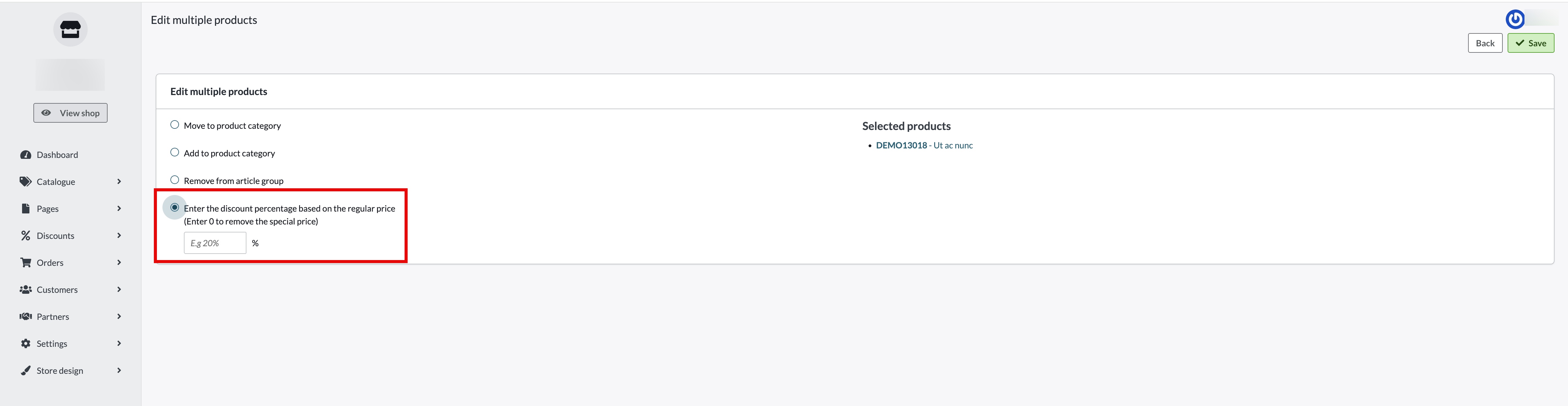
- Click OK.
The selected products will now be discounted by the specified percentage.
Pros
- You can select specific products individually.
- Works across different product groups.
- Simple and quick when adjusting only a few products.
- Ideal for campaigns or targeted promotions.
Cons
- Can only reduce prices (not increase).
- Not practical when updating large product groups.
- Requires manual product selection.
Possible Error
While performing this action, you may encounter the following error message:
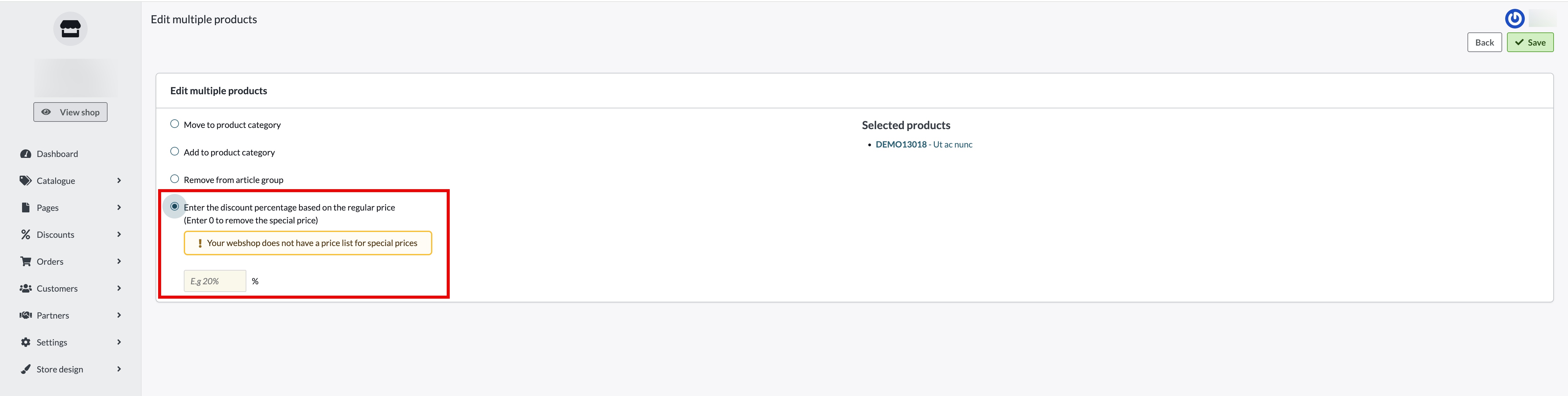
What does this mean?
This error occurs when no special price list is connected to your store under: Assortment → Pricing → Usage
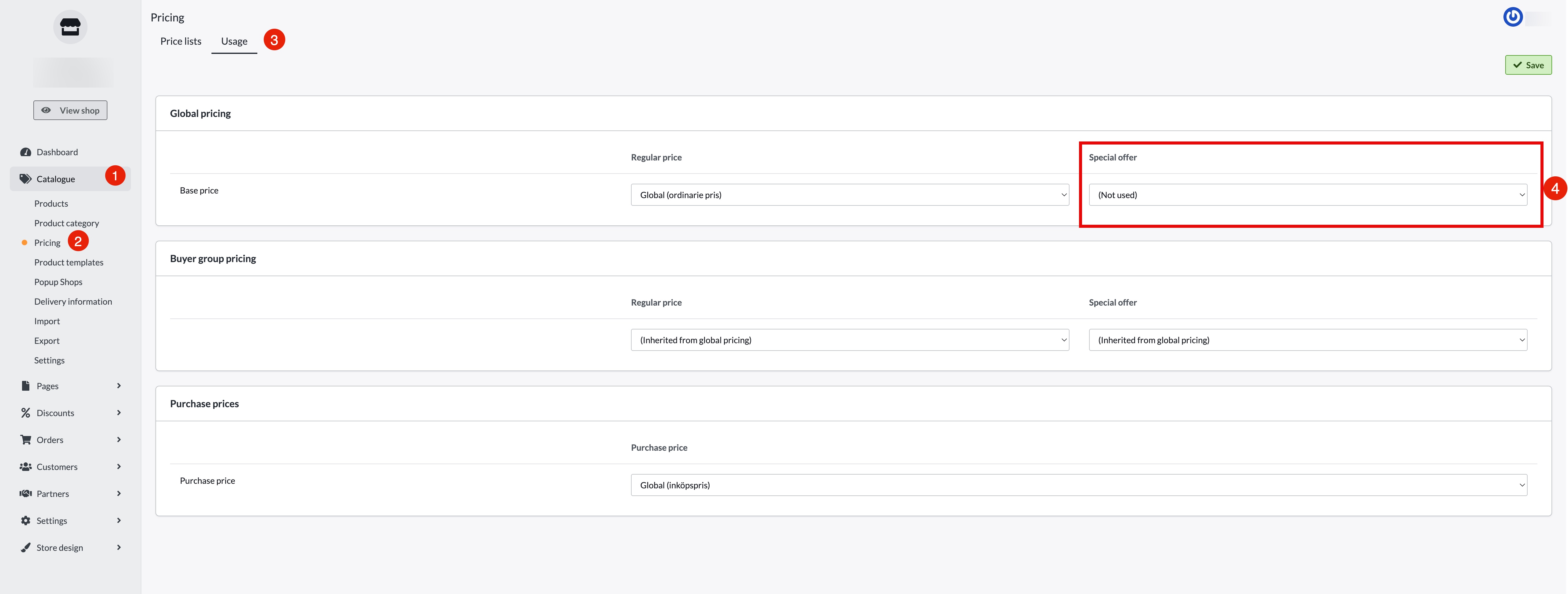
How to resolve it
- Go to Assortment → Pricing → Usage.
- Check whether a special price list is assigned to your store.
- If no price list is connected, select the appropriate price list.
- Save your changes.
Once a price list is connected, you should be able to complete the bulk price update without issues. Please refer to the image below for guidance.
Option 2: Bulk Price Change via Assortment → Pricing
Use this option when you want to increase or decrease prices for an entire product group or all products.
Steps:
- Go to Assortment → Pricing.
- Select either a specific product group or All products.
- Click Tools (top-right corner).
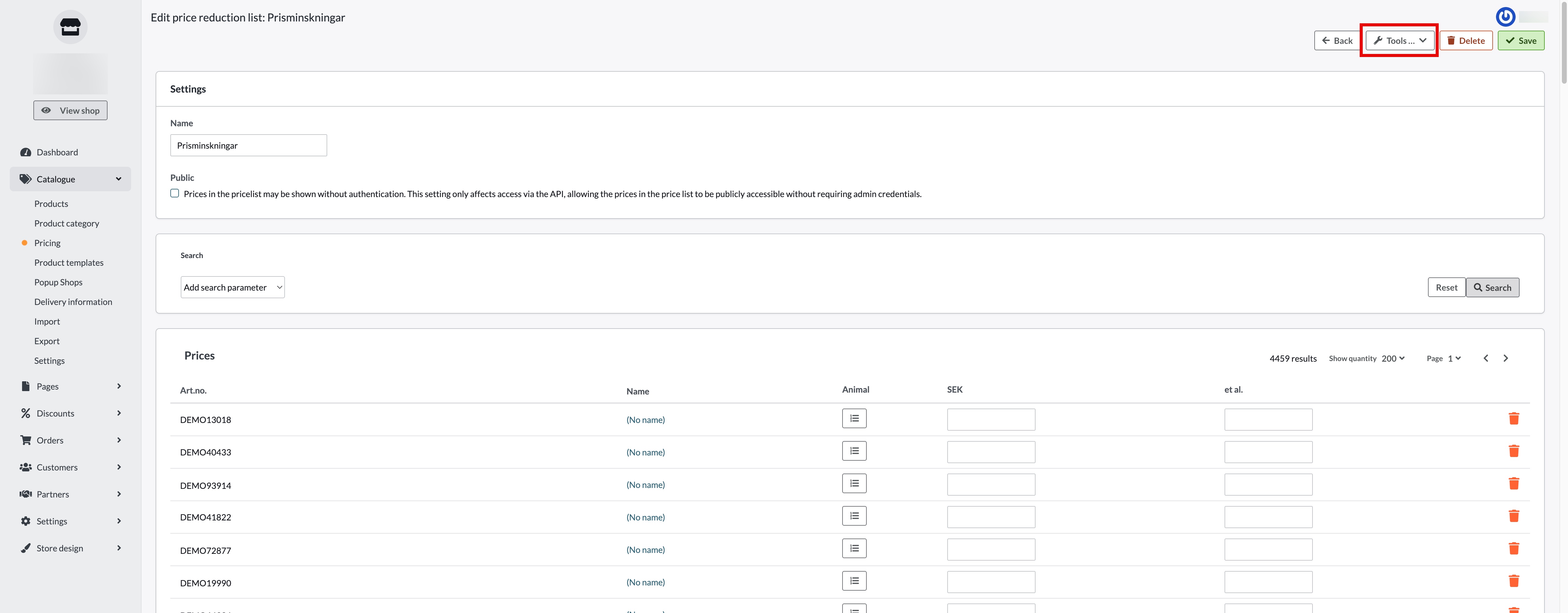
- Select Apply Percentage Changes.
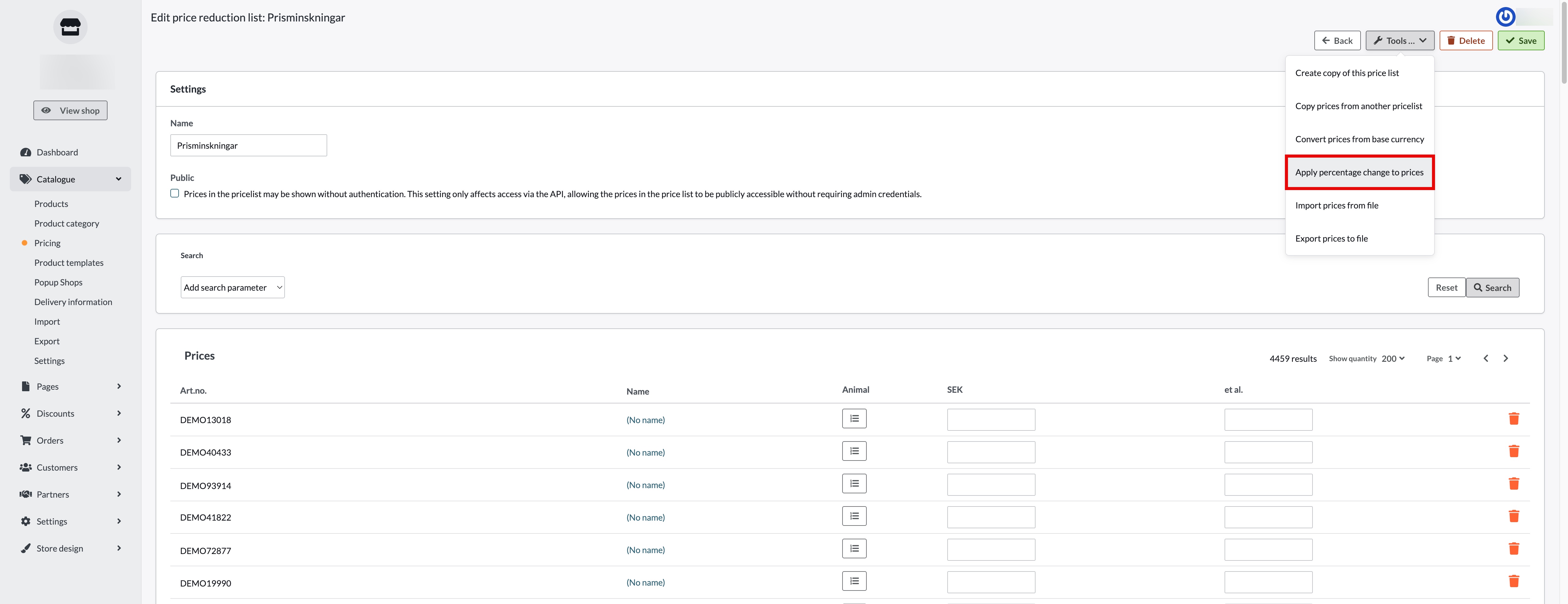
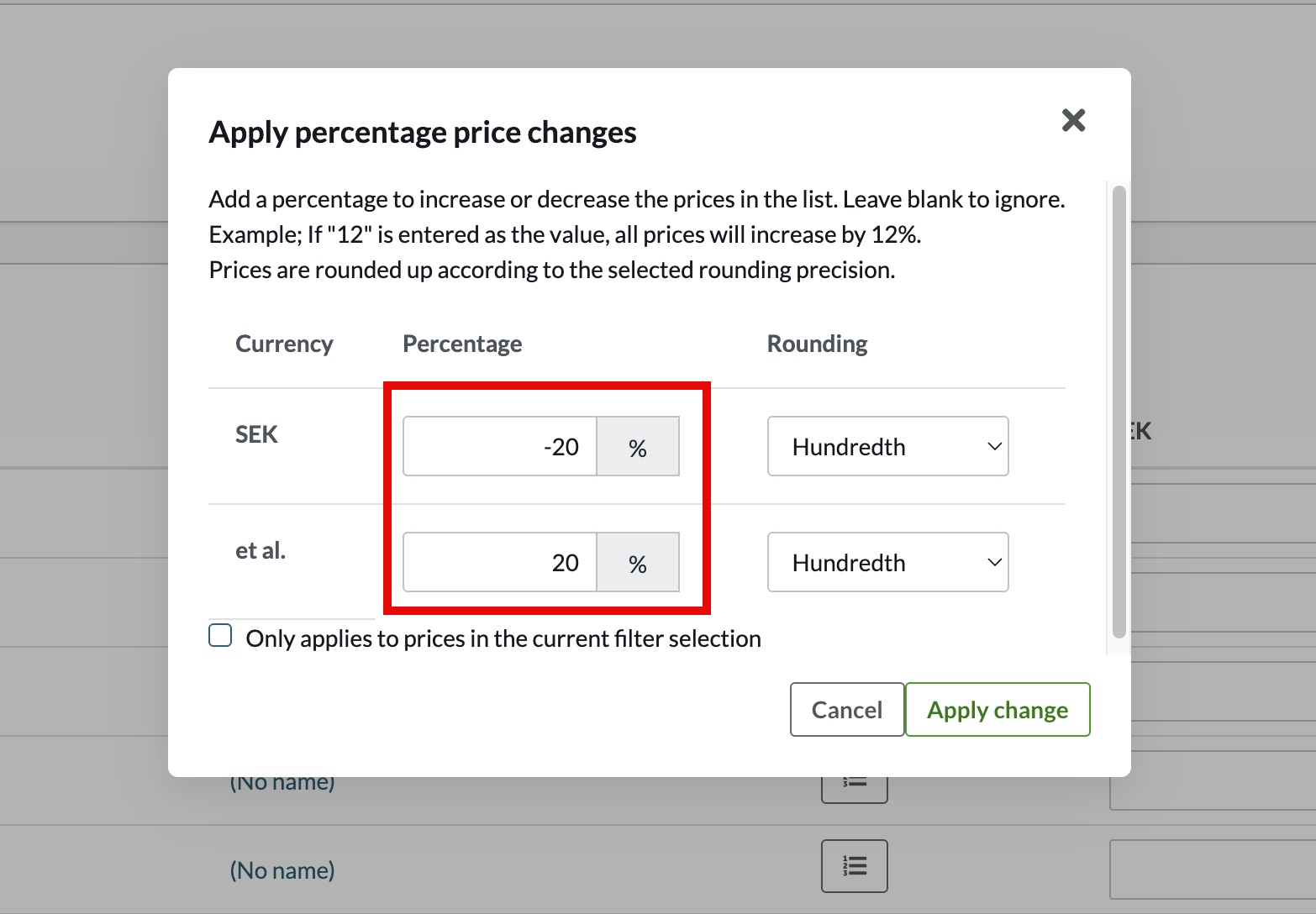
- Enter the percentage:
- Use a negative value (e.g., -20) to reduce prices.
- Use a positive value (e.g., 10) to increase prices.
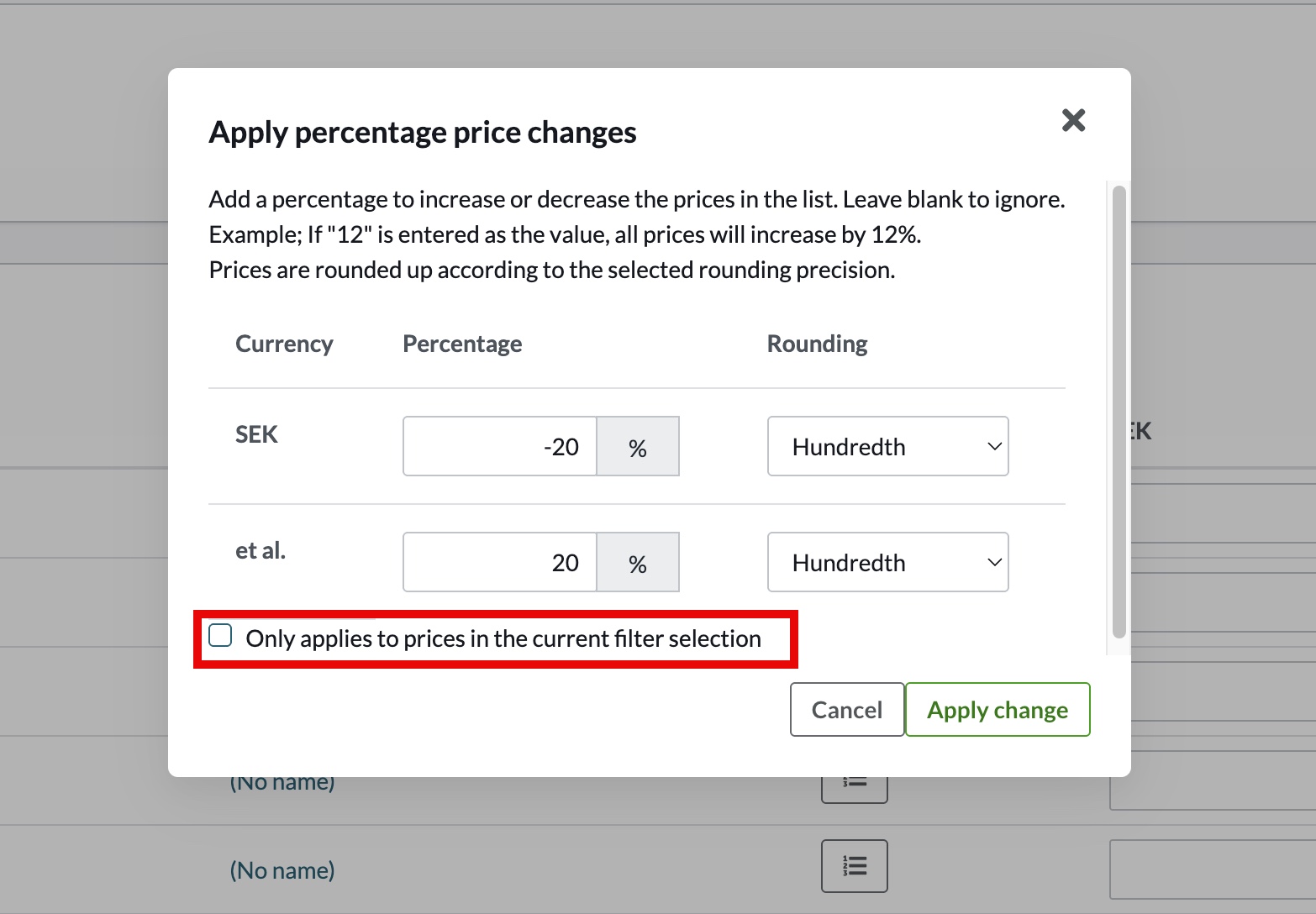
- If you selected a specific product group, ensure the option is checked so changes apply only to that group.
- Confirm the changes.
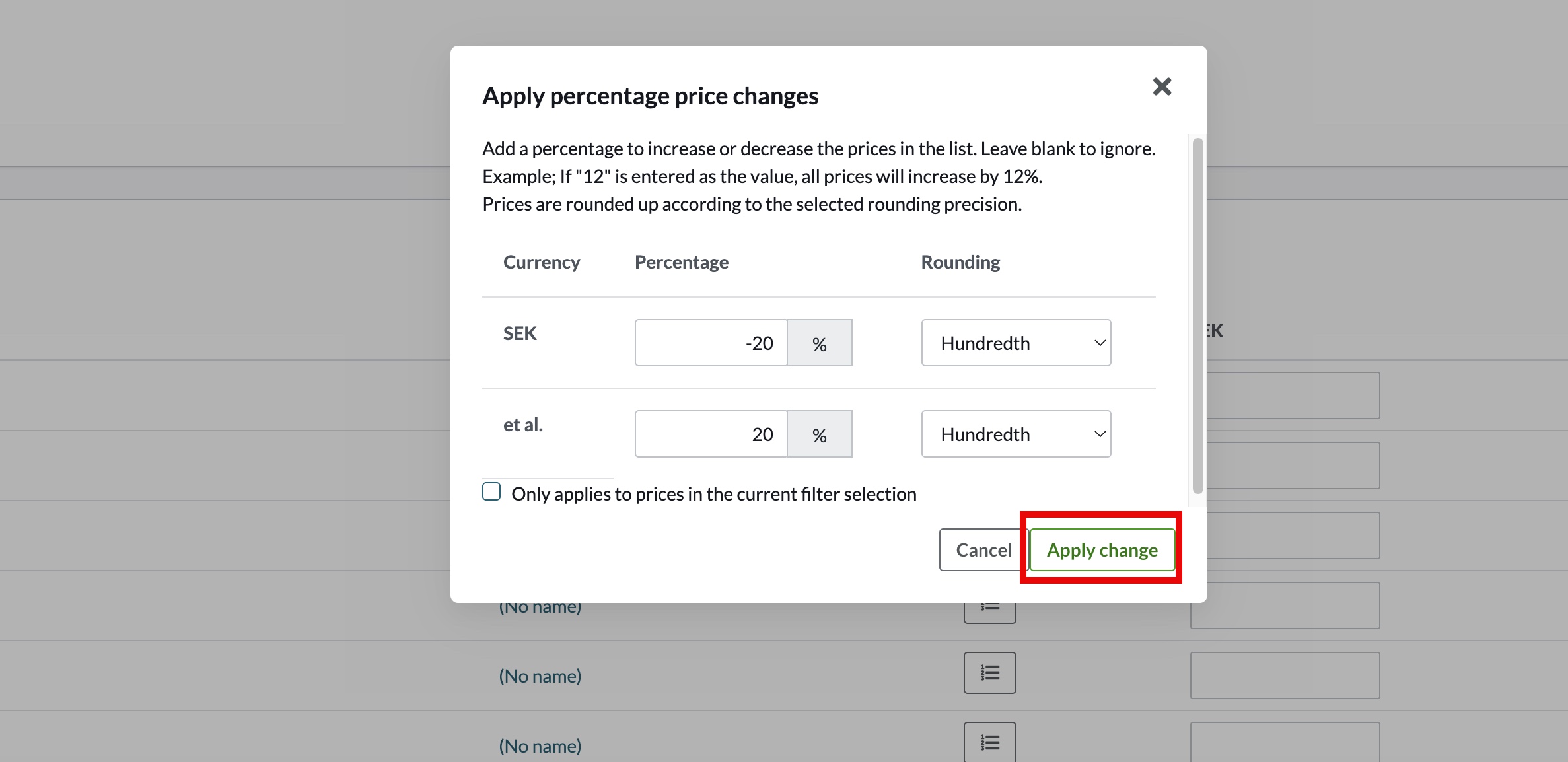
The selected products will now be updated.
Pros
- Can both increase and decrease prices.
- Efficient for updating entire product groups or all products.
- Ensures consistent pricing adjustments across categories.
- Saves time when making large-scale changes.
Cons
- You cannot select individual products.
- Limited to product groups or all products.
- Higher risk of affecting unintended products if not reviewed carefully.
Recommendation: Work on a Copy of the Price List
Before making bulk price changes, we strongly recommend creating a copy of your price list.
Why?
Bulk changes affect many products at once. Working on a copy ensures:
- You have a backup.
- You can review changes safely.
- You can revert if something goes wrong.
How to Create a Copy of a Price List
- Go to Assortment → Pricing.
- Open the price list you want to modify.
- Click Copy (or the corresponding duplicate option).
- Enter a new name for the copied price list (for example: Price List – Updated).
- Save the copy.
- Make your price changes in the copied version.
- Review all changes carefully.
- When everything is correct, activate the new price list.
This way, your original price list remains unchanged and can be used as a backup if needed.