Using pop-ups on your website - Textalk Abicart

This is how you do it:
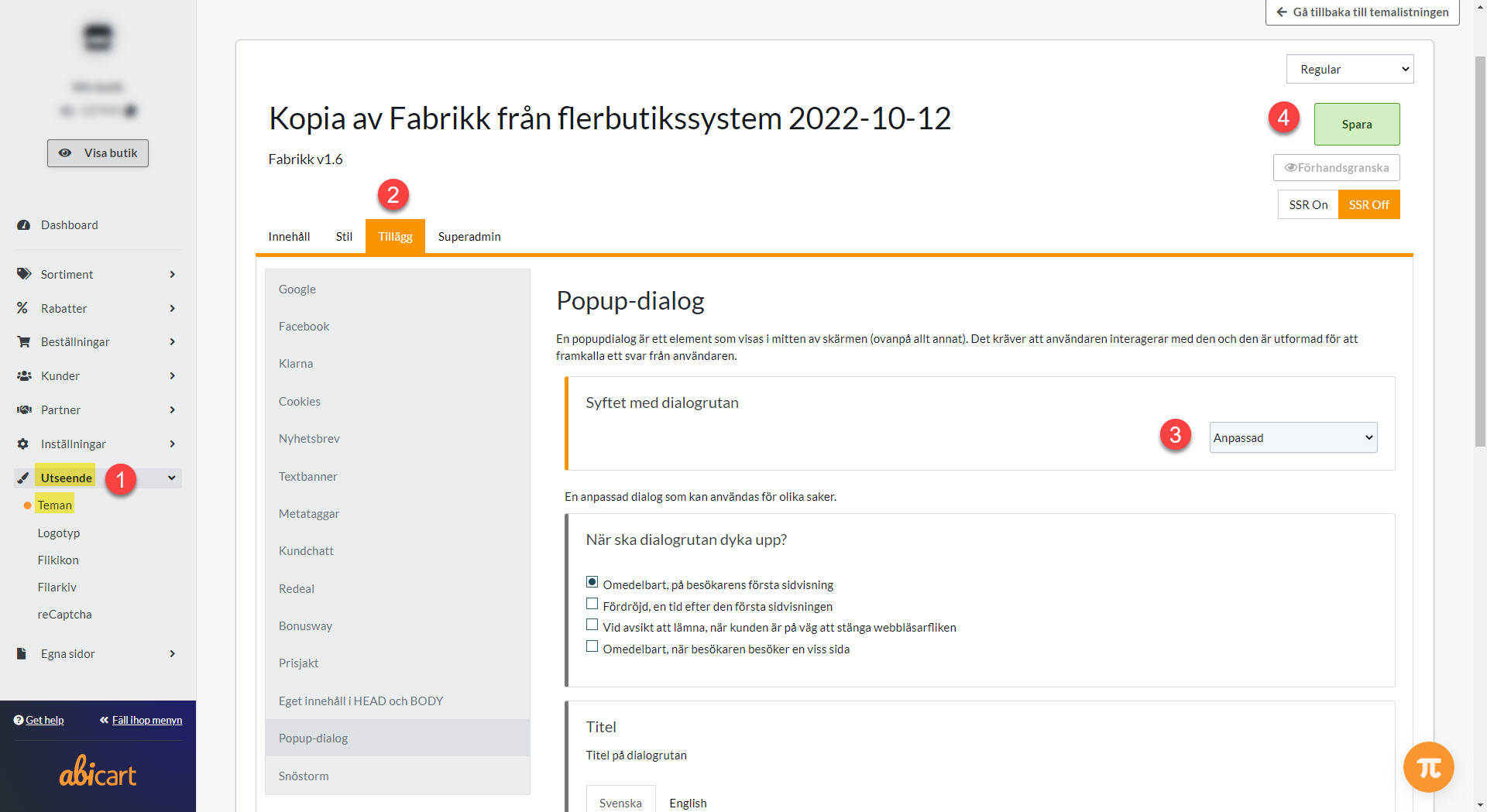
1) Enter your theme by clicking Appearance >> Themes >> Edit (active) theme
2) Click on Extensions
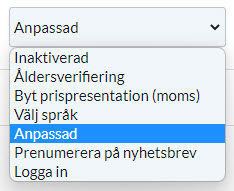
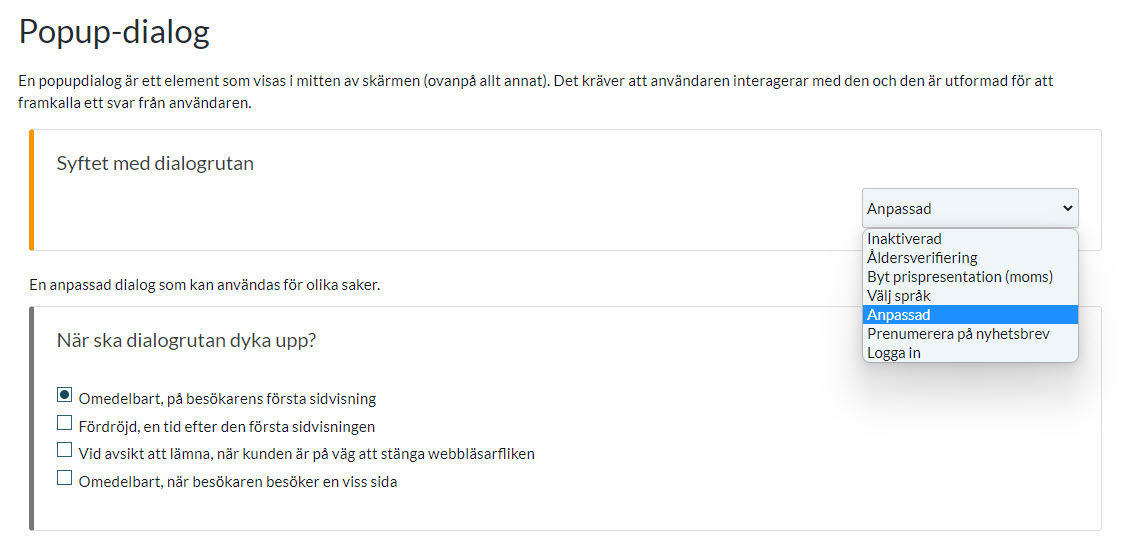
3) Click on Pop-up dialog >> Select options & edit
4) Save
Done!
Good to know about using Popups
Google treats popups on web pages with great care, especially when it comes to user experience and mobile-friendliness. Here is a summary of how Google views popups:
Google handles popups on web pages with great care, especially in terms of user experience and mobile-friendliness. Here is a summary of how Google views popups:
Negative aspects - can negatively impact SEO:
1. Intrusive interstitials on mobile devices:
- Since January 2017, Google has a policy where *intrusive* popups on mobile pages can lead to lower rankings in search results.
- Examples of bad popups:
- Popup that covers the main content immediately when the page loads.
- Popup that must be closed before accessing the content.
- "Intermediate pages" that appear before accessing the actual content.
2Impaired user experience:
- If popups are difficult to close, interfere with reading, or load slowly → negative for user experience, which can also affect rankings.
Approved uses of popups according to Google:
Google makes exceptions for certain types of popups that are considered reasonable:
- Legal notices: For example, information about cookies or age verification.
- Login boxes: For pages that are not public (e.g. behind a paywall).
- Small banners That cover a small part of the screen and are easy to close (e.g. at the top or bottom).
Tips for handling popups correctly:
1. Avoid showing popups immediately when the page loads.
2. Show the popup only after the user has scrolled or after a certain time.
3. Make sure the popup is easy to close.
4. Use "exit intent" on desktop if you want to catch users who are about to leave.
5. Feel free to use banners instead of full-screen popups on mobile.