Edit theme (Home page) - Textalk Abicart

Settings in themes may differ depending on the theme you have chosen.
Add a theme
There are currently 8 different themes to choose from, all with different designs.
Add the one that suits you best.
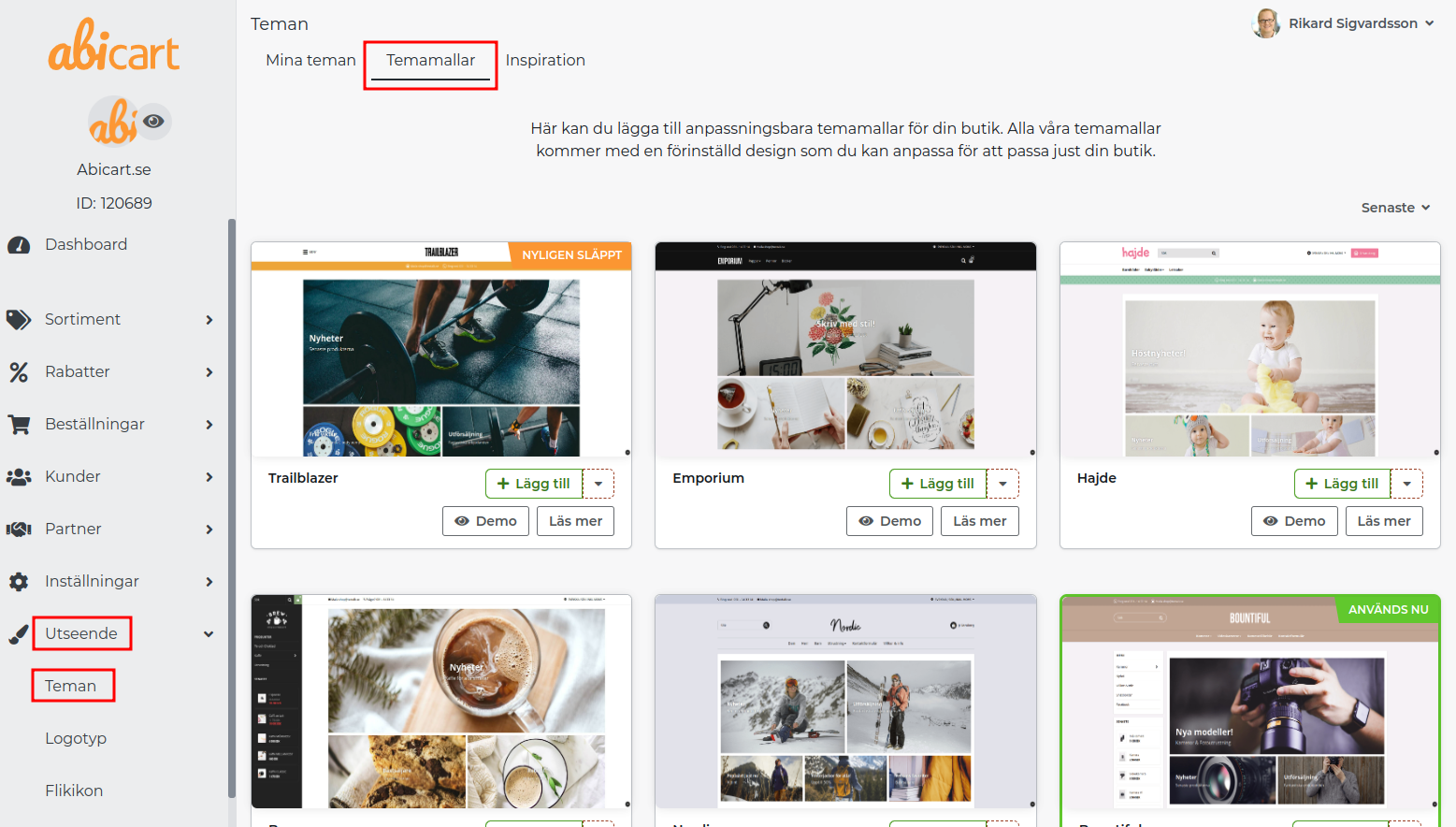
1. go to Appearance in the left menu
2. click on Themes
3. Select the Theme Templates tab
4. Add: Select the theme you want to use in your store.
Learn more: Click here to get some extra information about the theme.
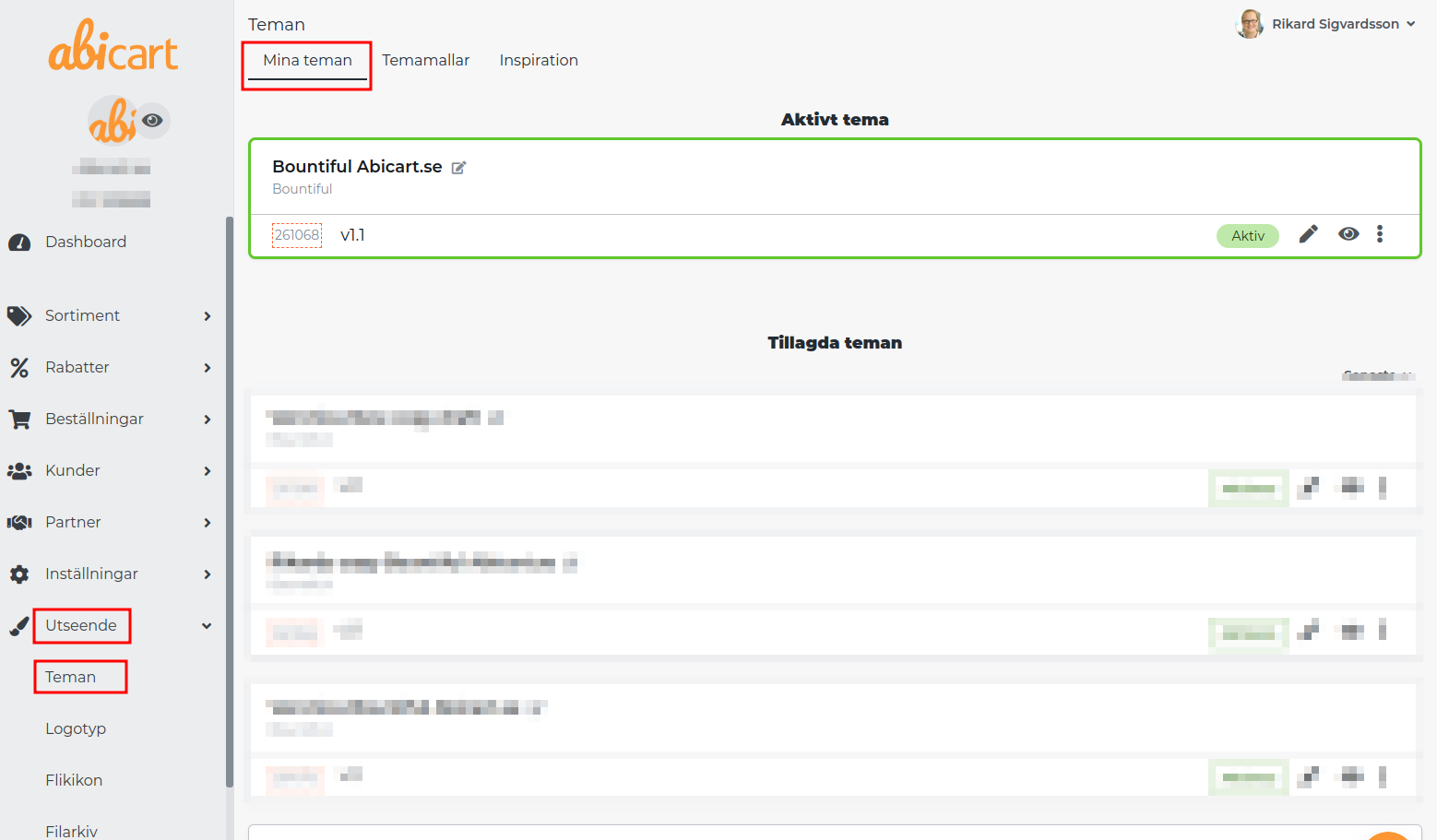
Under the tab My themes you will find your added themes, this is also where you edit them.
Editing a theme
You can create copies of a theme. Perfect if you want to experiment, or if you want to haveseasonal themes.
.png)
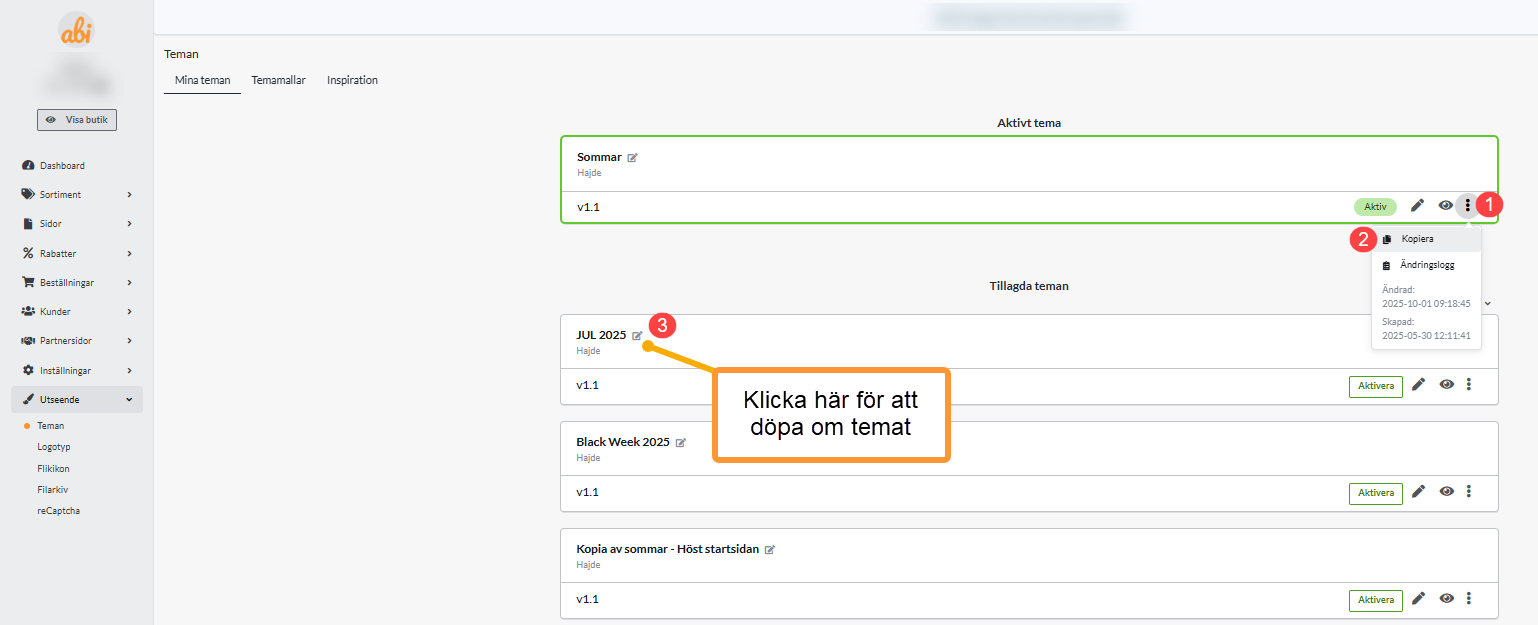
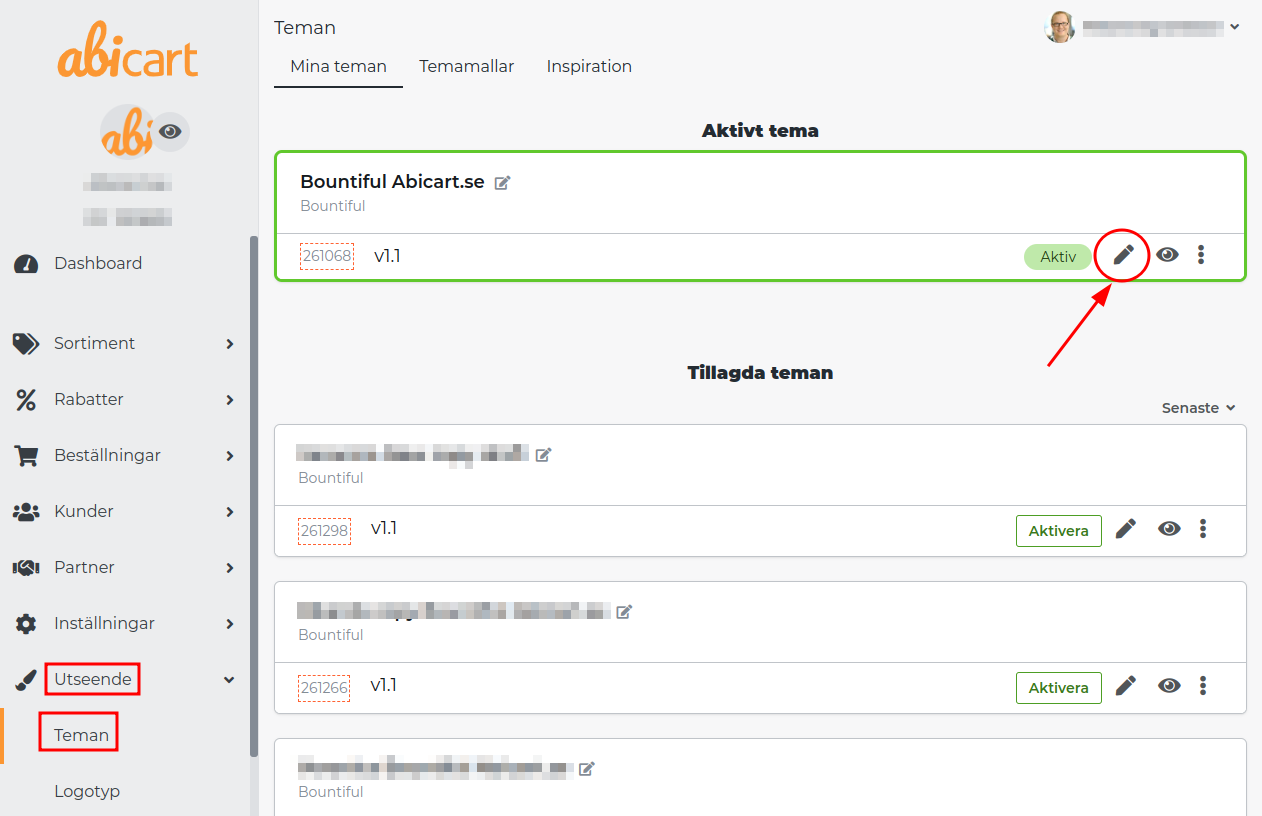
To edit a theme, click on the pencil on the right.
Content of the themes
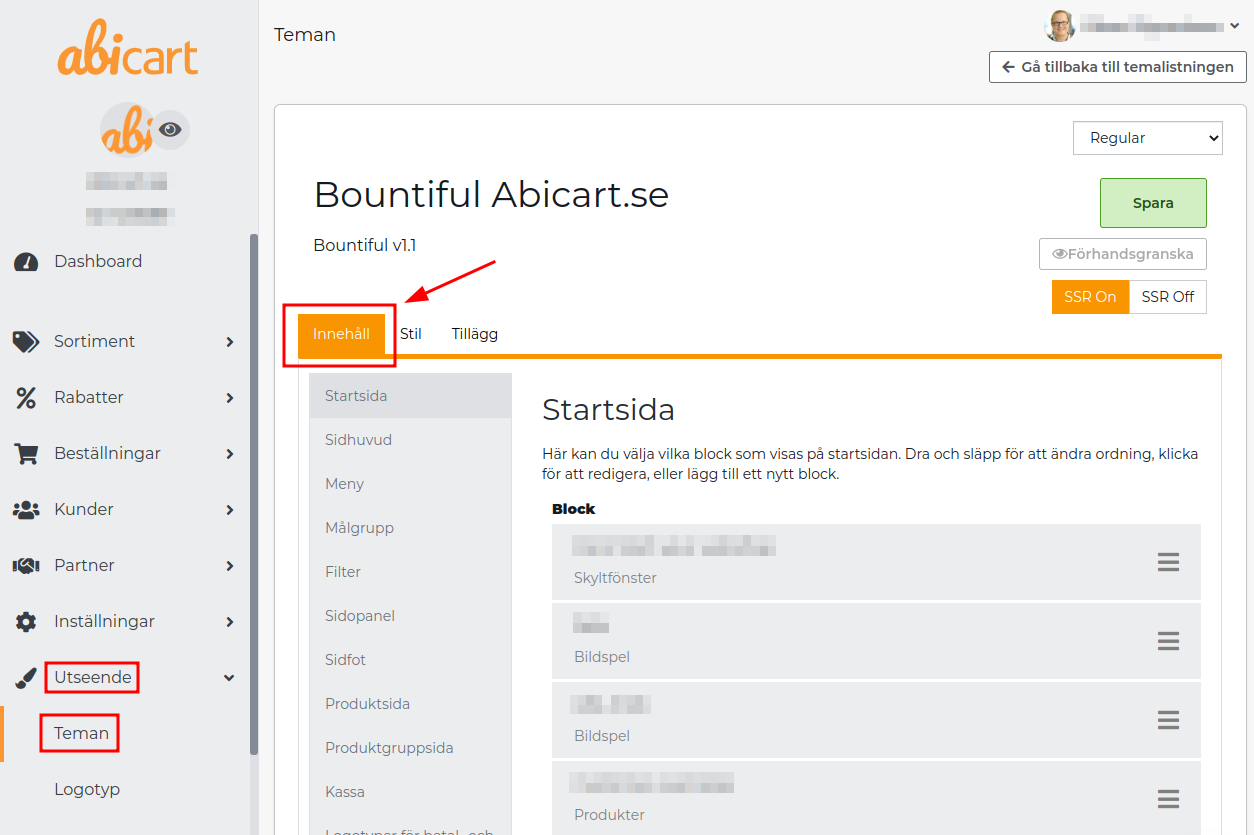
Under the tab Content you choose how each page should look and function in the store. For example, what information your Footer should display or how you want your Menu to function.
- You create your start page by adding different blocks.
You can change the position of the blocks by dragging and moving them. - Always finish by clicking on Save
Remember to save!
Once you have made changes to a tab, you must always save before moving on to the next one.
Style
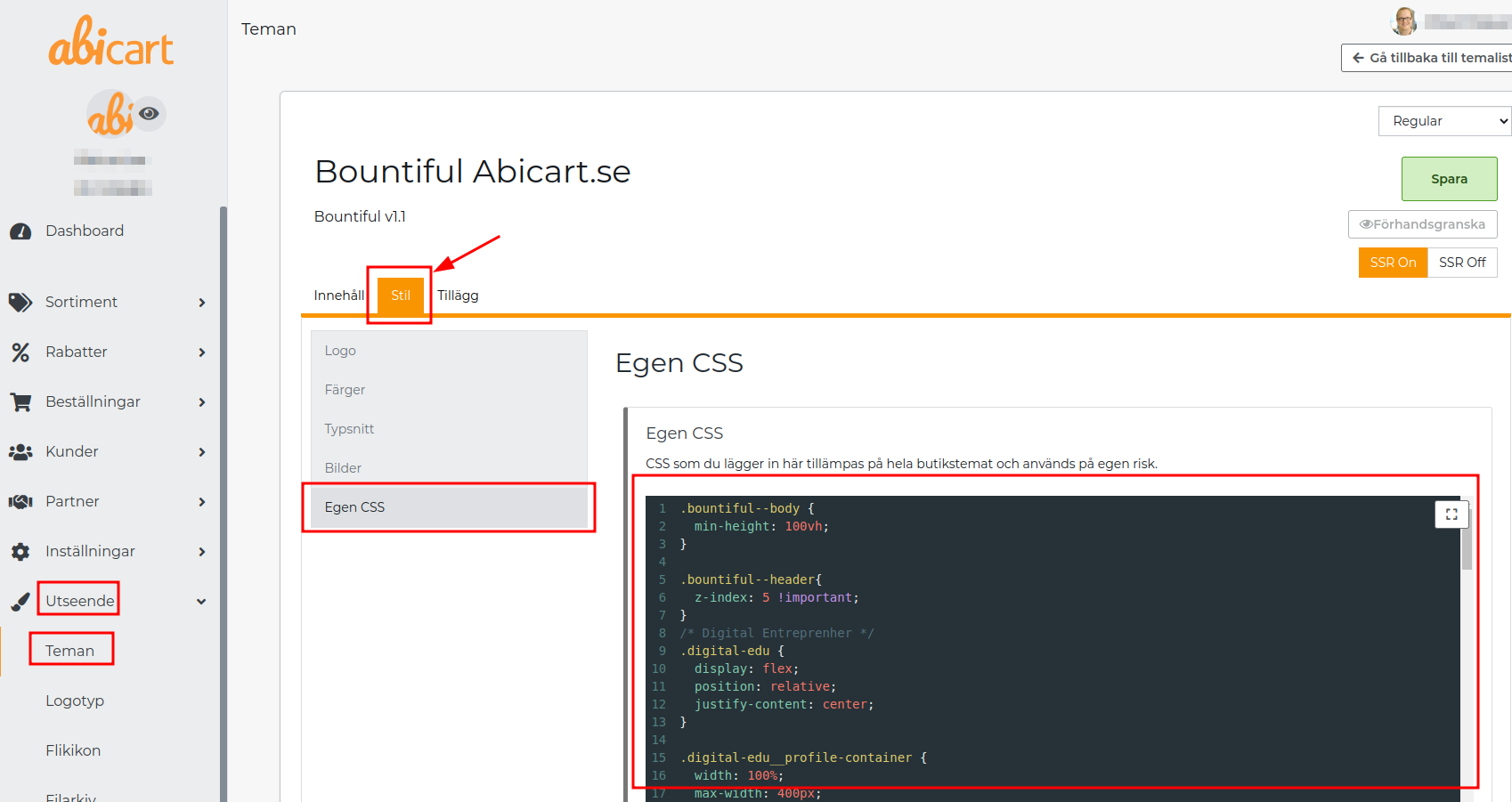
Under the tab Style you choose the colors and fonts you want in the store.
You also upload your logo and choose how you want the store images to be cropped.
If you know CSS, you have the opportunity to add this under Custom CSS.
CSS is a code language that we use in Abicart.
Tip!
When choosing a logo, choose one without a background.
Click below for a more detailed description of the logo.
Manual - Add and edit your logo
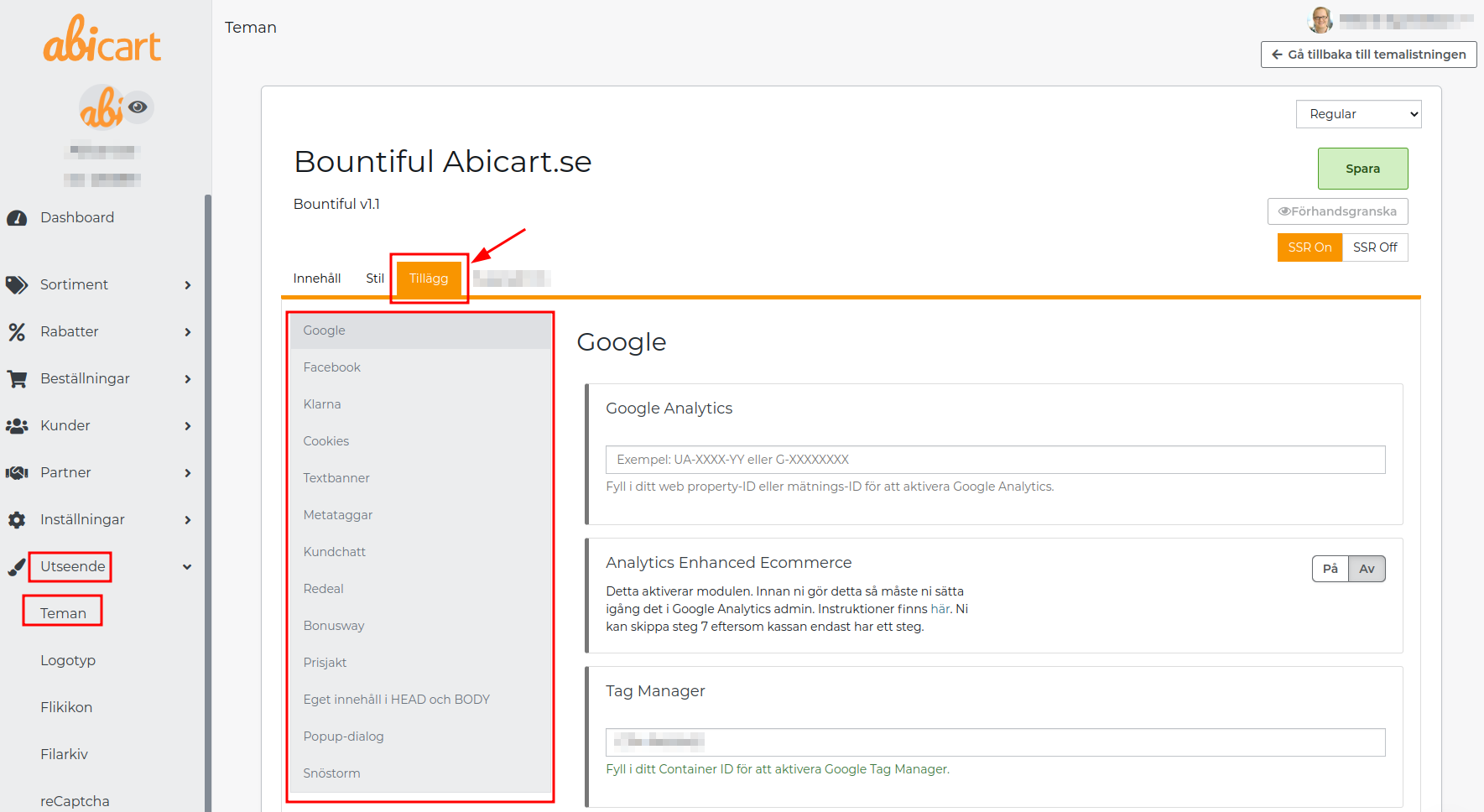
Additions
Under the tab Add-ons you will find some goodies.
This is where you connect analytics tools to the store. You edit functions that are linked to the theme, for example Cookies or Text banner and under Own content in HEAD you can add your own code.